

When a new conversation is recorded in Tars, store the data in Google Sheets
Each conversation your Tars chatbot records is added to Google Sheets as a new row, so you build a running log of chats and the answers visitors gave, ready to sort, share or chart.
 Tars
 Google Sheets
2 steps Setup ~5 min Used on 1.1k sites Free to import
What this workflow does
Chatbot answers are useful once you can see them side by side: which questions visitors pick, what they want, and how many chats come in each week. Tars keeps each conversation in its own record. This workflow copies every new one into a spreadsheet where you can work with all of them at once.
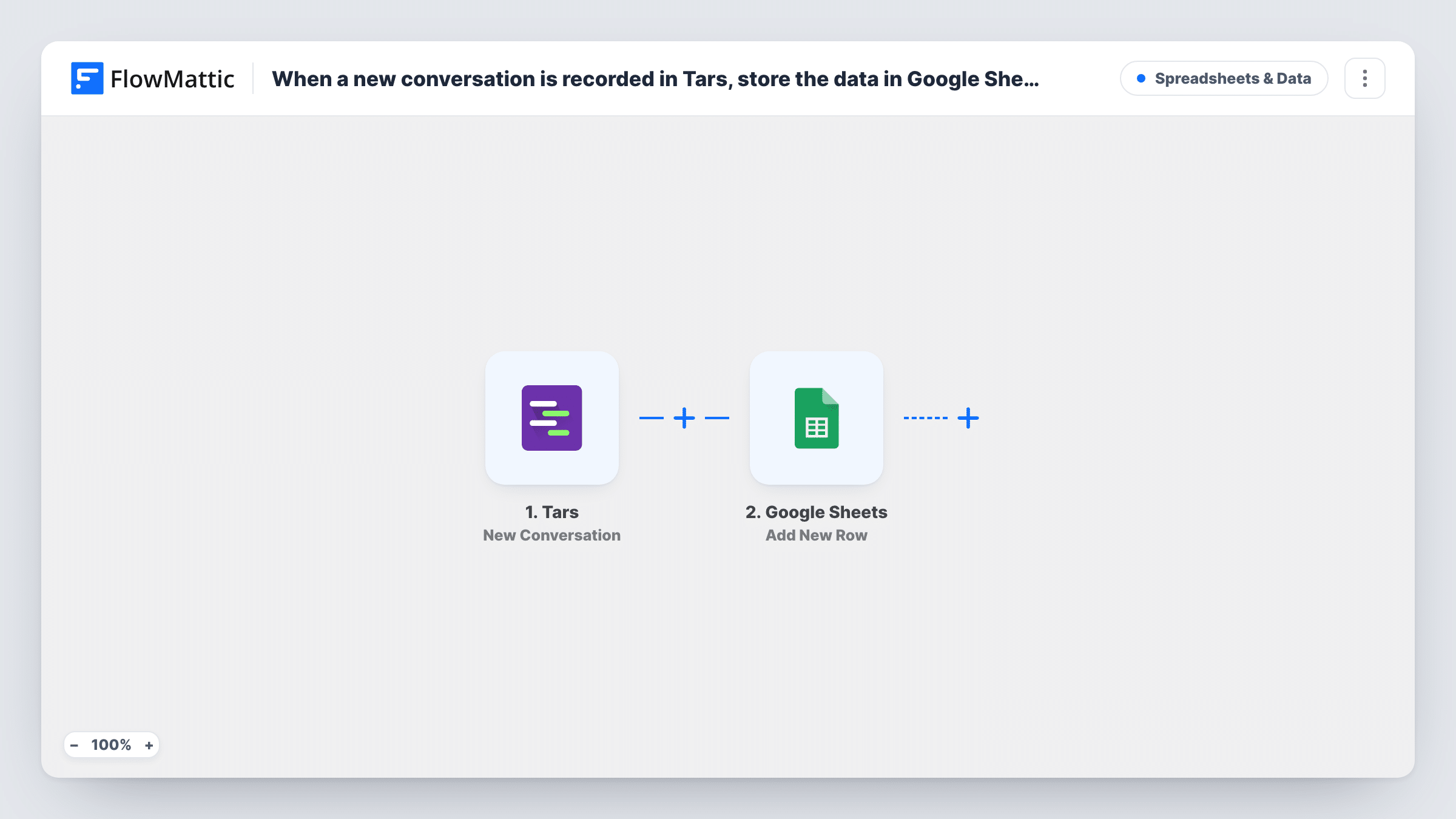
When Tars records a new conversation, its trigger passes the conversation data to FlowMattic. The Google Sheets step, Add New Row, writes those values into a new row of the spreadsheet you pick. You decide which answer goes in which column, so the sheet can hold just the fields you care about.
Nothing is filtered, so every recorded conversation gets a row, including short ones where the visitor left early. The spreadsheet then becomes a complete record of the bot's traffic. Task History shows each run, which is handy when a row looks wrong and you want to see what Tars sent.
Weekly review of chatbot leads
Marketing opens the sheet each Monday, sorts by date and reads every lead the Tars bot captured that week without logging in to Tars.
Counting which options visitors pick
Your Tars bot asks which service a visitor needs. A pivot table on the sheet shows how often each answer comes up.
Sharing chats with a client
An agency runs a Tars bot for a client and shares the Google Sheet with them, so the client sees each conversation's answers in a format they know.
How this workflow runs
What happens at each step once the workflow is on, and what you need before you import it.
 Tars New Conversation
Fires when your Tars chatbot records a new conversation. The answers from the chat are passed on for mapping into the spreadsheet columns.
- Google Sheets Add New Row
Writes the chat into a fresh row of the spreadsheet you pick. Match each column to a Tars field, such as the visitor's name or answer, and connect your Google account.
What you need
- FlowMatticCore
- Tars AccountAccount
- Google Sheets AccountAccount
After importing, map your own data. To keep the template universal, not every step is pre-filled. Open each step in the builder and connect your accounts and fields (channels, lists, sheets, recipients) before you switch the workflow on.
Make it yours
Changes worth making after you import it.
- Add a date column and map a timestamp into it, if your test run shows Tars sends one, so you can sort and group chats by day.
- Put a Filter after the trigger if you only want chats where the visitor gave contact details. Leave it out if the sheet should count every conversation.
- Create the header row in the sheet before your first test chat. You then have named columns to match against the Tars fields.
Questions about this workflow
Does each Tars conversation get its own Google Sheets row?
Yes. Each new conversation runs the workflow once and adds one new row. Nothing in the template merges or updates earlier rows.
Which Tars fields can I put in the sheet?
Any value the trigger passes in. Run a test conversation through your bot, then look at the data FlowMattic received to see which fields are available for the columns.
Will past Tars conversations be copied?
No. The trigger only picks up conversations recorded after the workflow is turned on. Older chats stay in Tars.
Can I send chats from two Tars bots to separate sheets?
Import the workflow twice and connect each copy to the right bot and spreadsheet.
More Spreadsheets & Data workflows
Other ready-to-import templates from the same category.




Import this workflow into your WordPress site
Download the JSON, import it from the Workflows screen and connect your accounts. Every run stays on your server, with no per-task fees.
30-day money-back guarantee Unlimited workflows and runs Self-hosted