

When webhook data received, generate text to audio using Listnr, and send audio file as webhook response
Post text to a FlowMattic webhook URL, have Listnr convert it to audio, and get Listnr’s result back in the same HTTP response, giving your app or script a simple text-to-speech endpoint on your WordPress site.
 Webhook
 Listnr
 Webhook Response
3 steps Setup ~5 min Used on 2.1k sites Free to import
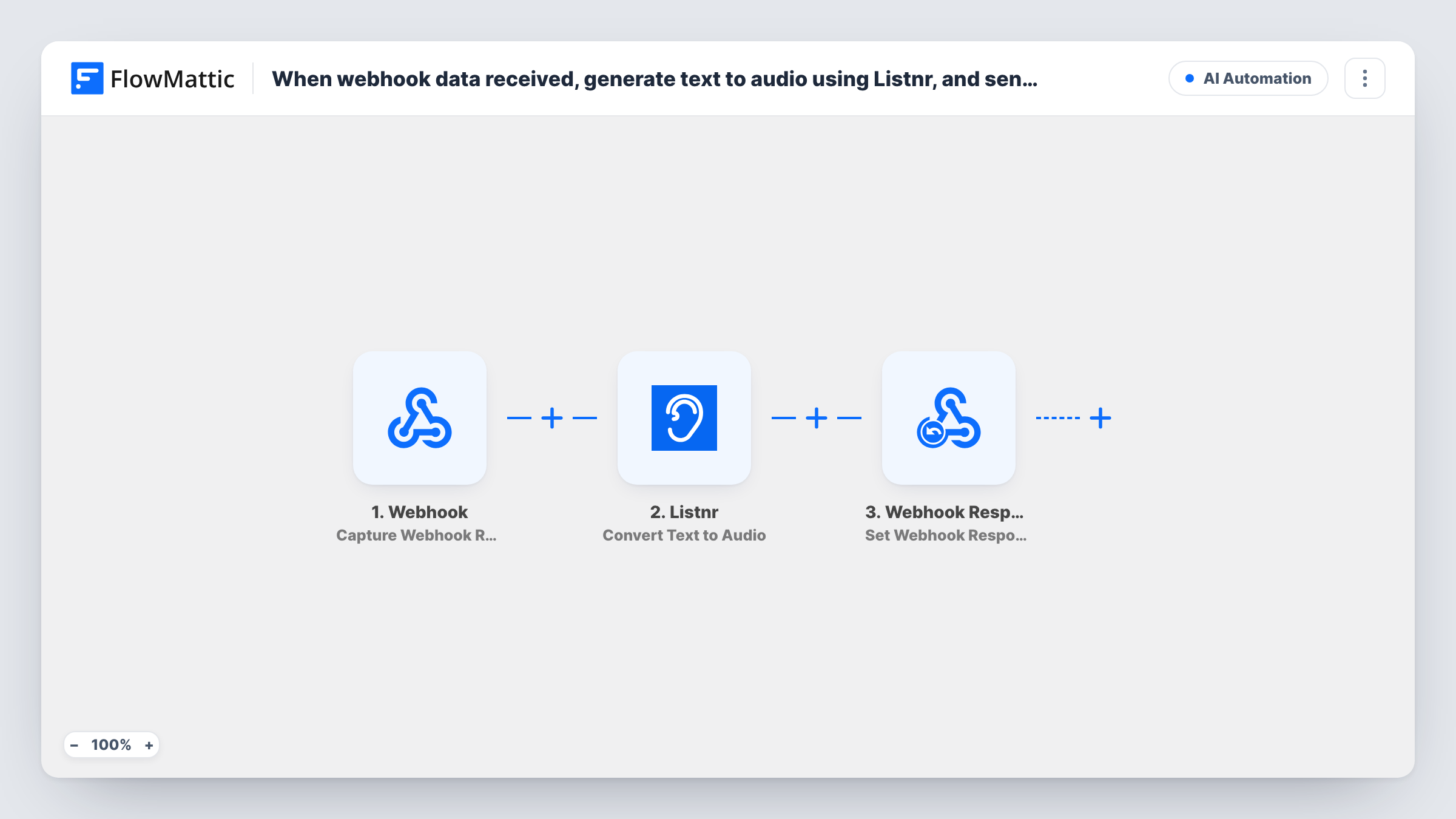
What this workflow does
Developers often want a quick way to turn a paragraph into speech from their own app, a no-code tool or a script, without wiring up an audio API directly. This workflow gives you a URL on your WordPress site that takes text in and answers with the converted result.
Your entry point is the Webhook trigger and the unique URL it creates. Whatever the caller posts to it, such as the text to convert, becomes data for the next steps. Anyone with the URL can start a run unless you turn on the trigger's authentication setting. The Listnr step, Convert Text to Audio, sends the text you map to Listnr for conversion.
The Webhook Response step, Set Webhook Response, returns data to the caller in the same request. Map in the values Listnr sends back. Check a test run to see what Listnr returns, such as a link to the audio, rather than assuming the audio file itself is in the reply. The caller gets whatever you map there.
Read-aloud button in a custom app
Your web app posts the article text to the webhook and plays the audio link it receives, without storing Listnr credentials in the app.
Voice prompts for a phone system
An operations script sends short announcements to the webhook and saves the returned audio link for use in the call menu.
Audio versions in a no-code builder
A form or database tool calls the webhook with a text field and stores the response, giving each record an audio version.
How this workflow runs
What happens at each step once the workflow is on, and what you need before you import it.
 Webhook Capture Webhook Response
Gives you a webhook URL. Send a test request with the text to convert so FlowMattic captures the payload fields, and turn on authentication if the URL should not be open to anyone.
- Listnr Convert Text to Audio
Sends the text you map from the webhook payload to Listnr and returns Listnr's reply. Connect your Listnr account on import and check a test run for the fields it returns.
- Webhook Response Set Webhook Response
Sets the response the caller receives. Map the Listnr result fields you want returned, such as an audio link if Listnr provides one, so the calling app can use them.
What you need
- FlowMatticCore
- Listnr AccountAccount
After importing, map your own data. To keep the template universal, not every step is pre-filled. Open each step in the builder and connect your accounts and fields (channels, lists, sheets, recipients) before you switch the workflow on.
Make it yours
Changes worth making after you import it.
- Turn on the Webhook trigger's Require authentication on incoming requests setting and give the key to your calling app, so others can't spend your Listnr usage.
- Add a Filter after the trigger that continues only when the text field is not empty, so blank requests don't reach Listnr.
- Include a voice choice in the payload and map it into the Listnr step if your caller needs different voices. Listnr's Get Available Voices action lists the options.
Questions about this workflow
Does the webhook response contain the audio file itself?
It contains whatever you map from Listnr's reply. Run a test to see what Listnr returns, which may be a link or job details rather than the audio bytes.
Can anyone call my Listnr webhook URL?
Anyone who has the URL can, unless you turn on the trigger's authentication setting. With it on, callers must send the key or a valid signature.
What if Listnr returns an error?
The run still reaches the Webhook Response step, so the caller gets whatever is mapped there. Task History shows Listnr's error on its step.
Can I convert a web page instead of text?
Listnr also has a Convert URL to Audio action. Swap it in and send the page address in the payload instead of the text.
More AI Automation workflows
Other ready-to-import templates from the same category.







Import this workflow into your WordPress site
Download the JSON, import it from the Workflows screen and connect your accounts. Every run stays on your server, with no per-task fees.
30-day money-back guarantee Unlimited workflows and runs Self-hosted