

When workflow step is triggered in your Typebot flow, add response to Google Spreadsheet
Each time a chat in your Typebot flow reaches its webhook block, this workflow writes the answers that block sends into a new Google Sheets row, giving you a spreadsheet of chatbot responses.
 Typebot
 Google Sheets
2 steps Setup ~5 min Used on 1.9k sites Free to import
What this workflow does
A Typebot chatbot collects answers one message at a time, and those answers are most useful somewhere your team can sort and share them. This workflow puts them in Google Sheets as each conversation reaches the point where you send data out.
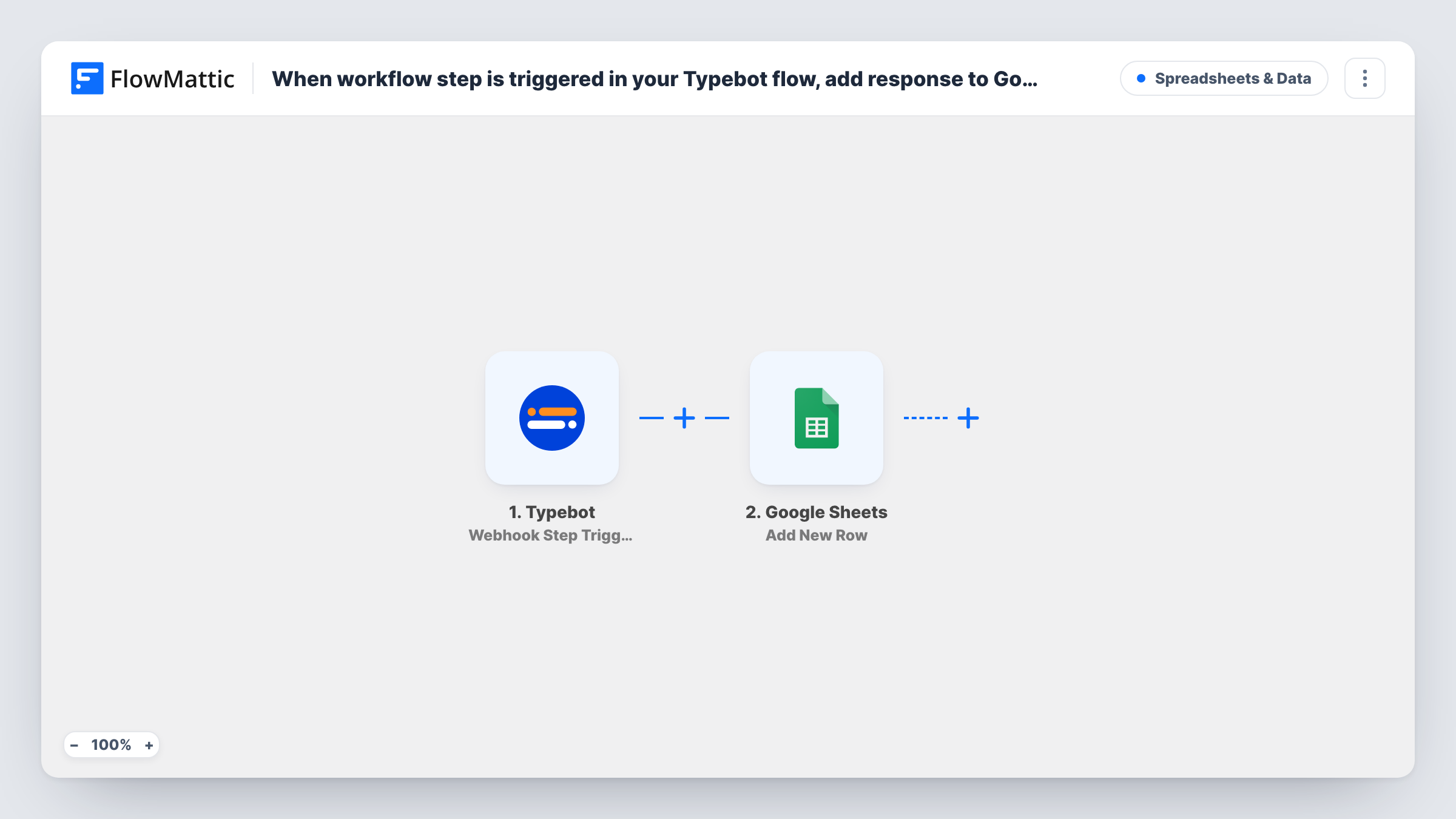
The Typebot trigger fires when the webhook step in your Typebot flow is triggered. That means the run starts wherever you place the webhook block, and it carries whatever variables that block sends. FlowMattic passes them to Google Sheets, whose Add New Row action writes one row with the values you map to columns.
Place the webhook block after the last question you want recorded, so the row holds a full set of answers. If a visitor leaves the chat before reaching the block, nothing is sent. If your flow passes the block more than once in a chat, each pass adds a row. You can review each webhook call and the row it wrote in Task History.
Lead qualification bot on a landing page
A Typebot asks visitors about their company size and needs. When they reach the end, the webhook block sends their answers and the sheet gains a row for sales to review.
Support triage chat
A help bot collects the problem type and an email address before handing off. Each completed chat leaves a row the support lead can sort by problem type.
Event RSVP chatbot
Guests confirm attendance and dietary needs in a Typebot. The organiser plans catering from the rows in the spreadsheet.
How this workflow runs
What happens at each step once the workflow is on, and what you need before you import it.
 Typebot Webhook Step Triggered
Fires when a chat in your Typebot flow reaches the webhook block. The variables that block sends, such as the visitor's answers, become available to map.
- Google Sheets Add New Row
Adds a row to your Google Sheets spreadsheet for each webhook call. Connect your Google account, pick the sheet, and map each Typebot variable to a column.
What you need
- FlowMatticCore
- Typebot AccountAccount
- Google Sheets AccountAccount
After importing, map your own data. To keep the template universal, not every step is pre-filled. Open each step in the builder and connect your accounts and fields (channels, lists, sheets, recipients) before you switch the workflow on.
Make it yours
Changes worth making after you import it.
- Include a timestamp or chat ID variable in the Typebot webhook block, if your flow has one, and map it to a column, so you can tell rows apart and sort them.
- Add a Filter after the trigger that continues only when the email variable is not empty, if some visitors skip that question and you only want rows you can follow up.
- Run the bot once yourself after import so FlowMattic captures the variables the webhook block sends, then map them to the sheet's columns.
Questions about this workflow
Which Typebot answers end up in Google Sheets?
Only the variables your webhook block sends. Add any answer you want recorded to that block's body in Typebot, then remap the Google Sheets step.
What if a visitor abandons the Typebot chat early?
If they leave before reaching the webhook block, the trigger never fires and no row is added. Move the block earlier if you want partial answers recorded.
Can one Typebot chat create more than one row?
Yes, if the flow passes through the webhook block more than once, for example in a loop. Each pass sends data and adds a row.
Do I need to change my Typebot flow?
Yes. The flow needs a webhook block pointed at the trigger, set up as FlowMattic's trigger instructions describe. Without it, Typebot sends nothing.
More Spreadsheets & Data workflows
Other ready-to-import templates from the same category.




Import this workflow into your WordPress site
Download the JSON, import it from the Workflows screen and connect your accounts. Every run stays on your server, with no per-task fees.
30-day money-back guarantee Unlimited workflows and runs Self-hosted