

Email every contact in a Google Sheet on a weekly schedule
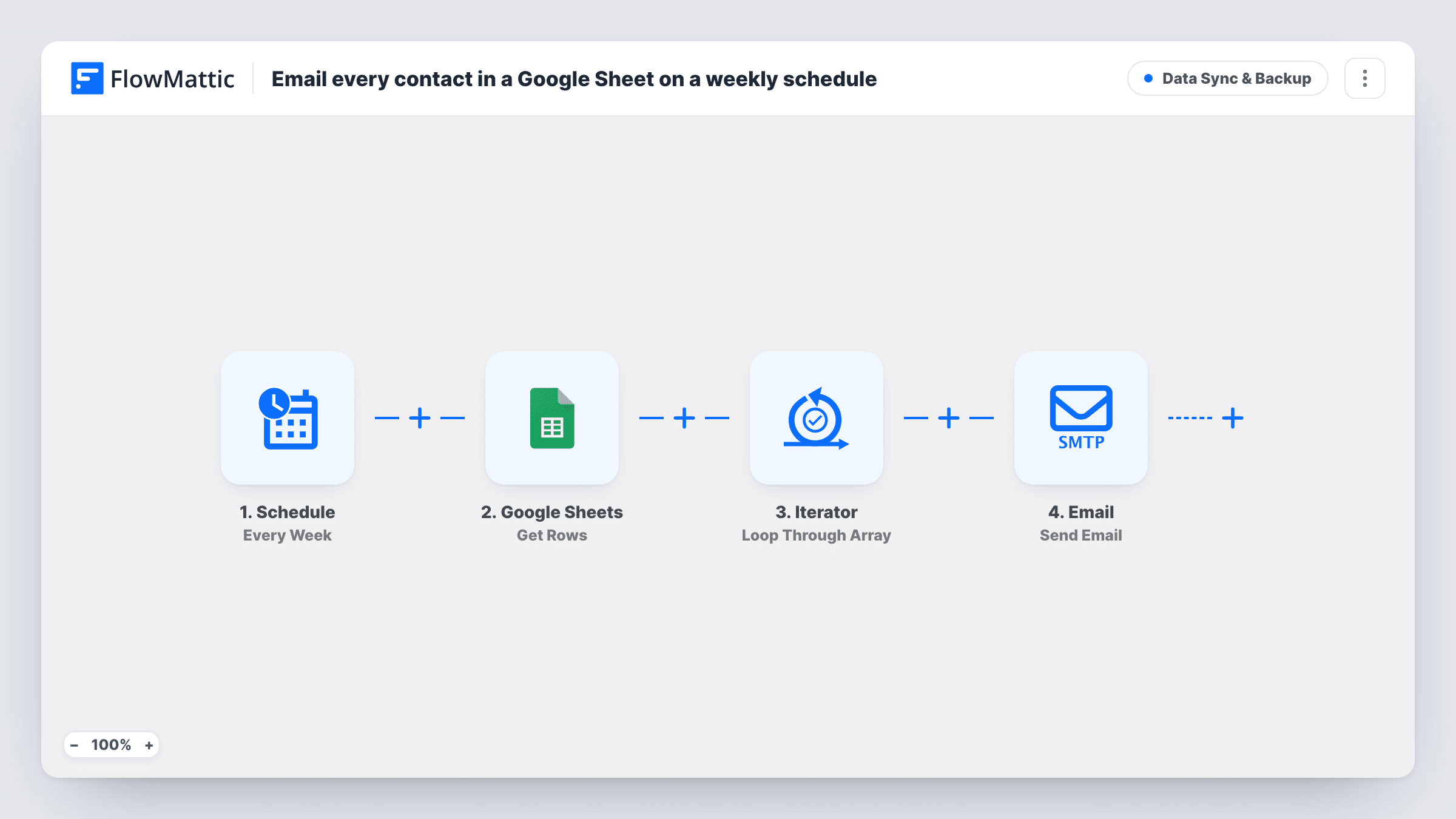
Once a week, this workflow reads the rows of a Google Sheet, loops through them with the Iterator and sends each contact an email addressed by first name, using the email column for the recipient.
 Schedule
 Google Sheets
 Iterator
 Email
4 steps Setup ~8 min Used on 691 sites Data Ops Free to import
What this workflow does
Some lists are easier to keep in a spreadsheet than in a mailing tool: a client roster, a small members list, a set of partners. When everyone on that list should get the same short message every week, sending it by hand means a lot of copying. This workflow sends it from the sheet on a timer.
The Schedule trigger starts a run every week. The Get Rows action in Google Sheets then reads rows from the spreadsheet you connect. Those rows are handed to the Iterator, which loops through them one at a time. For each row, the Email step sends a message to the address in the email column, with the subject Your weekly update and a body that greets the person by their first_name value.
There is no filter and no record of who was already emailed. Every run sends to every row Get Rows returns, so each contact receives one email per week for as long as they stay in the sheet. To stop emailing someone, remove their row. The email body is a short placeholder, so write the real weekly content before you switch the workflow on.
Weekly note to a small client list
A bookkeeper keeps clients in a Google Sheet and sends each one the same weekly reminder about receipts, addressed by first name.
Volunteer rota reminder
A club lists its volunteers in a sheet. Every week, each one gets an email reminding them to check the rota.
Partner update without a mailing tool
A small business sends its handful of partners a weekly message straight from the spreadsheet it already keeps them in.
How this workflow runs
What happens at each step once the workflow is on, and what you need before you import it.
 Schedule Every Week
Fires on a weekly timer to begin the email round. Each run repeats the steps below in full, with no memory of earlier runs.
- Google Sheets Get Rows
Reads rows from the Google Sheets spreadsheet you connect after import. Run a test to check which rows are returned and that the email and first_name columns come through.
- Iterator Loop Through Array
Loops through the rows from Get Rows one at a time, so the Email step runs once for each row. The template uses the Iterator's simple response with a batch size of 25.
 Email Send Email
Sends an email to the row's email value with the subject Your weekly update. The body says Hi, the row's first_name, and a one-line weekly summary placeholder you should replace with your own text.
What you need
- FlowMatticCore
- Google Sheets AccountAccount
After importing, map your own data. To keep the template universal, not every step is pre-filled. Open each step in the builder and connect your accounts and fields (channels, lists, sheets, recipients) before you switch the workflow on.
Make it yours
Changes worth making after you import it.
- Name your sheet's columns email and first_name, or remap the Email step to the column names you already use.
- Add a Filter between the Iterator and the Email step that continues only when a status column equals Active, so you can pause someone without deleting their row.
- Rewrite the email body before going live. As imported it only says Hi and the first name, followed by a single generic sentence.
- Test with a copy of the sheet that holds only your own address, so the first run doesn't email the whole list.
Questions about this workflow
Does every row in the Google Sheet get emailed each week?
Yes. Every row that Get Rows returns gets one email on every weekly run. Nothing marks a row as done, so the same people are emailed again the next week.
Which Google Sheets columns does the email use?
The email column for the recipient and the first_name column in the greeting. If your sheet uses other headings, remap them in the Email step.
What does each weekly email from the sheet say?
As imported, the subject is Your weekly update and the body is a greeting with a one-line summary placeholder. Replace it with the content you want to send.
How is the email sent?
Through FlowMattic's Email step, which connects to an SMTP provider you set up. Check your provider's sending rules if the sheet is long.
More Data Sync & Backup workflows
Other ready-to-import templates from the same category.




Import this workflow into your WordPress site
Download the JSON, import it from the Workflows screen and connect your accounts. Every run stays on your server, with no per-task fees.
30-day money-back guarantee Unlimited workflows and runs Self-hosted