

Upsert new Stripe customers into a Supabase table to keep your records in sync
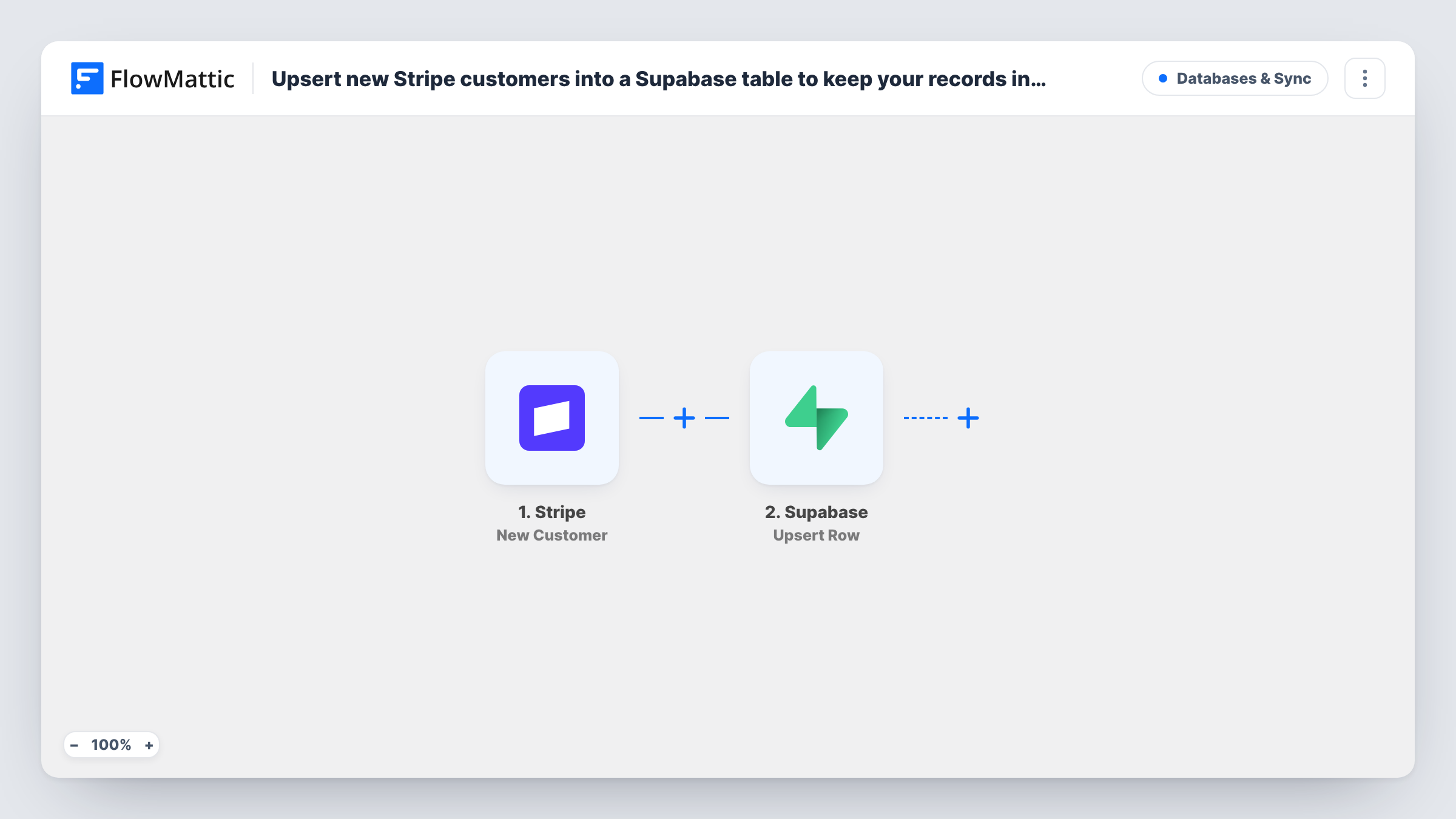
When a customer is created in Stripe, FlowMattic upserts their email, name and Stripe customer ID into a Supabase customers table, matching on email so an existing row is updated instead of duplicated.
 Stripe
 Supabase
2 steps Setup ~5 min Used on 2.6k sites Databases & Sync Free to import
What this workflow does
If your app keeps its own customer records in Supabase, they need to line up with Stripe. Copying each new Stripe customer across by hand leaves gaps, and a plain insert can leave you with two rows for the same person. This workflow upserts instead.
The Stripe trigger is New Customer. FlowMattic describes it as firing whenever a new customer is created, whether through checkout, your own code or the Stripe dashboard. The customer's email, name and ID are passed on.
The Supabase step is Upsert Row on a table named customers, with email as the conflict target. It sends three columns: email, name and stripe_id. When no row has that email, a new one is inserted. When one does, it is updated with the latest name and Stripe ID. In Postgres, an upsert on email needs a unique constraint on that column, so add one in Supabase before you turn the workflow on.
Linking app users to Stripe customers
Your app's users sign up with an email stored in Supabase. When Stripe creates their customer, the stripe_id column is filled on the matching row, ready for billing look-ups.
Customers created from the Stripe dashboard
Staff who add a customer by hand in Stripe no longer need to copy them into Supabase, because the upsert brings them across too.
A clean customer list for reporting
Matching on email keeps one row per address in the customers table, so a count of rows reflects distinct email addresses.
How this workflow runs
What happens at each step once the workflow is on, and what you need before you import it.
 Stripe New Customer
Runs each time Stripe records a new customer on your account. The customer's email, name and Stripe ID become available for the Supabase step.
- Supabase Upsert Row
Upserts a row in the Supabase customers table, matched on email. A new email adds a row, and a known one updates its name and stripe_id. Connect Supabase and check the table has these three columns.
What you need
- FlowMatticCore
- Stripe AccountAccount
- Supabase AccountAccount
After importing, map your own data. To keep the template universal, not every step is pre-filled. Open each step in the builder and connect your accounts and fields (channels, lists, sheets, recipients) before you switch the workflow on.
Make it yours
Changes worth making after you import it.
- Add a unique constraint on the email column of the customers table in Supabase. Without one, the upsert has nothing to match on, and Supabase is likely to return an error.
- Stripe customers can be created without an email. Add a Filter after the trigger that continues only when the email is not empty, so blank addresses don't collide.
- Create one customer in Stripe after import, then check Task History to see the row Supabase wrote.
Questions about this workflow
What does the Supabase Upsert Row step do with an existing email?
It updates that row instead of adding a new one. The name and stripe_id columns are overwritten with the values from the new Stripe customer, and the email stays the same.
Does this fire when a Stripe customer's details change?
No. New Customer only fires when a customer is created. Later edits in Stripe don't run the workflow, so the Supabase row keeps the values from creation.
What if two Stripe customers share an email address?
Stripe allows that. The second one updates the same Supabase row, so stripe_id ends up holding the newer customer's ID.
Do I need my own table called customers?
As shipped, yes, with email, name and stripe_id columns and a unique constraint on email. You can rename the table or keys in the Upsert Row step to match your schema.
More Databases & Sync workflows
Other ready-to-import templates from the same category.



Import this workflow into your WordPress site
Download the JSON, import it from the Workflows screen and connect your accounts. Every run stays on your server, with no per-task fees.
30-day money-back guarantee Unlimited workflows and runs Self-hosted