

AI agent that builds a custom study plan on course enrollment
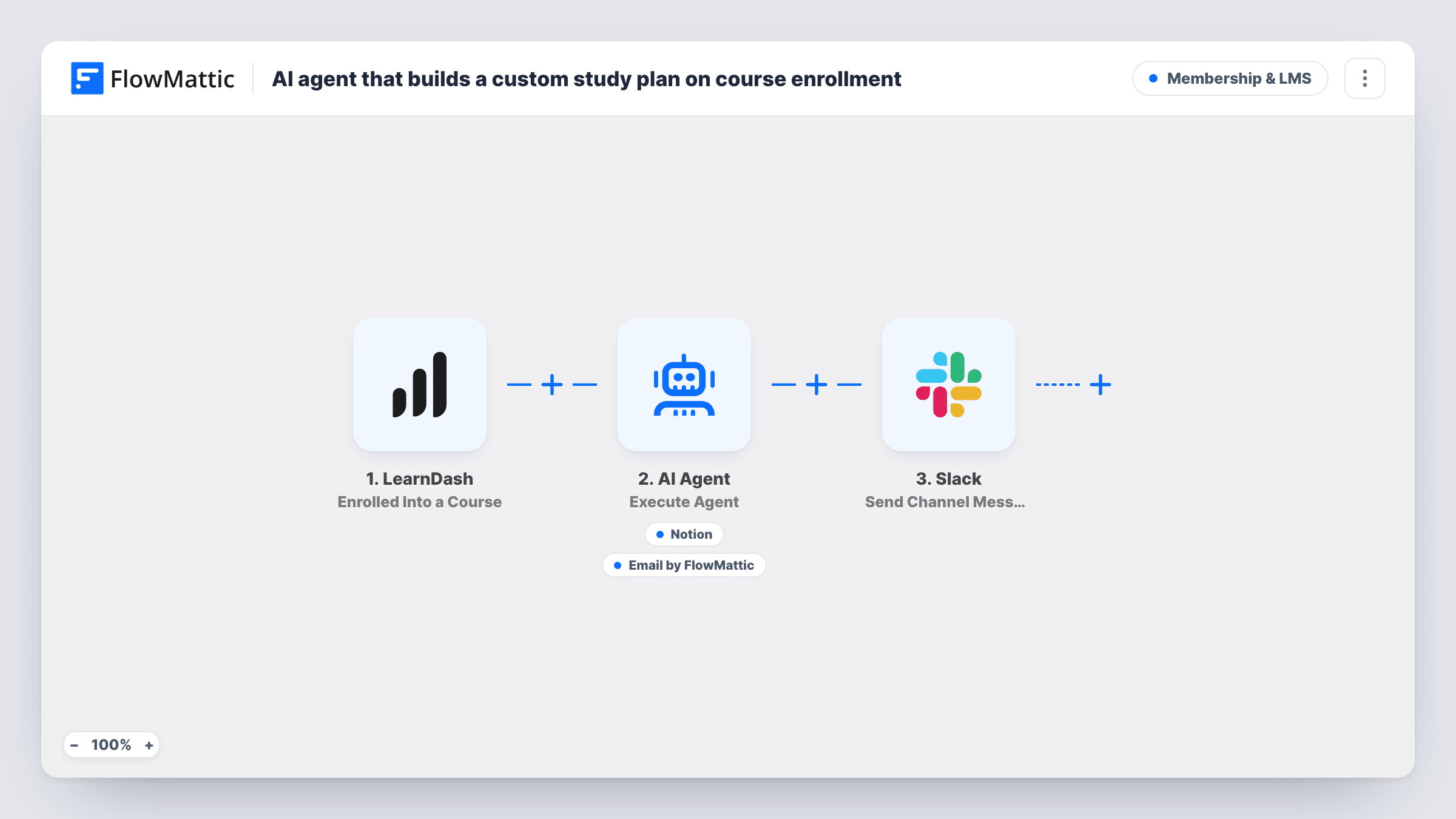
When a learner enrolls in a LearnDash course, an AI agent drafts a week-by-week study plan, saves it to a Notion database, emails the learner an introduction to it, and posts a note to Slack.
 LearnDash
 AI Agent
 Notion
 Email
Email
 Slack
Slack5 steps Setup ~8 min Used on 1.3k sites Community Free to import
What this workflow does
New learners start strong and then drift, often because nobody told them how to pace the course. A short study plan in the first hour gives them a schedule to follow. Writing one for every enrollment by hand is not realistic, so this workflow gives the job to an AI agent.
The LearnDash Enrolled Into a Course trigger passes the learner's first name, email and course name to an AI Agent, set to GPT-4o in the template. The agent writes a week-by-week plan, then uses two tools: Notion Create Database Item to save the plan, and Email to send the learner a short introduction to it. The agent writes the Notion title and content and the email subject and body. A Slack message then notes the plan was built.
The agent knows only the course name, not its lessons or length, so the plan is a general one. Add course details to the agent's input or instructions for a plan that matches your content. The Notion item lives in your workspace; the learner sees only the email unless you share the page.
Self-paced online courses
A coding course sells to people with full-time jobs. Each learner gets a plan that spreads the work across evenings, and your team keeps a copy in Notion.
Coaching programs with check-ins
A coach reviews each new learner's plan in Notion before the first call and uses it to set goals together.
Reducing early drop-off
A membership site with several courses sends every new enrollee a welcome email that points them to a schedule, rather than a bare course link.
How this workflow runs
What happens at each step once the workflow is on, and what you need before you import it.
 LearnDash Enrolled Into a Course
Runs when a user is enrolled in a LearnDash course. Their first name, email and the course name are passed to the AI Agent.
- AI Agent Execute Agent
The AI Agent writes a week-by-week study plan for the course from its instructions and the enrollment details, then calls its Notion and Email tools. Connect your AI provider; the template uses GPT-4o.
- Notion Create Database Item
The agent's Notion tool. It creates an item in a Notion database, with a title and content the agent writes. Connect Notion, then run a test enrollment to check where the item lands.
 Email Send Email
The agent's email tool. It sends a short note about the plan to the learner's email address, with a subject and body written by the agent. Check your FlowMattic Email settings.
- Slack Send Channel Message
Posts a Slack channel message saying a study plan was built for the learner's email. Connect Slack and confirm the message arrives with a test enrollment.
What you need
- FlowMatticCore
- LearnDash PluginPlugin
- AI ProviderAccount
- Notion AccountAccount
- Slack AccountAccount
After importing, map your own data. To keep the template universal, not every step is pre-filled. Open each step in the builder and connect your accounts and fields (channels, lists, sheets, recipients) before you switch the workflow on.
Make it yours
Changes worth making after you import it.
- Paste your course outline, or the number of lessons and expected hours, into the agent's instructions so the weekly plan follows your real content.
- Add a Filter after the trigger if only some courses should get a plan, checking the course name passed by LearnDash.
- Tell the agent in its instructions not to promise anything about grades, certificates or support you don't offer.
- Share the Notion database with learners, or ask the agent to include the plan in the email itself, if they should be able to read the full plan.
Questions about this workflow
Does the learner get a link to the Notion plan?
Not as imported. The email introduces the plan, and the Notion item stays in your workspace. Change the agent's instructions if you want the plan text in the email.
How does the AI know what the course covers?
It only receives the course name. Add an outline or key details to its instructions or input if you want a plan tied to your lessons.
Which AI model does the agent use?
GPT-4o from OpenAI is set in the template. Connect your provider account in the agent step, where you can also choose another model.
Does the Slack message mean the plan was saved and sent?
It means the agent step finished. Open the run in Task History to see whether the agent called both the Notion and Email tools.
What do I need installed and connected?
LearnDash on the same WordPress site as FlowMattic, an AI provider account, a Notion workspace with a database for the plans, and Slack.
More Membership & LMS workflows
Other ready-to-import templates from the same category.




Import this workflow into your WordPress site
Download the JSON, import it from the Workflows screen and connect your accounts. Every run stays on your server, with no per-task fees.
30-day money-back guarantee Unlimited workflows and runs Self-hosted