

AI agent that breaks a big task into ordered subtasks
Send a large ClickUp task to a webhook, and an AI agent breaks it into an ordered set of concrete subtasks, adds them as ClickUp sub-tasks under the parent and can post the breakdown to Slack.
 Webhook
 AI Agent
 ClickUp
 Slack
Slack4 steps Setup ~8 min Used on 2.8k sites Productivity Free to import
What this workflow does
Big tasks stall when nobody has split them into steps. Writing the first breakdown is often the slowest part, and it is the kind of first draft an AI model can produce for a person to review. This workflow hands a parent task to an AI agent and lets it create the pieces in ClickUp.
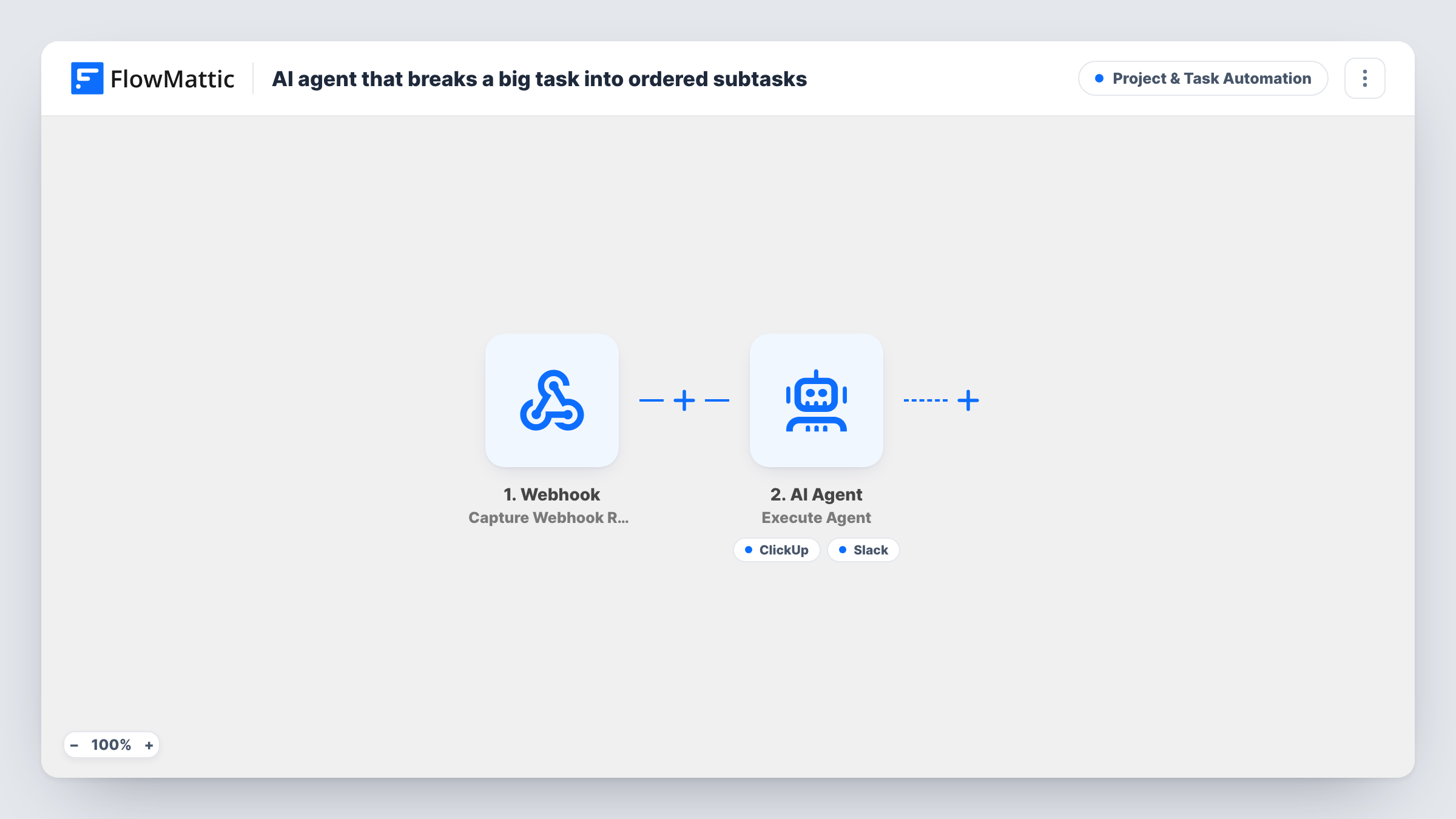
The Webhook trigger receives the parent task's ID, name and description from whatever sends it. The AI Agent step, set to an OpenAI GPT-4o model, is told to break the task into a small ordered set of concrete subtasks and create each one as a ClickUp sub-task under the parent.
The agent has two tools. ClickUp Create Sub Task always uses the parent task ID from the webhook, and the agent writes each sub-task's name. Slack Send Channel Message is described to the agent as a way to post the breakdown, with the agent writing the text. The agent decides when to use each tool, so check a few runs to see how many sub-tasks it creates and whether it posts to Slack.
Since the ID comes from the payload, the sender must include the real ClickUp ID of the parent task. Connect your AI provider, ClickUp and Slack accounts after import, choose the Slack channel, and test with one known task before you rely on it.
Splitting epics during sprint planning
A product lead sends each new epic to the webhook. The agent drafts sub-tasks under it in ClickUp, which the team trims and estimates in the planning meeting.
Client projects broken into first steps
An agency posts a newly signed project's parent task to the webhook, and the account team finds a first set of sub-tasks waiting under it, plus a Slack summary.
Turning vague requests into actions
Requests like improve onboarding arrive with only a name and description. The agent proposes concrete steps as sub-tasks, giving the owner something to edit rather than a blank task.
How this workflow runs
What happens at each step once the workflow is on, and what you need before you import it.
 Webhook Capture Webhook Response
Gives you a webhook URL and starts a run for each request. Send the parent task's ClickUp ID as task_id, plus task_name and description, which the agent reads. These names are the ones the template maps.
- AI Agent Execute Agent
Runs an AI agent on an OpenAI GPT-4o model. It is told to break the task into a small ordered set of concrete subtasks and create each as a ClickUp sub-task under the parent. It gets the parent ID, name and description from the webhook.
- ClickUp Create Sub Task
Agent tool that creates a sub-task in ClickUp under the parent task whose ID came from the webhook. The agent writes each sub-task name and can call the tool once per subtask it plans.
- Slack Send Channel Message
Agent tool that posts a message to a Slack channel, described to the agent as a way to share the breakdown. The agent writes the text; choose the channel after import.
What you need
- FlowMatticCore
- AI ProviderAccount
- ClickUp AccountAccount
- Slack AccountAccount
After importing, map your own data. To keep the template universal, not every step is pre-filled. Open each step in the builder and connect your accounts and fields (channels, lists, sheets, recipients) before you switch the workflow on.
Make it yours
Changes worth making after you import it.
- Add a line to the system prompt such as how many sub-tasks you want at most, or which naming style to use, so the agent's breakdown fits how your team writes tasks.
- If you want the Slack summary every time, say so in the system prompt. As imported, the prompt only asks for ClickUp sub-tasks and the Slack tool is optional for the agent.
- Trigger the webhook from a ClickUp automation or your own tool only for tasks that need splitting, so small tasks don't get sub-tasks they don't need.
Questions about this workflow
Where does the ClickUp parent task ID come from?
From the webhook payload. Whatever sends the request must include the ID as task_id, and the Create Sub Task tool uses it for every sub-task, so a wrong ID means ClickUp can't place them.
Will the AI agent always create the sub-tasks in order?
It is told to produce an ordered set and create each one, but the agent decides how it uses the ClickUp tool. Review the sub-tasks after a few runs and tighten the system prompt if the order or count isn't what you want.
Which AI model does this workflow use?
This template's agent runs on GPT-4o from OpenAI. Connect your own AI provider account after import. You can choose another model in the agent step if your account offers one.
Does the agent post to a private Slack channel?
The tool is Slack's Send Channel Message. For a private channel, FlowMattic's Slack integration has a separate Send Private Channel Message action you could give the agent instead.
More Project & Task Automation workflows
Other ready-to-import templates from the same category.





Import this workflow into your WordPress site
Download the JSON, import it from the Workflows screen and connect your accounts. Every run stays on your server, with no per-task fees.
30-day money-back guarantee Unlimited workflows and runs Self-hosted