

Enroll new MemberPress members into a LearnDash course
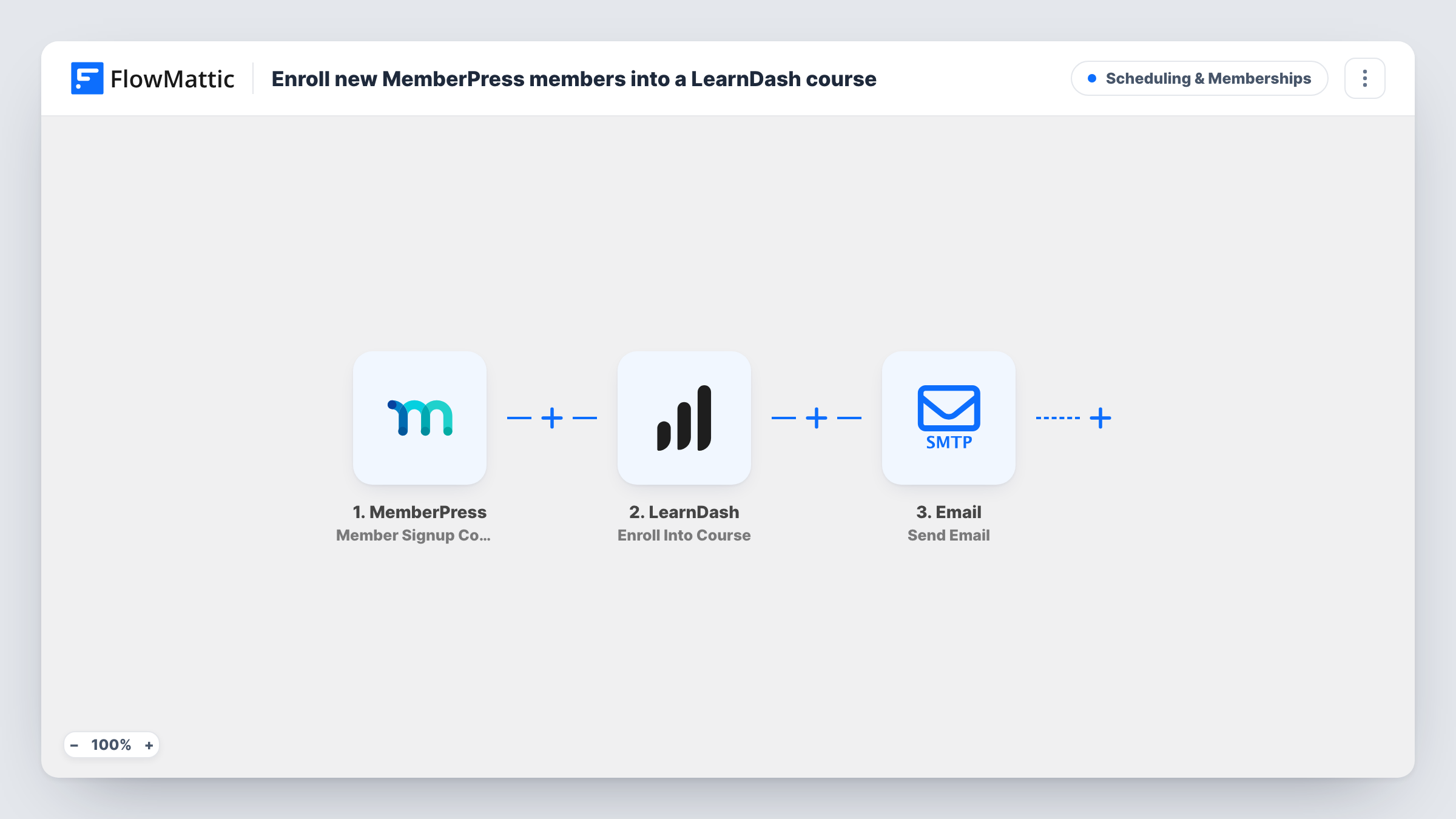
When someone completes a MemberPress signup, this workflow enrolls their WordPress user in a LearnDash course and emails them that the course is ready to start.
 MemberPress
 LearnDash
 Email
Email3 steps Setup ~5 min Used on 1.5k sites Community Free to import
What this workflow does
If a membership includes a course, members expect to find it waiting when they log in. Enrolling each new member in LearnDash by hand leaves a gap where they have paid but can't start. This workflow closes that gap at signup.
The MemberPress Member Signup Completed trigger fires when a person finishes signing up. FlowMattic takes their WordPress user ID and passes it to LearnDash Enroll Into Course, so the same account that holds the membership gets course access. An email then goes to the member's address, with their first name in the subject, telling them they have been enrolled and can log in to start learning.
Both plugins run on your WordPress site, so the enrollment happens on the same site where they joined. The template enrolls every new member the same way. Open the LearnDash step after import to confirm which course it uses, then run a test signup before you rely on it.
A paid membership with a starter course
Everyone who joins gets your onboarding course straight away, so their first login shows them where to begin.
Selling a course through MemberPress checkout
You use MemberPress for payments and LearnDash for lessons. Each completed signup gives the buyer course access without you touching either plugin.
Community sites with a welcome module
New members are placed in a short orientation course and told by email that it is ready, which sets expectations from day one.
How this workflow runs
What happens at each step once the workflow is on, and what you need before you import it.
 MemberPress Member Signup Completed
Fires as soon as someone finishes a MemberPress signup. Their WordPress user ID, email and first name are passed to the next steps.
- LearnDash Enroll Into Course
Enrolls the member's WordPress user, matched by user ID, into a LearnDash course. Open the step after import to check the course, then confirm with a test signup.
 Email Send Email
Emails the member, addressing them by first name in the subject, to say they have been enrolled and can log in to start. Add your login page link to the body.
What you need
- FlowMatticCore
- MemberPress PluginPlugin
- LearnDash PluginPlugin
After importing, map your own data. To keep the template universal, not every step is pre-filled. Open each step in the builder and connect your accounts and fields (channels, lists, sheets, recipients) before you switch the workflow on.
Make it yours
Changes worth making after you import it.
- Running several membership levels? Add a Router after the trigger with one route per membership and its own Enroll Into Course step, giving each level its own course.
- Add a link to your course or login page in the email so new members can go straight to the first lesson.
- Sign up once with a test account after import, then check in LearnDash that the user shows as enrolled before you announce the membership.
Questions about this workflow
Do MemberPress and LearnDash need to be on the same site?
Yes. The LearnDash step enrolls by WordPress user ID, which only means something on the site where MemberPress created that user and where FlowMattic runs.
Are existing members enrolled when I turn this on?
No. Only signups completed after the workflow is active trigger it. Enroll current members in LearnDash yourself.
Can different MemberPress memberships get different courses?
Not as imported; every signup follows the same step. Use a Router or Filter on the membership to send each level to its own Enroll Into Course step.
What does the member's enrollment email say?
A short welcome saying they have been enrolled and should log in to start learning, with their first name in the subject. Edit it to name the course and add a link.
More Scheduling & Memberships workflows
Other ready-to-import templates from the same category.






Import this workflow into your WordPress site
Download the JSON, import it from the Workflows screen and connect your accounts. Every run stays on your server, with no per-task fees.
30-day money-back guarantee Unlimited workflows and runs Self-hosted