

Mirror new Airtable records to Google Sheets
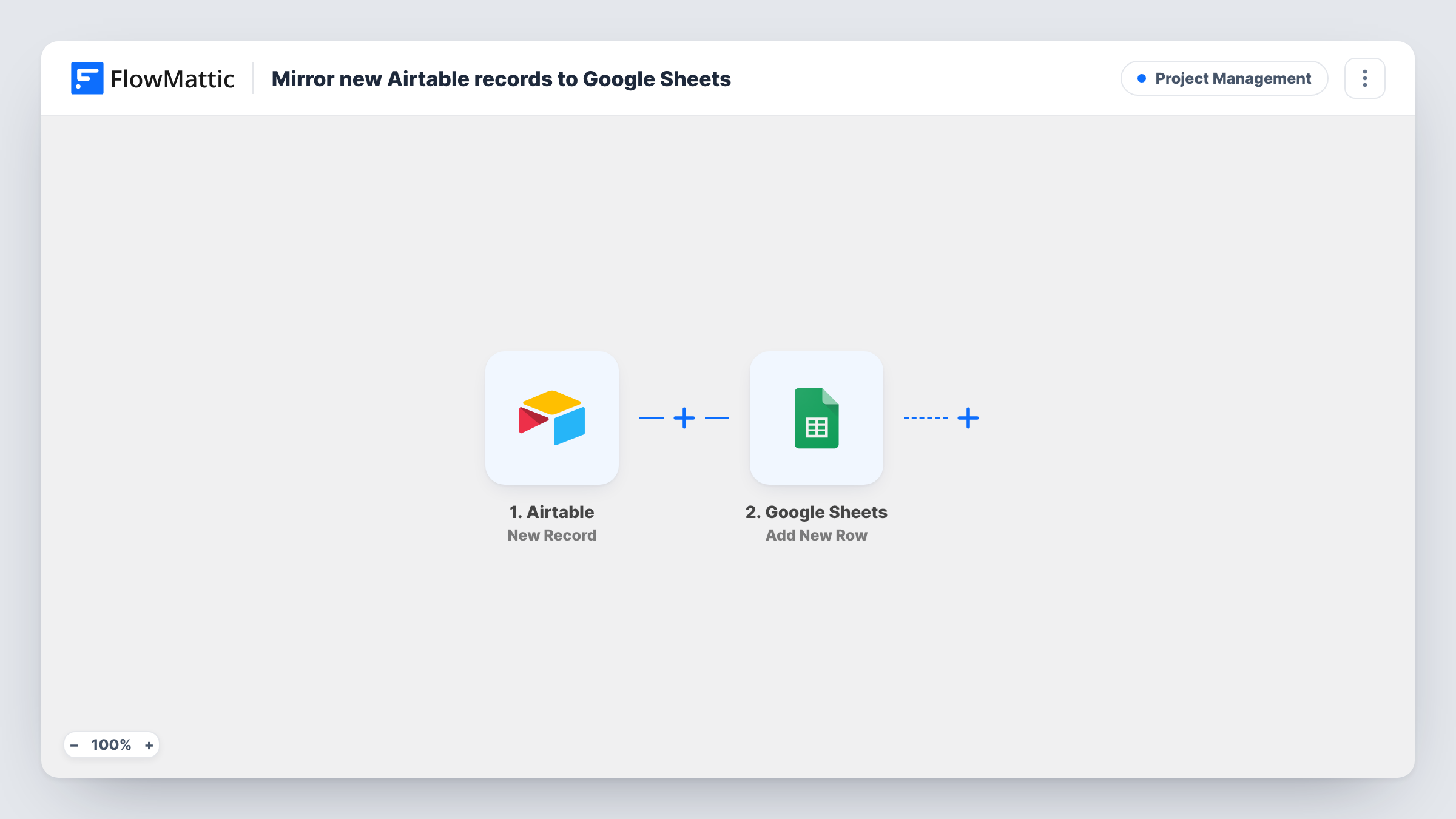
Each time a new record is added in Airtable, this workflow appends it to Google Sheets as a new row, so people who work in spreadsheets get a running copy of your Airtable data.
 Airtable
 Google Sheets
2 steps Setup ~5 min Used on 2.0k sites Productivity Free to import
What this workflow does
Airtable is a good home for structured data, but not everyone on your team or your client's team works in it. Some people want a plain spreadsheet they can sort, chart or share without an Airtable seat. Copying records over by hand falls behind quickly. This workflow keeps a Google Sheets copy growing as records arrive.
The Airtable trigger picks up each new record. FlowMattic makes the record's values available as data you can map. The Google Sheets step then adds one row to the spreadsheet you connect, and you decide which Airtable value goes into which column.
The flow only adds rows. It does not edit or delete anything in the sheet, and it does not write back to Airtable. If a record is changed in Airtable later, the row already in the sheet stays as it was. Task History lists every run, so you can see which records were copied and spot a run that failed.
Share an Airtable content calendar with a client
Your team plans posts in an Airtable base. Each new post record lands in a Google Sheet the client can open without an Airtable login.
Feed a Google Sheets report
New Airtable records become rows that sheet formulas, charts and pivot tables can read, while your team keeps entering data in Airtable.
Keep an append-only log
Because rows are only added, the sheet keeps the values each record had when it was created, even if someone edits the record in Airtable afterwards.
How this workflow runs
What happens at each step once the workflow is on, and what you need before you import it.
 Airtable New Record
Runs when a new record is added in Airtable. Connect your Airtable account on import. The record's values are then passed on so the next step can map them.
- Google Sheets Add New Row
Writes each new Airtable record into your spreadsheet as one fresh row. Map every column to an Airtable value from the trigger, and connect your Google account on import.
What you need
- FlowMatticCore
- Airtable AccountAccount
- Google Sheets AccountAccount
After importing, map your own data. To keep the template universal, not every step is pre-filled. Open each step in the builder and connect your accounts and fields (channels, lists, sheets, recipients) before you switch the workflow on.
Make it yours
Changes worth making after you import it.
- Put a Filter between the two steps if only some records belong in the sheet, for example records whose status is Approved.
- Want a heads-up as well as a row? Add a Slack or email step after Google Sheets that sends the same Airtable values to you or your team.
- Create one test record in Airtable after import so FlowMattic captures its values, then map the columns and check the new row in Task History.
Questions about this workflow
Will my existing Airtable records be copied to Google Sheets?
No. The trigger reacts to new records, so only records added after you turn the workflow on become rows. Export older records from Airtable as CSV and import them into the sheet if you need them.
Does editing a record in Airtable update its row in the sheet?
No. This workflow only adds a row when a record is created. Changes made later in Airtable are not copied to the existing row.
Can I send Airtable records to an existing Google Sheet with my own columns?
Yes. Connect the spreadsheet you already use and map Airtable values to its columns in the Google Sheets step. Set up the header row first so the columns are there to map.
More Project Management workflows
Other ready-to-import templates from the same category.





Import this workflow into your WordPress site
Download the JSON, import it from the Workflows screen and connect your accounts. Every run stays on your server, with no per-task fees.
30-day money-back guarantee Unlimited workflows and runs Self-hosted