

Log every Vadootv lead capture in a Google Sheets spreadsheet
Every time Vadootv captures a lead from one of your videos, this workflow writes that lead into a new Google Sheets row, so you keep one running list of the people your videos collect.
 Vadootv
 Google Sheets
2 steps Setup ~5 min Used on 1.1k sites Free to import
What this workflow does
Vadootv can collect leads while people watch your videos. Those leads stay in your Vadootv account unless you copy them to where your team works. If your follow-up, reporting or sharing happens in a spreadsheet, that copying becomes a routine chore. This workflow moves each lead into a sheet for you.
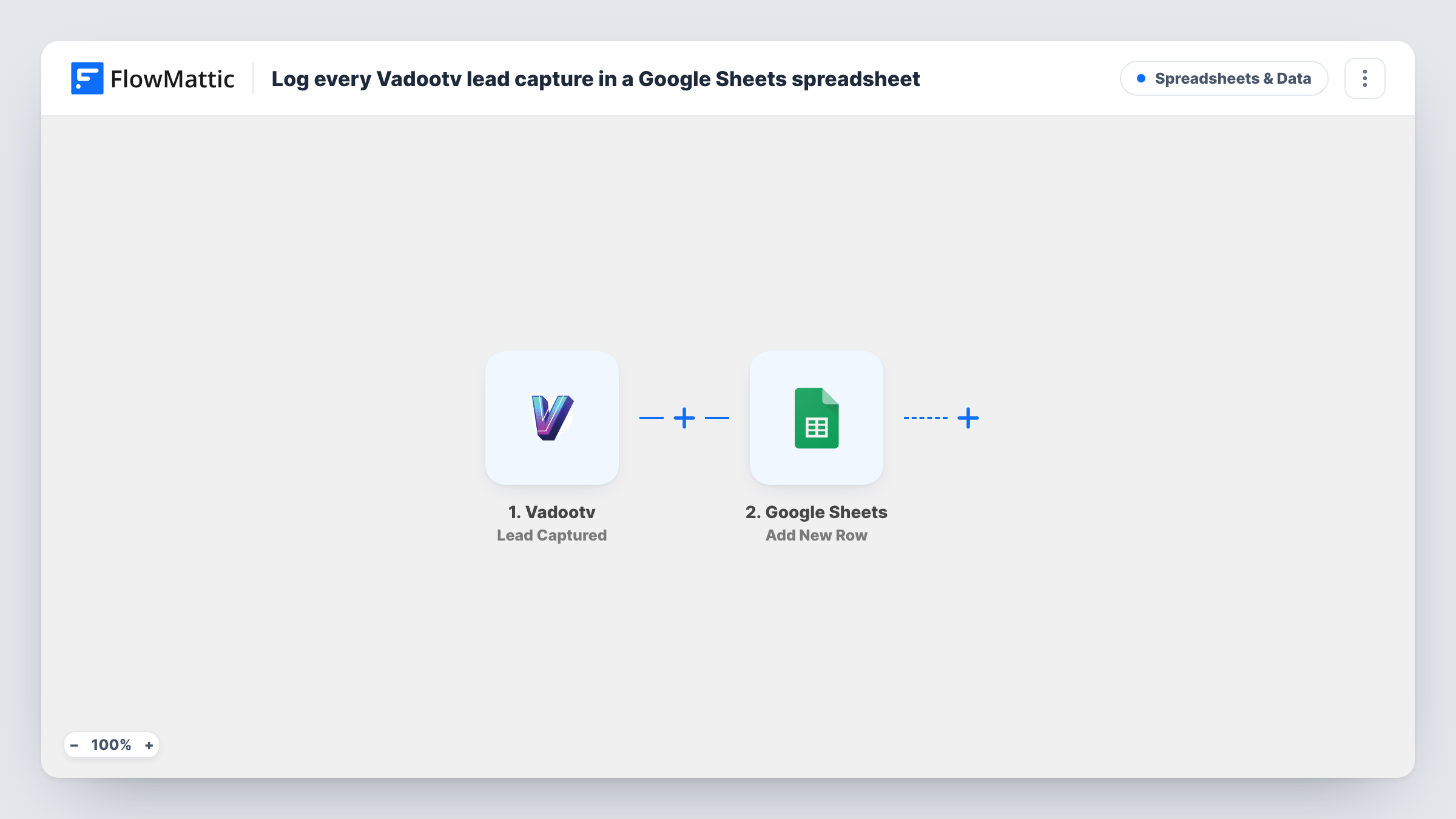
The Vadootv trigger fires when a lead is captured. FlowMattic receives the lead data Vadootv sends and makes it available for mapping. The Google Sheets step then appends one new row to the spreadsheet and sheet you pick, with each column filled from the lead field you map to it.
There is no Filter in the template, so every captured lead becomes a row, one per capture. The sheet works as a log: it adds rows and does not look up or change rows already there. Task History keeps a record of each run, so you can see the data that arrived from Vadootv and what was written to the sheet.
A shared lead list for a sales assistant
Your assistant works from a Google Sheet and has no Vadootv login. Each lead your videos capture shows up as a new row they can call or email.
Comparing videos by the leads they bring
If the lead data from Vadootv names the video, map it to its own column, then sort the sheet to see which videos collect leads.
A backup copy outside Vadootv
Keep a spreadsheet record of every captured lead, so the list stays in your Google account even if you change video tools later.
How this workflow runs
What happens at each step once the workflow is on, and what you need before you import it.
 Vadootv Lead Captured
Starts the workflow whenever Vadootv captures a lead. Connect your Vadootv account on import, then capture a test lead so FlowMattic can show you the fields Vadootv sends.
- Google Sheets Add New Row
Appends a row to the Google Sheets spreadsheet and sheet you choose. Connect your Google account, then map each column to a lead field from the Vadootv trigger.
What you need
- FlowMatticCore
- Vadootv AccountAccount
- Google Sheets AccountAccount
After importing, map your own data. To keep the template universal, not every step is pre-filled. Open each step in the builder and connect your accounts and fields (channels, lists, sheets, recipients) before you switch the workflow on.
Make it yours
Changes worth making after you import it.
- Add a header row to the sheet before you map the step, so each column has a clear name to match against the Vadootv lead fields.
- Add a Filter after the trigger that continues only when the lead email is not empty, so captures without an address stay out of the sheet.
- Want the lead in your email tool as well? Add a second action after Google Sheets that creates a contact in the app your team uses for follow-up.
Questions about this workflow
Which Vadootv lead fields can I put in the sheet?
Any field Vadootv includes when it reports a captured lead. Capture a test lead after import and FlowMattic lists what arrived, ready to map to columns.
Will leads Vadootv captured before I set this up be added?
No. The trigger reacts to new captures, so only leads collected after the workflow is turned on reach the sheet.
If the same viewer gives their details twice, does Google Sheets get two rows?
Yes. The Google Sheets step adds a new row for each capture and does not check for duplicates. Use the sheet's own tools to remove repeats, or add a Filter if you want to drop some captures.
More Spreadsheets & Data workflows
Other ready-to-import templates from the same category.




Import this workflow into your WordPress site
Download the JSON, import it from the Workflows screen and connect your accounts. Every run stays on your server, with no per-task fees.
30-day money-back guarantee Unlimited workflows and runs Self-hosted