

Send a Slack alert when a Vimeo OTT product is cancelled
When a customer cancels a product in Vimeo OTT, FlowMattic posts a message in a Slack channel you choose, so your team hears about each cancellation the day it happens.
 Vimeo OTT
 Slack
2 steps Setup ~5 min Used on 668 sites Free to import
What this workflow does
Cancellations on a video subscription service are easy to miss when you only look at monthly numbers. Seeing each one as it happens helps a team spot patterns, like a run of cancellations after a price change or a content gap. This workflow sends a Slack message for every cancellation.
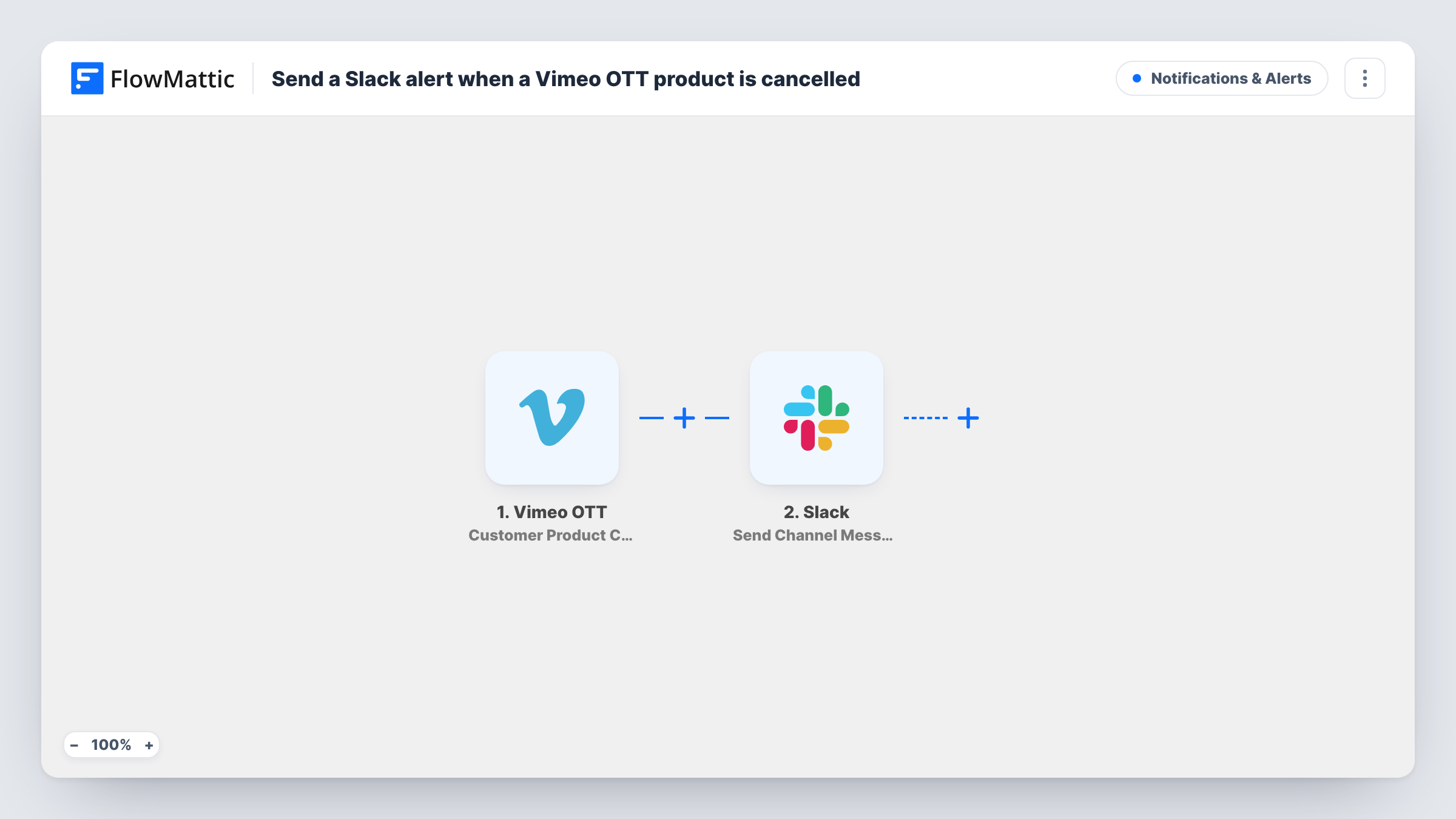
The Vimeo OTT trigger runs on Customer Product Cancelled. FlowMattic receives the details Vimeo OTT sends about the customer and the product, and passes them to Slack. The Send Channel Message action posts your text in the chosen channel, with values from the cancellation placed where you want them.
Only cancellations start a run. New subscriptions, renewals and trials are ignored by this template. Task History records each run, so you can trace a Slack alert back to the Vimeo OTT event.
Churn watch for a streaming channel
A fitness video service posts each Vimeo OTT cancellation in a #churn channel, where the team reviews them at the weekly meeting.
Customer success follow-up
A support lead sees the Slack alert and decides whether to email the customer about why they left.
Tracking cancellations by product
If you sell several Vimeo OTT products, the product name in each Slack message shows which one is losing subscribers.
How this workflow runs
What happens at each step once the workflow is on, and what you need before you import it.
 Vimeo OTT Customer Product Cancelled
Runs when a customer cancels a product in your Vimeo OTT account. The customer and product details are available to place in the Slack message.
- Slack Send Channel Message
Posts your message in the Slack channel set in this step. Include Vimeo OTT values such as the customer and product, and connect the workspace to post in.
What you need
- FlowMatticCore
- Vimeo OTT AccountAccount
- Slack AccountAccount
After importing, map your own data. To keep the template universal, not every step is pre-filled. Open each step in the builder and connect your accounts and fields (channels, lists, sheets, recipients) before you switch the workflow on.
Make it yours
Changes worth making after you import it.
- Create a dedicated Slack channel for cancellations so alerts stay easy to scan.
- Add a Google Sheets step after the Slack step to keep a running list of Vimeo OTT cancellations for monthly review.
- Add a Filter after the trigger if only one Vimeo OTT product should raise an alert.
Questions about this workflow
Does the Slack alert include who cancelled in Vimeo OTT?
It includes whatever you place in the message from the cancellation data. Capture one cancellation after import to see which customer and product values are available.
Are new Vimeo OTT subscriptions also posted?
No. The trigger only reacts to Customer Product Cancelled. Use a separate workflow with a different Vimeo OTT trigger for sign-ups.
Will past Vimeo OTT cancellations be sent to Slack?
No. Only cancellations that happen after the workflow is turned on create a Slack message.
More Notifications & Alerts workflows
Other ready-to-import templates from the same category.



Import this workflow into your WordPress site
Download the JSON, import it from the Workflows screen and connect your accounts. Every run stays on your server, with no per-task fees.
30-day money-back guarantee Unlimited workflows and runs Self-hosted