

Send a Slack alert for every new Pulsetic monitor event
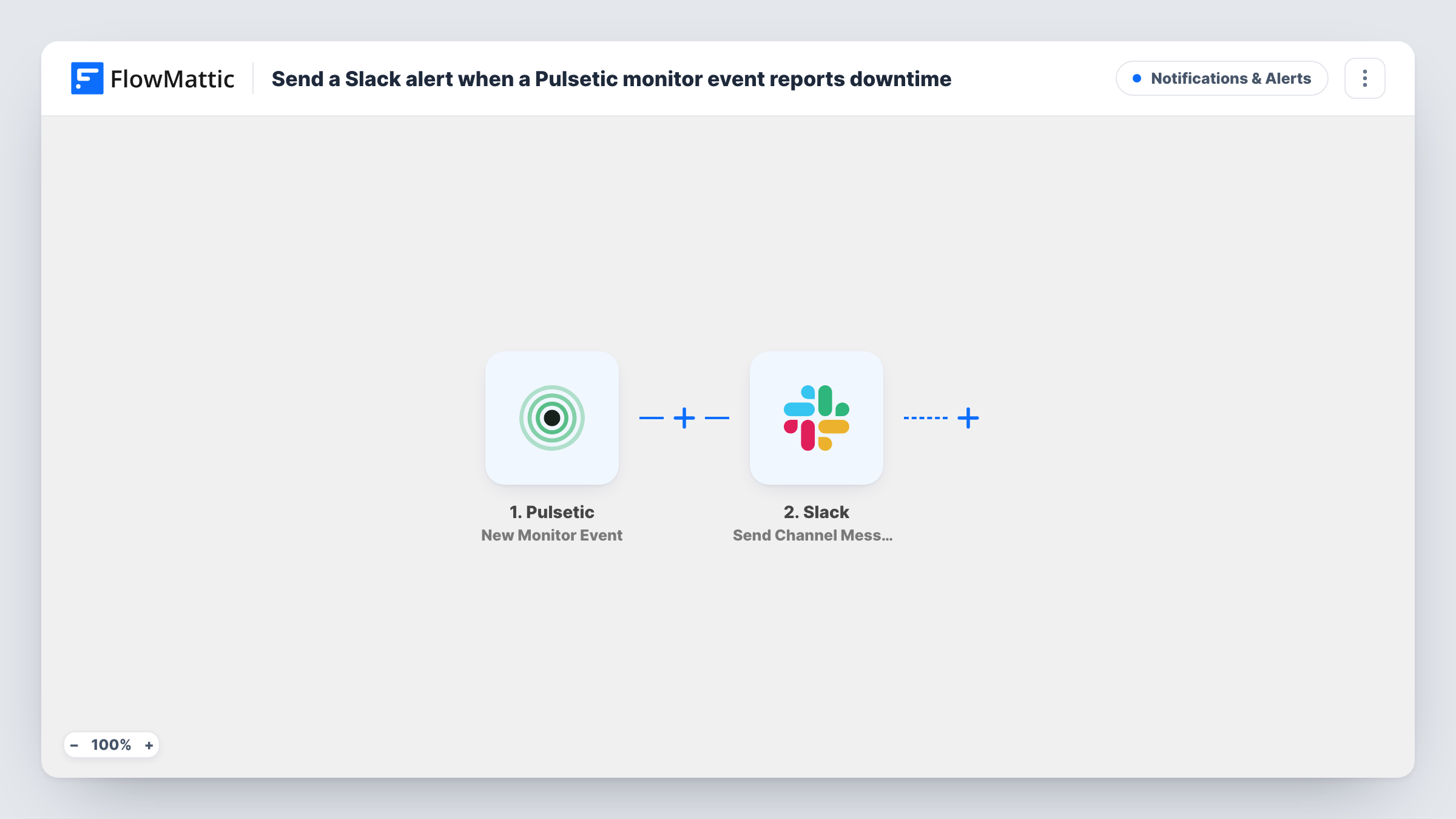
Whenever Pulsetic records a new monitor event, FlowMattic posts a message about it to the Slack channel you choose, so your team sees uptime changes where they already talk.
 Pulsetic
 Slack
2 steps Setup ~5 min Used on 2.7k sites Free to import
What this workflow does
Uptime alerts that only arrive by email are easy to miss, especially out of hours. If your team coordinates in Slack, it makes sense for every change Pulsetic sees to show up there too. This workflow passes each Pulsetic monitor event straight into a channel.
The Pulsetic New Monitor Event trigger starts a run each time one of your monitors logs something new, carrying that event's data. That includes every kind of event your monitors report, not just outages, so a site going down and coming back up can mean two messages. A test event shows the fields you can use, such as the monitor name and the event details.
The Slack Send Channel Message step then posts to a public channel you pick. It ships unmapped: connect Slack, choose the channel and write the message, mapping in the Pulsetic fields that tell people what happened and which site it concerns. For a private channel, use Slack's Send Private Channel Message action instead; for one person on call, use Send Direct Message.
Every event becomes one Slack message. If your monitors are busy, consider a dedicated alerts channel, and check Task History after the first event to confirm the message reads the way you want.
Agency watching client sites
A web agency monitors its clients' WordPress sites in Pulsetic and posts every event to an alerts channel the whole support team follows.
Store owner's outage channel
A WooCommerce shop owner gets each Pulsetic event in a Slack channel on their phone, so they know when checkout pages stop responding and when they recover.
Incident timeline for developers
A SaaS team keeps a Slack channel of Pulsetic events as a running record to look back on after an incident.
How this workflow runs
What happens at each step once the workflow is on, and what you need before you import it.
 Pulsetic New Monitor Event
Fires when Pulsetic records a new monitor event. The event's data, such as which monitor it concerns and what happened, is passed on for the Slack message.
- Slack Send Channel Message
Sends the alert into a public channel of your Slack workspace. The step ships unmapped, so pick the channel and write the alert text with Pulsetic event fields mapped in.
What you need
- FlowMatticCore
- Pulsetic AccountAccount
- Slack AccountAccount
After importing, map your own data. To keep the template universal, not every step is pre-filled. Open each step in the builder and connect your accounts and fields (channels, lists, sheets, recipients) before you switch the workflow on.
Make it yours
Changes worth making after you import it.
- Put the monitor name and the event type at the start of the Slack message, so people can tell an outage from a recovery at a glance.
- Put a Filter between the Pulsetic trigger and the Slack step that continues only for the event type you care about, such as down events, if you don't want recovery messages. Check a test event for the field to use.
- Swap the step for Slack's Send Private Channel Message action if your alerts channel is private.
- Post to a channel used only for monitoring, so alerts don't get lost in everyday conversation.
Questions about this workflow
Does every Pulsetic event post to Slack, or only downtime?
Every new monitor event. The template has no Filter, so recoveries and other events are posted as well. Add one between the trigger and the Slack step if you only want certain events.
Can the Pulsetic alert go to a private Slack channel?
The imported step is meant for public channels. Use Slack's Send Private Channel Message action, which posts to a private channel you choose.
Can I alert the person on call directly in Slack?
Yes. Replace the channel step with Send Direct Message and pick the user, or add it after the channel message so both happen.
Is the Slack alert text for Pulsetic events already written?
No. The Send Channel Message step ships empty, so you write the text and map in the Pulsetic event fields after import.
More Notifications & Alerts workflows
Other ready-to-import templates from the same category.



Import this workflow into your WordPress site
Download the JSON, import it from the Workflows screen and connect your accounts. Every run stays on your server, with no per-task fees.
30-day money-back guarantee Unlimited workflows and runs Self-hosted