

Send a Telegram message when a Motion Tools driver request is cancelled
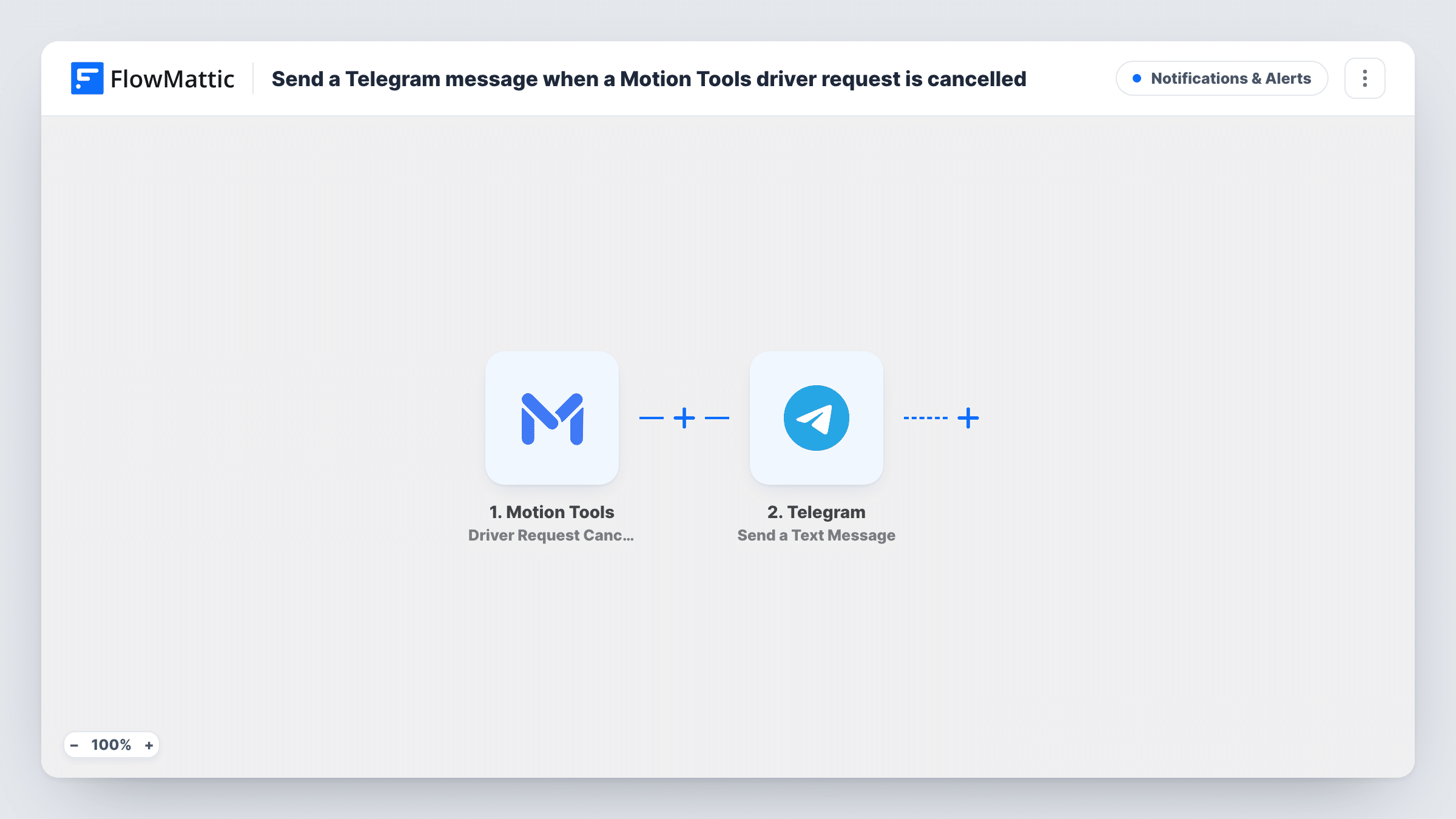
When an instant driver request in Motion Tools is cancelled and no longer available, this workflow sends a Telegram message to your dispatch chat, so someone can check the booking and act on it.
 Motion Tools
 Telegram
2 steps Setup ~5 min Used on 2.0k sites Free to import
What this workflow does
In a dispatch operation, a driver request that drops off can leave a customer waiting if nobody notices. Dispatchers often keep a Telegram chat open on their phones, which makes it a quick place to hear about it. This workflow posts a message there each time Motion Tools reports a cancelled driver request.
The Motion Tools trigger, Driver Request Cancelled, fires when an instant driver request for a booking is no longer available. The details in that event become values you can map. Telegram then sends a text message, built from those details, to the chat you set in the step.
The alert is one-way. It doesn't reassign the booking or contact a driver; your team does that in Motion Tools. Every cancelled request sends a message, so a busy period can produce several in a row. Task History records each run and Telegram's response.
Dispatch group chat
Dispatchers share a Telegram group, and each cancelled driver request appears there so whoever is free can find another driver.
Owner keeping an eye on service
The owner of a small courier company gets a Telegram message for each dropped request and sees how often it happens during the week.
Night shift with one dispatcher
The lone dispatcher on nights gets a phone alert for every cancelled request instead of watching the Motion Tools screen.
How this workflow runs
What happens at each step once the workflow is on, and what you need before you import it.
 Motion Tools Driver Request Cancelled
Fires when an instant driver request for a booking in Motion Tools is no longer available. The event's details become values for the Telegram message.
- Telegram Send a Text Message
Sends a Telegram text message to your dispatch chat with the request details. Write the text, insert values from Motion Tools, and test that it reaches the right chat.
What you need
- FlowMatticCore
- Motion Tools AccountAccount
- Telegram AccountAccount
After importing, map your own data. To keep the template universal, not every step is pre-filled. Open each step in the builder and connect your accounts and fields (channels, lists, sheets, recipients) before you switch the workflow on.
Make it yours
Changes worth making after you import it.
- Put the booking reference from the Motion Tools event at the start of the Telegram message, if the event includes it, so dispatchers can search for it quickly.
- To also keep a record, add a Google Sheets Add New Row step after Telegram and log each cancelled request for later review.
- Trigger a test cancellation in Motion Tools after import so FlowMattic captures real event values before you write the message.
Questions about this workflow
Does the workflow reassign the cancelled Motion Tools request?
No. It only sends a Telegram message. Finding another driver or contacting the customer is done by your team in Motion Tools.
Can every dispatcher see the Motion Tools alert in one Telegram group?
The Telegram step sends to a chat. Set it to your dispatch group's chat so everyone in the group sees the cancelled request.
Which Motion Tools events start this workflow?
Only Driver Request Cancelled, which fires when an instant driver request for a booking is no longer available. Other events, such as a booking being modified, don't run it.
More Notifications & Alerts workflows
Other ready-to-import templates from the same category.





Import this workflow into your WordPress site
Download the JSON, import it from the Workflows screen and connect your accounts. Every run stays on your server, with no per-task fees.
30-day money-back guarantee Unlimited workflows and runs Self-hosted