

When a new security scan response is received, send an alert to Slack
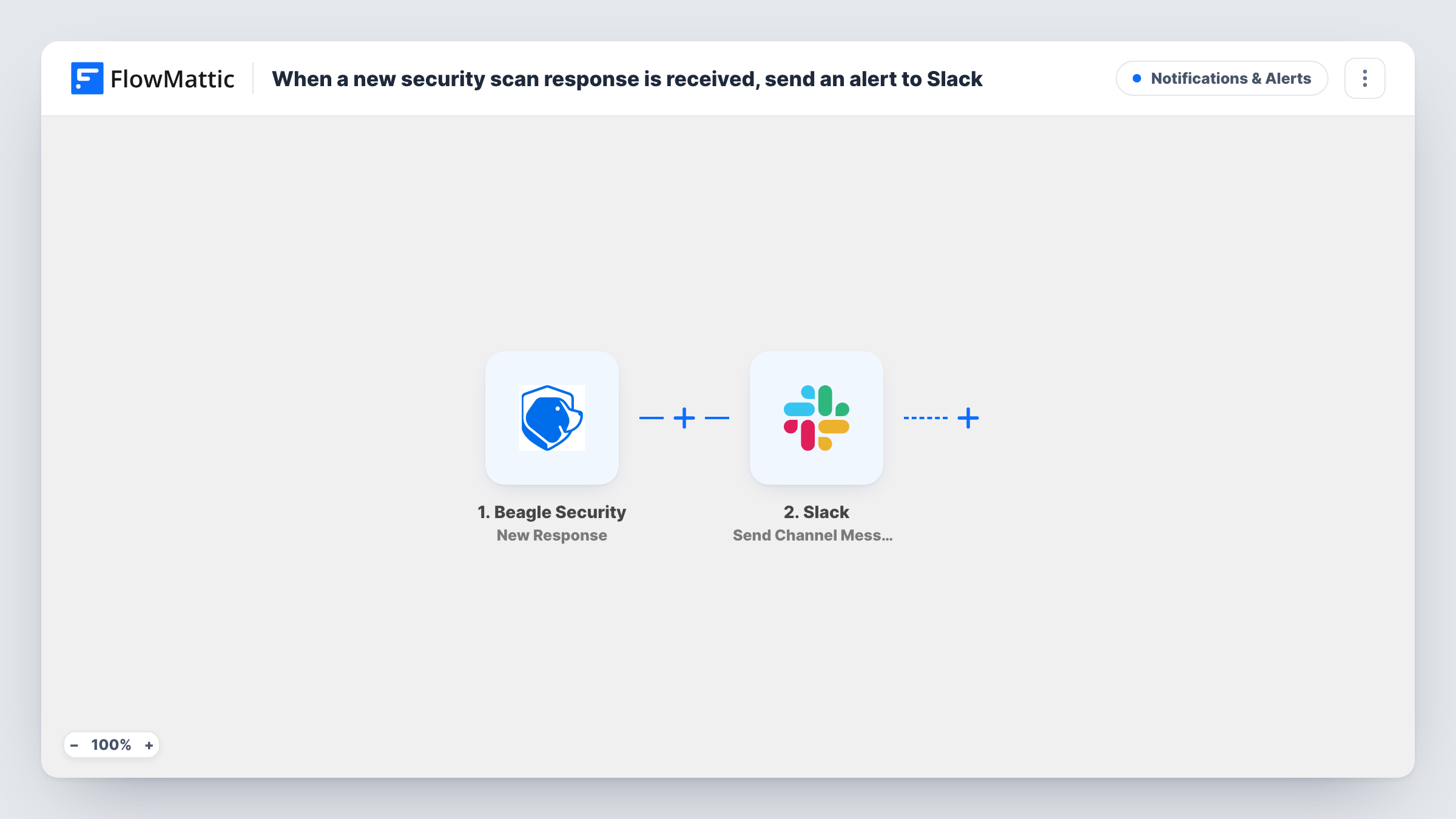
Whenever Beagle Security sends FlowMattic a new response, such as a scan result, this workflow posts a message about it to a Slack channel so your team sees it where they already talk.
 Beagle Security
 Slack
2 steps Setup ~5 min Used on 1.1k sites Free to import
What this workflow does
Security scan results are easy to miss when they arrive in an email inbox or wait in a dashboard. If your developers and site owners live in Slack, that is where a new result should appear. This workflow posts to a Slack channel each time Beagle Security sends a new response.
The Beagle Security trigger, New Response, receives the data Beagle Security sends to FlowMattic. That data is passed to the Send Channel Message action in Slack. You write the message yourself and drop in the values from the response, so the post says which application was scanned and what came back, in whatever form Beagle Security provides it.
Every response leads to one Slack message, with nothing filtering them. Choose a channel where those messages belong, such as one for security or operations. Task History lets you open any run and read the full response Beagle Security sent.
Agency watching many client sites
Each Beagle Security result for any client application lands in one Slack channel, so the team sees new results without logging in to each project.
Release checks for a development team
After a deploy, the scan result posts to the dev channel, and the developer who shipped the change can read it in the thread.
Keeping a non-technical owner informed
A site owner who never opens Beagle Security still sees in Slack that a scan response came in, and can ask the developer about it.
How this workflow runs
What happens at each step once the workflow is on, and what you need before you import it.
 Beagle Security New Response
Runs when Beagle Security sends a new response to FlowMattic, such as the outcome of a scan. The response data is passed on so you can use it in the Slack message.
- Slack Send Channel Message
Posts a message to the Slack channel you pick, built from the Beagle Security response values you map. Connect your Slack workspace and send a test to check the wording.
What you need
- FlowMatticCore
- Beagle Security AccountAccount
- Slack AccountAccount
After importing, map your own data. To keep the template universal, not every step is pre-filled. Open each step in the builder and connect your accounts and fields (channels, lists, sheets, recipients) before you switch the workflow on.
Make it yours
Changes worth making after you import it.
- Run a scan in Beagle Security after import so FlowMattic captures a real response. Then pick the values you want to show in the Slack message.
- Add a Filter after the trigger if only some responses need a post, for example continue only when a value in the response shows findings. Check a captured response to choose the condition.
- If the security channel is busy, add a second step that also creates a task in your project tool, so the result does not scroll away unread.
Questions about this workflow
Which Beagle Security details can the Slack message include?
Any value in the response Beagle Security sends. Capture a real response after import and look at it in the Slack step to see what you can use.
Will every Beagle Security response post to Slack?
Yes, as imported. There is no condition after the trigger. Add a Filter to post only the responses you care about.
Can the alert go to a private Slack channel?
Yes, if the Slack connection can post there. For a private channel, add the connected app to it first, then test the step.
Do I need a Beagle Security account for this workflow?
Yes. The trigger receives responses from your Beagle Security account, and the Slack step posts through the Slack workspace you connect.
More Notifications & Alerts workflows
Other ready-to-import templates from the same category.






Import this workflow into your WordPress site
Download the JSON, import it from the Workflows screen and connect your accounts. Every run stays on your server, with no per-task fees.
30-day money-back guarantee Unlimited workflows and runs Self-hosted