

Send a Twilio SMS to the engineer on duty when Uptime.com raises an alert
When Uptime.com raises an alert, this workflow sends a Twilio text message to the phone number you set, such as your on-call phone, so the engineer carrying it hears about the problem away from a screen.
 Uptime.com
 Twilio
2 steps Setup ~5 min Used on 493 sites Free to import
What this workflow does
Email and chat alerts are easy to miss at night or on the move. A text message reaches the phone in someone's pocket. This workflow turns each Uptime.com alert into an SMS sent through your Twilio account.
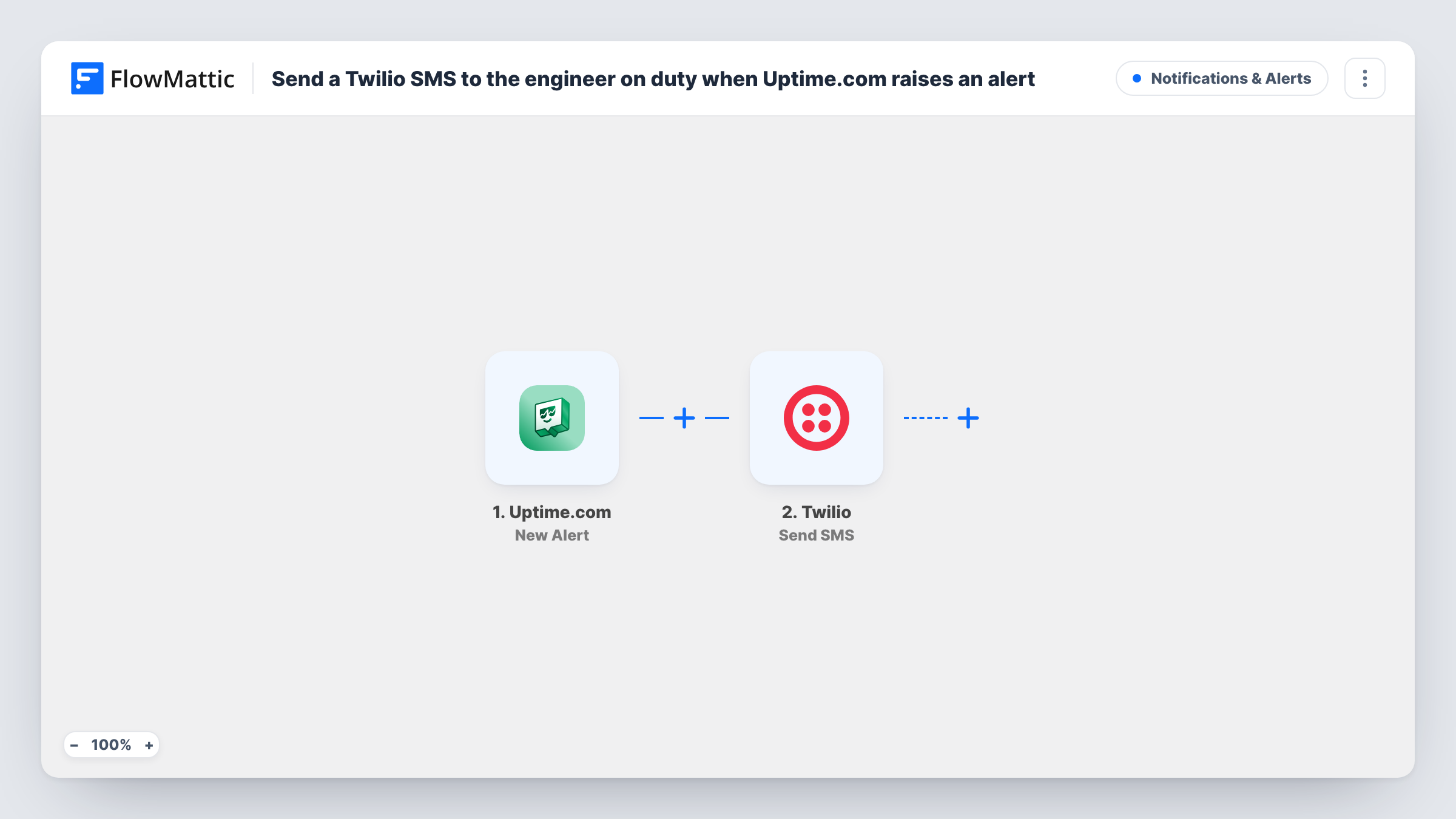
The Uptime.com trigger fires on New Alert and passes the alert data to FlowMattic. The Send SMS step in Twilio then texts the number you enter, with a message you write that can include alert details such as the check name.
The workflow does not know your on-call rota. It sends to the number set in the step, so it works best with a shared on-call phone, or with someone updating the number at each handover. Every alert sends a text. Each one, with Twilio's reply, appears in Task History.
Shared on-call phone for a small team
Your team passes one on-call phone between engineers each week. Every Uptime.com alert texts that phone, whoever is carrying it.
Agency watching client sites
An agency monitors client websites in Uptime.com. The engineer on call gets a text when one of those checks raises an alert.
Founder covering nights
In a two-person startup, the founder takes night alerts. Texts reach their phone even when Slack notifications are muted.
How this workflow runs
What happens at each step once the workflow is on, and what you need before you import it.
 Uptime.com New Alert
Starts when Uptime.com raises a new alert on one of your checks. The alert data is passed on so you can include its details in the text message.
- Twilio Send SMS
Sends an SMS from your Twilio number to the phone number you set. Connect Twilio, enter the on-call number, and write a short message with the Uptime.com alert details.
What you need
- FlowMatticCore
- Uptime.com AccountAccount
- Twilio AccountAccount
After importing, map your own data. To keep the template universal, not every step is pre-filled. Open each step in the builder and connect your accounts and fields (channels, lists, sheets, recipients) before you switch the workflow on.
Make it yours
Changes worth making after you import it.
- Keep the message short and put the check name first, so the important part shows in the phone's notification preview.
- To text a second person, add another Twilio Send SMS step after the first with a different number.
- Trigger a test alert in Uptime.com after import and look at the alert data in Task History, so you know what values you can place in the SMS.
Questions about this workflow
Does the workflow find out which engineer is on duty?
No. It texts the fixed number in the Twilio step. Use a shared on-call phone or change the number when the rota changes.
Will every Uptime.com alert send an SMS?
Yes, as imported. Add a Filter after the trigger if you want texts only for some checks, based on values you see in a test alert.
Do I need a Twilio phone number to send the alerts?
Yes. Messages go out from a number in your Twilio account, which you connect when you import the workflow and enter as the sender in the step.
More Notifications & Alerts workflows
Other ready-to-import templates from the same category.





Import this workflow into your WordPress site
Download the JSON, import it from the Workflows screen and connect your accounts. Every run stays on your server, with no per-task fees.
30-day money-back guarantee Unlimited workflows and runs Self-hosted