

Send a Discord notification when a Lokalise project export completes
When translation files are exported from a Lokalise project, this workflow posts a message to a Discord channel, so developers know a fresh set of translation files has just been pulled.
 Lokalise
 Discord
2 steps Setup ~5 min Used on 2.2k sites Free to import
What this workflow does
An export is the moment translations leave Lokalise and head for your app or site. Teams that coordinate in Discord often find out about it late, or ask in chat whether the latest strings have been pulled. This workflow posts the news to Discord each time an export happens.
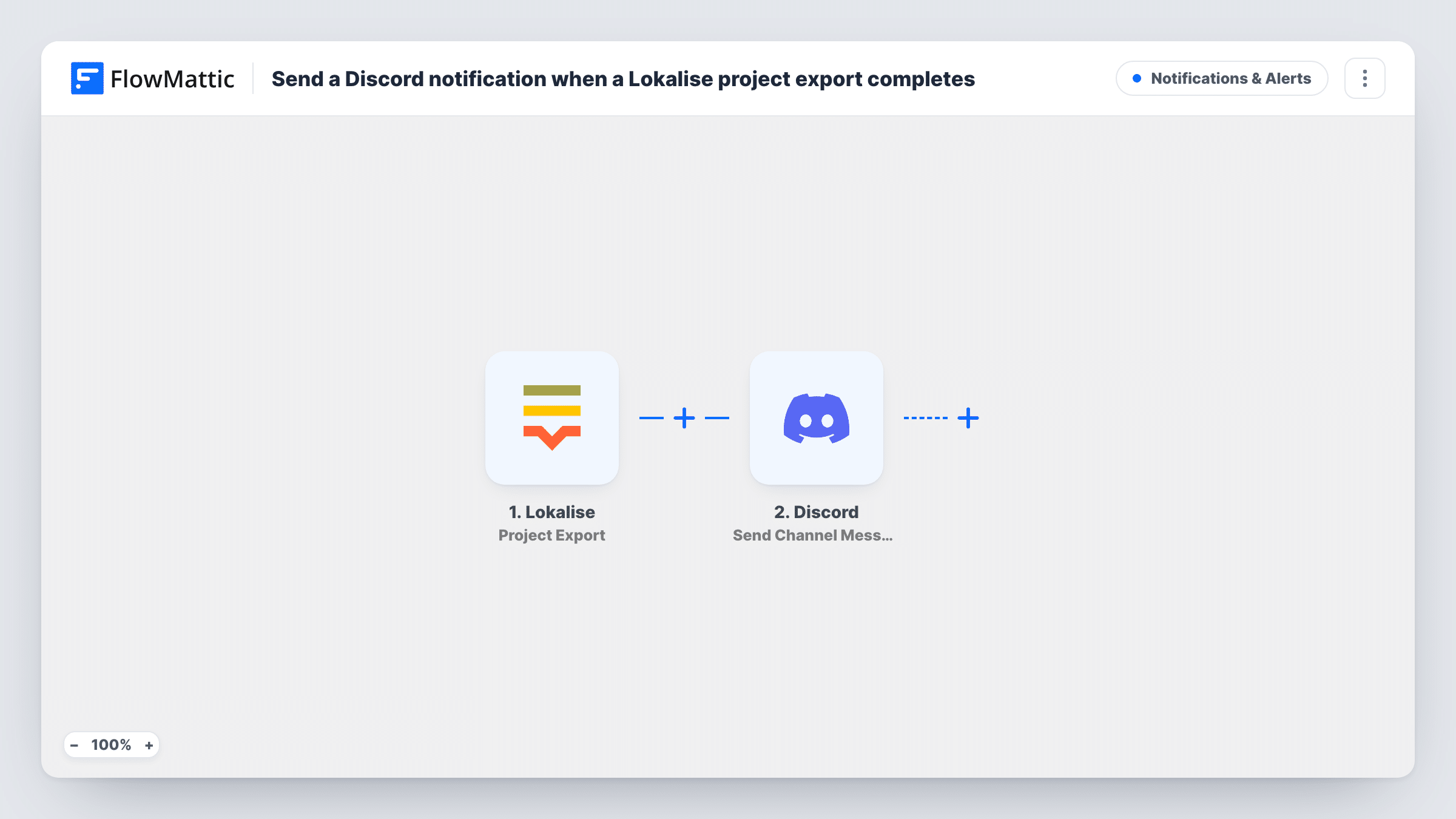
The Lokalise trigger is Project Export, which fires when translation files are downloaded from a project. FlowMattic passes the export data to Discord, where Send Channel Message posts to the channel you choose with the details you map, such as the project name.
The message goes out for every export the trigger receives, including ones a developer runs just to check something. If several people export through the day, the channel will show each one. A Filter on the project or the person who exported, if the payload carries them, keeps the channel to the exports you care about.
Release builds for a mobile app
The build engineer exports translations before each release, and the team's Discord channel shows that the language files for that build have been pulled.
Game studio with a Discord-first team
Localization exports for a game project post in the studio's Discord, so artists and testers know when new in-game text is on its way.
Open-source docs translations
Volunteer maintainers who export translated docs from Lokalise let the community know in a Discord channel each time new files are pulled.
How this workflow runs
What happens at each step once the workflow is on, and what you need before you import it.
 Lokalise Project Export
Runs when translation files are exported, that is downloaded, from your Lokalise project. The export data is passed to the Discord step for mapping.
- Discord Send Channel Message
Sends a Discord channel message about the export. Map the project name and any other export details you want readers to see into the message text.
What you need
- FlowMatticCore
- Lokalise AccountAccount
- Discord AccountAccount
After importing, map your own data. To keep the template universal, not every step is pre-filled. Open each step in the builder and connect your accounts and fields (channels, lists, sheets, recipients) before you switch the workflow on.
Make it yours
Changes worth making after you import it.
- Working in several Lokalise projects? Add a Filter after the trigger on the project name or ID, if the export data carries it, so only one project's exports are announced.
- Run one export after import so FlowMattic captures a real payload, then use it to build a Discord message that names the project and who exported it.
- Want the export in your release log too? Add a Google Sheets Add New Row step after the Discord step to record each export with its date.
Questions about this workflow
What counts as a Lokalise project export?
The trigger fires when translation files are downloaded from a project. Each download the trigger receives runs the workflow once and posts one Discord message.
Does the Discord message include the exported files?
No. The step posts a text message built from the values you map. The files stay wherever the export put them.
Can I send Lokalise export alerts to more than one Discord channel?
Yes. Add a second Discord Send Channel Message step after the first and pick another channel. Both steps run on every export.
More Notifications & Alerts workflows
Other ready-to-import templates from the same category.




Import this workflow into your WordPress site
Download the JSON, import it from the Workflows screen and connect your accounts. Every run stays on your server, with no per-task fees.
30-day money-back guarantee Unlimited workflows and runs Self-hosted