

Notify Sales Team on Slack When VIP customer exceeds $1000 threshold in FluentCart
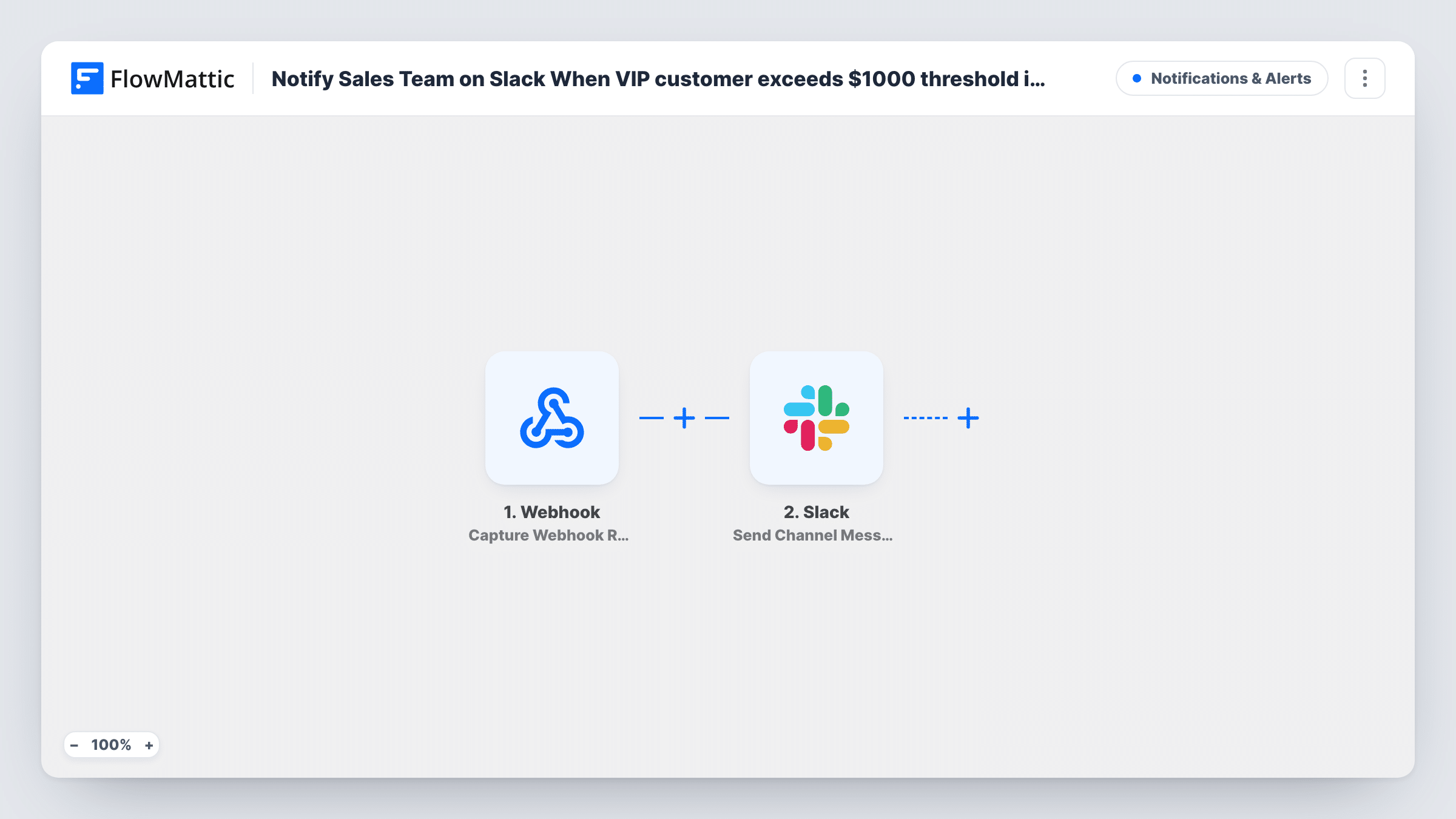
When a FluentCart customer’s total spend reaches the amount you set on the trigger, such as $1,000, FlowMattic posts a Slack message so your sales team can reach out to that VIP.
 FluentCart
 Slack
2 steps Setup ~5 min Used on 303 sites Free to import
What this workflow does
Your best customers are easy to miss when every order looks the same in the admin. A message the moment someone's lifetime spend crosses a set amount gives your sales or account team a reason to say thank you, offer a perk or start a conversation about bigger orders.
The FluentCart Customer Total Spend Threshold trigger fires when a customer reaches the spending amount you specify. Only orders whose payment succeeded count toward it, which FlowMattic lists as paid, partially paid and partially refunded orders. The template doesn't set the amount, so enter 1000 in the trigger after import, or whichever figure means VIP in your store's currency.
The Slack step then posts to a channel. It ships unmapped: after import you pick the channel your sales team watches and write the message, mapping customer details from the trigger, such as name, email and spend, as a test run shows them.
Before you rely on it, place test orders that take a customer over the amount and check Task History. You'll see the customer data FluentCart sent and what Slack returned.
Personal thank-you calls
A specialty coffee shop's owner gets a Slack post when a regular passes $1,000 in total orders and phones them to offer a free bag of the next roast.
Wholesale upsell leads
A supplies store on FluentCart treats customers who cross the threshold as wholesale prospects and has a rep email them about trade pricing.
VIP tags in your CRM
The sales team reads each alert in #vip-customers and tags the customer as VIP in their CRM so they get priority support.
How this workflow runs
What happens at each step once the workflow is on, and what you need before you import it.
 FluentCart Customer Total Spend Threshold
Fires when a FluentCart customer reaches the total spend you set, counting only paid, partially paid and partially refunded orders. Set the amount, such as 1000, after import.
- Slack Send Channel Message
Posts a VIP alert to a Slack channel. The step ships unmapped: after import, pick the sales channel and write the message with the customer details a test run shows.
What you need
- FlowMatticCore
- FluentCart PluginPlugin
- Slack AccountAccount
After importing, map your own data. To keep the template universal, not every step is pre-filled. Open each step in the builder and connect your accounts and fields (channels, lists, sheets, recipients) before you switch the workflow on.
Make it yours
Changes worth making after you import it.
- Add a second copy of this workflow with a higher amount, such as 5000, and a different message, so your team hears about each tier.
- Use Slack's Send Direct Message action instead if one account manager should get the alert personally.
- Write the threshold amount into the Slack message text, so the team can tell the tiers apart when you run more than one copy of the workflow.
Questions about this workflow
Where do I set the $1,000 threshold in FluentCart?
In the Customer Total Spend Threshold trigger after import. The template ships without an amount, so enter the figure you want in your store's currency before you turn the workflow on.
Do refunded FluentCart orders count toward the total?
FlowMattic describes the trigger as counting orders with paid, partially paid or partially refunded status. Fully refunded orders aren't in that list.
Will Slack get a message for customers who were already over the amount?
The trigger fires when a customer reaches the amount. Customers who passed it before the workflow was on may not start a run; if one of them orders again, check Task History to see what happened.
More Notifications & Alerts workflows
Other ready-to-import templates from the same category.





Import this workflow into your WordPress site
Download the JSON, import it from the Workflows screen and connect your accounts. Every run stays on your server, with no per-task fees.
30-day money-back guarantee Unlimited workflows and runs Self-hosted