

When a new row is added in Google Sheets, generate alt text in AltTextLab
Add an image to a new Google Sheets row and this workflow asks AltTextLab to write alt text for it, giving you descriptions for product photos, blog images or media libraries without writing each one yourself.
 Google Sheets
 AltTextLab
2 steps Setup ~5 min Used on 1.5k sites Free to import
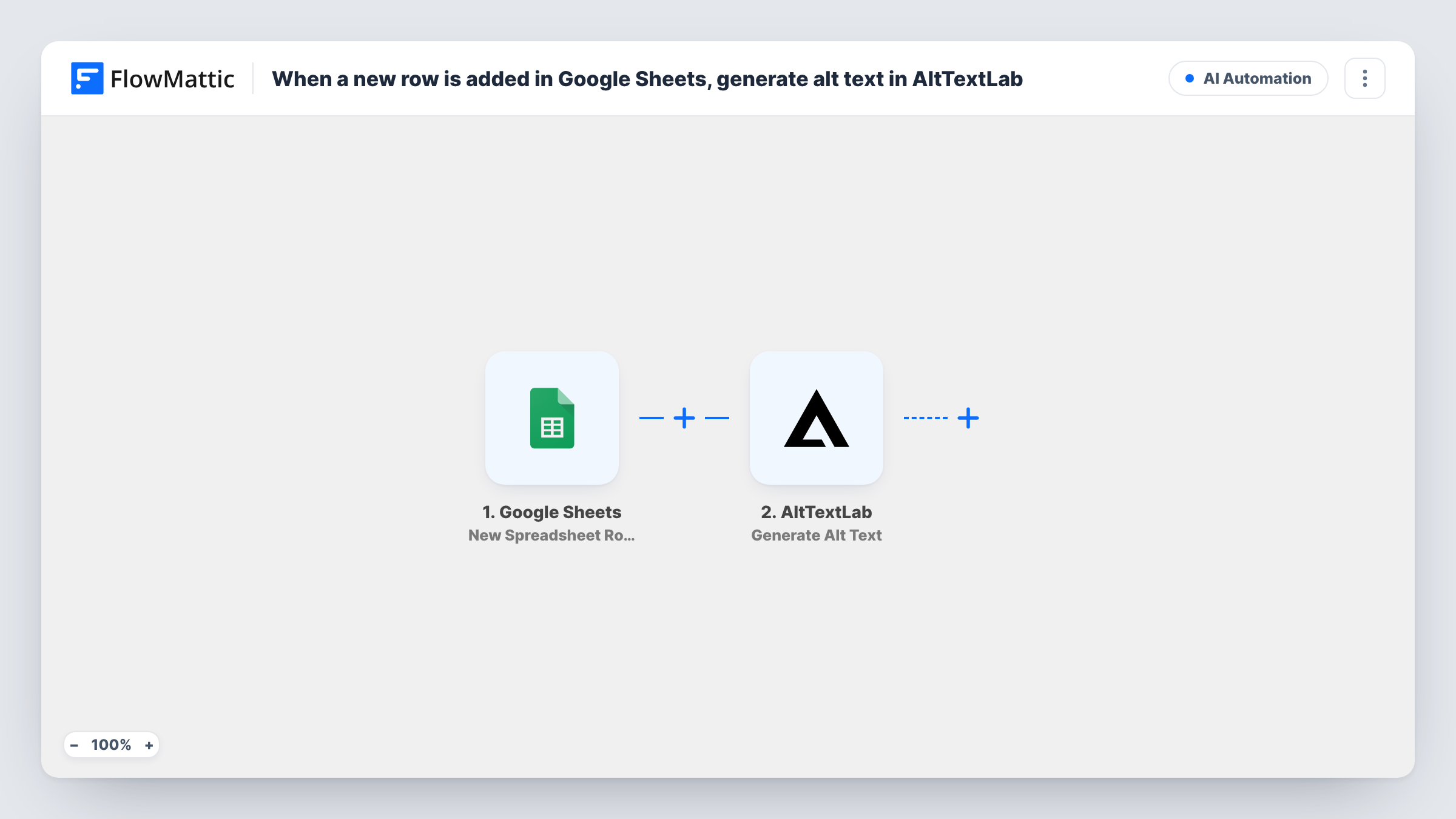
What this workflow does
Alt text matters for screen reader users and for search, but writing it for hundreds of images is tedious. Many teams already track their images in a spreadsheet during a migration, a product upload or an accessibility audit. This workflow uses that sheet as the starting point and has AltTextLab write the descriptions.
The Google Sheets trigger fires on New Spreadsheet Row and passes each column of the new row to FlowMattic. The second step, AltTextLab Generate Alt Text, receives the image from that row and returns a description, which appears in the step's output for the run.
The template stops there, so the alt text is not written anywhere yet. To use it, add a step after AltTextLab that puts the text back in the sheet or onto the image where it is used, as the tips explain. Add one test row after import to see what AltTextLab returns before you build on it.
Store catalogue clean-up
You export product image links into a sheet. Each row you add gets a description from AltTextLab, ready to paste or sync into your product listings.
Website migration
While moving a site, an editor lists every image that lacks alt text in a sheet and gets a suggested description for each new row.
Accessibility audit backlog
Images flagged in an audit go into a shared sheet, and the team reviews AltTextLab's suggestion for each before publishing it.
How this workflow runs
What happens at each step once the workflow is on, and what you need before you import it.
 Google Sheets New Spreadsheet Row
Starts the workflow when a new row is added to the spreadsheet you connect. Every column in that row, including the image link, is passed to AltTextLab.
- AltTextLab Generate Alt Text
Sends the image from the new row to AltTextLab and gets alt text back. Map the row's image link into the step, then check the generated text in a test run.
What you need
- FlowMatticCore
- Google Sheets AccountAccount
- AltTextLab AccountAccount
After importing, map your own data. To keep the template universal, not every step is pre-filled. Open each step in the builder and connect your accounts and fields (channels, lists, sheets, recipients) before you switch the workflow on.
Make it yours
Changes worth making after you import it.
- Add a Google Sheets Update Row step after AltTextLab to write the alt text into a column beside the image link, so the sheet becomes your finished list.
- Add a Filter after the trigger that continues only when the image column isn't empty, so half-filled rows don't produce a failed request.
- Have someone read the generated text before it goes live, especially for images where the meaning depends on context only you know.
Questions about this workflow
Where does the AltTextLab result end up?
As imported, only in the AltTextLab step's output, which you can see in Task History. Add a step after it, such as Update Row in Google Sheets, to store the text.
Do rows already in the Google Sheet get alt text?
No. The trigger reacts to rows added after the workflow is on. Rows that were there before are left alone.
Do I need an AltTextLab account?
Yes. The step runs through the AltTextLab account you connect on import, so check your account there for any usage terms.
Does the image need to be online for AltTextLab?
AltTextLab has to be able to reach the image you map from the row. Use a link that opens without a login, and test one row first.
More AI Automation workflows
Other ready-to-import templates from the same category.







Import this workflow into your WordPress site
Download the JSON, import it from the Workflows screen and connect your accounts. Every run stays on your server, with no per-task fees.
30-day money-back guarantee Unlimited workflows and runs Self-hosted