

When a new domain is created in Paced Email, send the details to Zapier
When a domain is created in your Paced Email account, FlowMattic passes its details to Zapier, so a Zap you already run can record the domain or tell your team about it.
 Paced Email
 Zapier
2 steps Setup ~5 min Used on 1.1k sites Free to import
What this workflow does
Adding a domain to Paced Email is usually the start of more work: someone has to note it in your records, set up DNS, or let a client know it is ready. If those steps already live in Zapier, you only need a way to tell Zapier the domain exists. This workflow is that link.
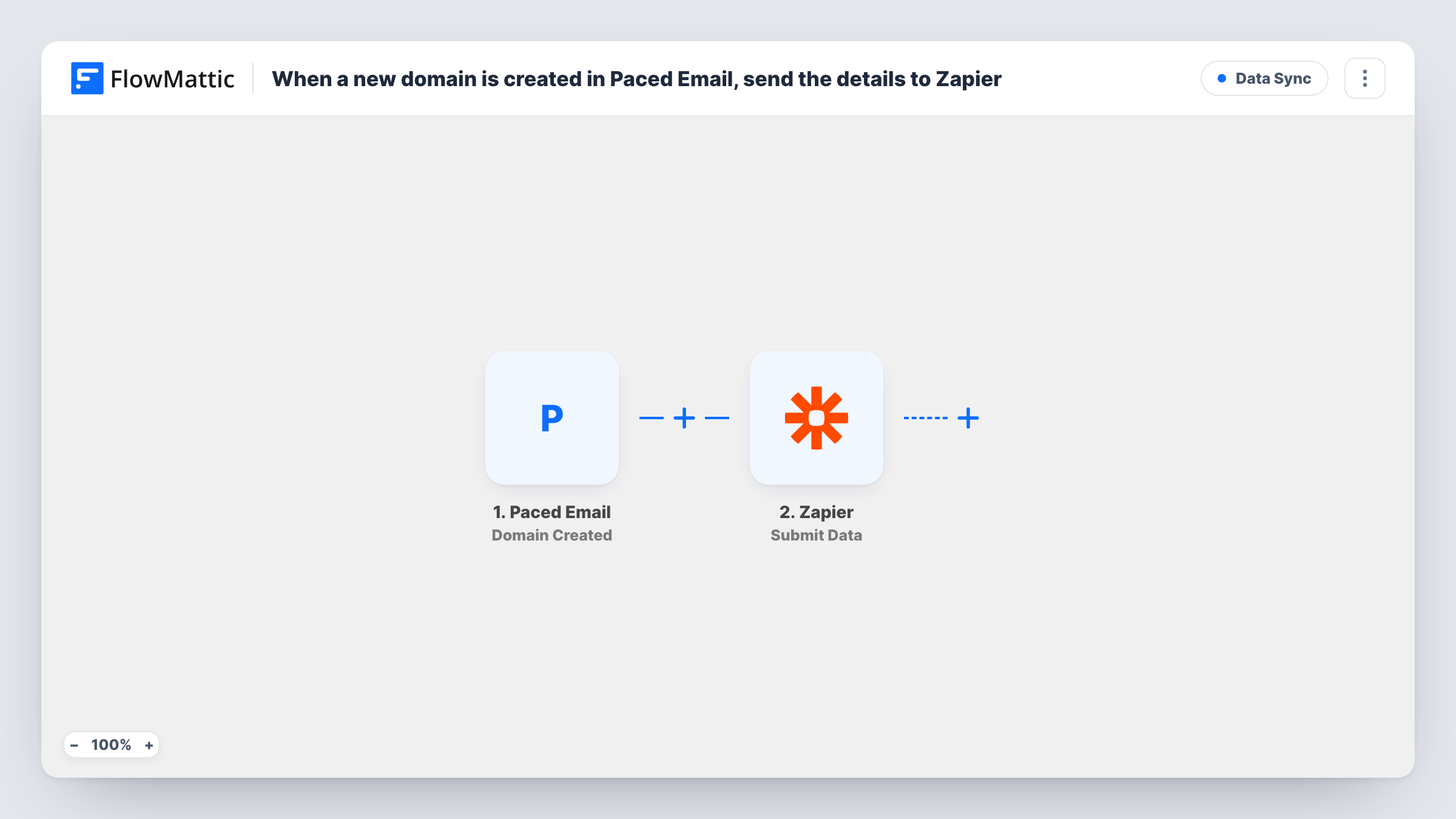
The Paced Email trigger runs each time a new domain is created in your account. FlowMattic receives the domain details from that event. The second step, Submit Data in Zapier, sends the values you map to Zapier, where your own Zap takes them from there.
The workflow itself has only these two steps, so it stays easy to check. Task History records every run, which helps when you want to confirm a new domain was passed on. If the app you need is also available in FlowMattic, you can add its step to this workflow instead of going through Zapier.
Agency onboarding a client domain
You add a client's domain in Paced Email, and your Zap opens a setup task in the project tool your team uses, with the domain details filled in.
Keeping a domain register up to date
Each domain created in Paced Email reaches a Zap that adds it to the spreadsheet or database where you track every domain you manage.
Telling the team a new domain exists
A Zap posts the new Paced Email domain to a team chat channel, so whoever handles DNS knows there is something to configure.
How this workflow runs
What happens at each step once the workflow is on, and what you need before you import it.
 Paced Email Domain Created
Runs when a new domain is created in your Paced Email account. The details that come with the event can be mapped into the Zapier step.
- Zapier Submit Data
Sends data to Zapier. Map the Paced Email domain details you want into this step, then run a test and check in Zapier that your Zap receives each value.
What you need
- FlowMatticCore
- Paced Email AccountAccount
- Zapier AccountAccount
After importing, map your own data. To keep the template universal, not every step is pre-filled. Open each step in the builder and connect your accounts and fields (channels, lists, sheets, recipients) before you switch the workflow on.
Make it yours
Changes worth making after you import it.
- Create a test domain in Paced Email after import so FlowMattic captures a real example of the event before you map anything into the Zapier step.
- If you only need the domain in a Google Sheet or a Slack channel, swap the Zapier step for FlowMattic's own Google Sheets or Slack action and drop the extra hop.
- Add a Filter after the trigger with a condition on the domain name if only some domains, such as client domains, should be passed on to Zapier.
Questions about this workflow
What does Zapier need to receive the Paced Email domain data?
A Zapier account and a Zap set up to receive what FlowMattic sends. Build or open that Zap first, then test this workflow and confirm the data arrives.
Does the workflow fire for domains I added to Paced Email before importing it?
No. It reacts to the Domain Created event, so only domains created after the workflow is turned on are sent to Zapier.
Which domain details reach Zapier?
Only the values you map into the Submit Data step. Run the trigger once after import to see what the Paced Email event includes, then choose what to send.
Can I send new Paced Email inboxes to Zapier as well?
Yes, with a second workflow. Use the Paced Email Inbox Created trigger there and add the same Zapier step.
More Data Sync workflows
Other ready-to-import templates from the same category.






Import this workflow into your WordPress site
Download the JSON, import it from the Workflows screen and connect your accounts. Every run stays on your server, with no per-task fees.
30-day money-back guarantee Unlimited workflows and runs Self-hosted