

When a donation is completed in GiveWP, add the donor as a subscriber in Mailchimp
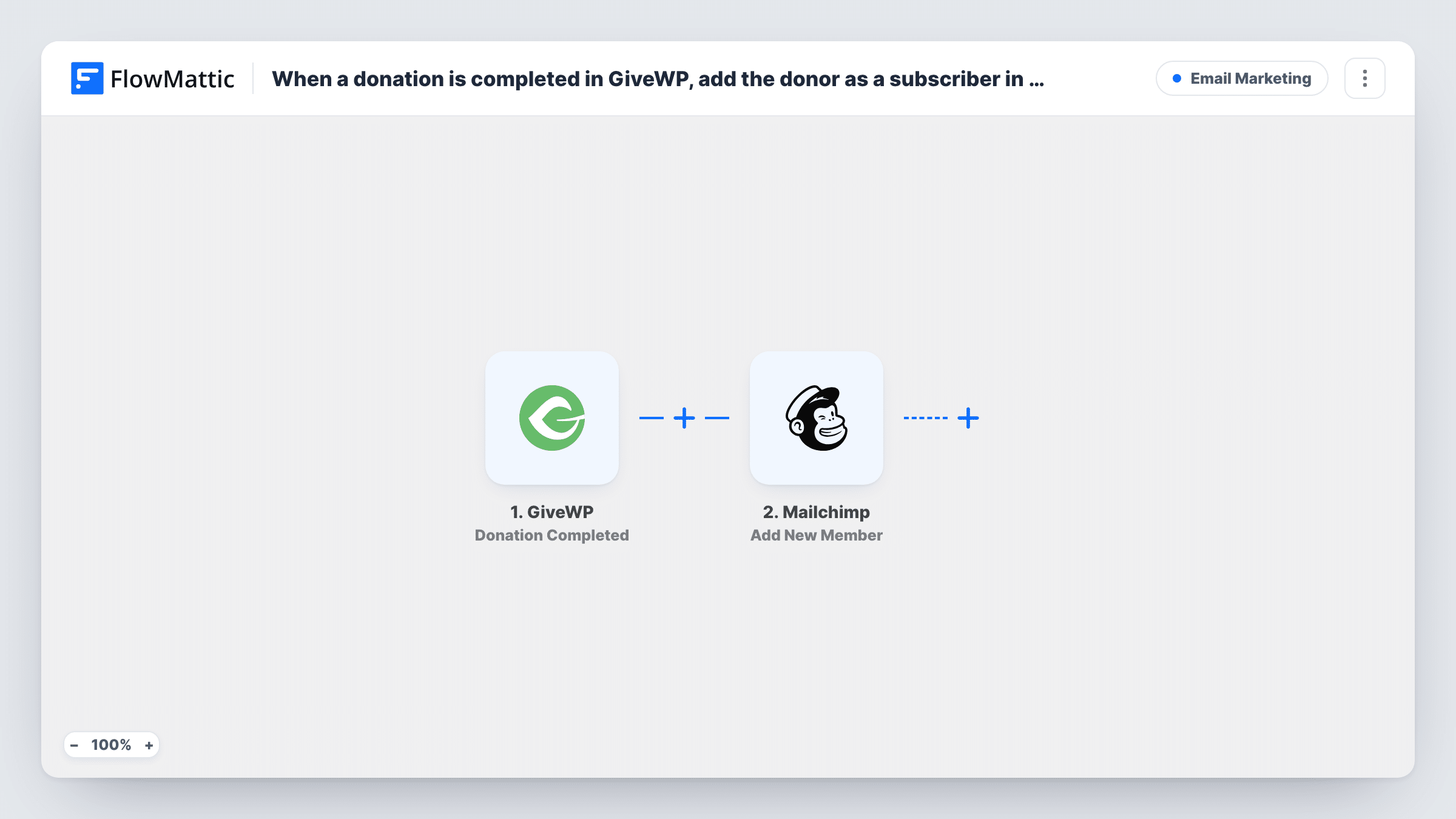
When a GiveWP donation is completed, FlowMattic adds the donor’s email to your Mailchimp audience as a new member, so supporters are ready for your next update or appeal.
 GiveWP
 Mailchimp
2 steps Setup ~5 min Used on 2.5k sites Free to import
What this workflow does
Donors who give through your WordPress site are the people most worth staying in touch with, yet GiveWP and Mailchimp do not talk to each other on their own. Copying donor emails into Mailchimp after each campaign is slow and easy to forget. This workflow adds each donor as the gift goes through.
The GiveWP trigger fires when a donation reaches completed status. FlowMattic takes the donor and donation data from that event and passes it to the Mailchimp Add New Member action. You choose the audience and map the donor's email, plus any name details you want stored with the member.
GiveWP and FlowMattic both run on your WordPress site, so only the Mailchimp step sends donor data out. Every run appears in Task History, which is the place to look if a donor did not show up in your audience.
Thank-you series for new donors
Each GiveWP donor joins the Mailchimp audience where a welcome automation sends a thank-you and a short story about where the money goes.
Year-end appeal list
By December your Mailchimp audience already holds everyone who gave through GiveWP during the year, ready for the year-end appeal.
Impact updates after a campaign
Donors to a GiveWP campaign are in Mailchimp when the project wraps up, so you can send them a report on what their gifts paid for.
How this workflow runs
What happens at each step once the workflow is on, and what you need before you import it.
 GiveWP Donation Completed
Runs when a donation in GiveWP is marked completed. The donor's details and the donation data become available to map into Mailchimp.
- Mailchimp Add New Member
Adds the donor to the Mailchimp audience you pick. Map the GiveWP donor email to the member's email, and the first and last name if you want them on the record.
What you need
- FlowMatticCore
- GiveWP PluginPlugin
- Mailchimp AccountAccount
After importing, map your own data. To keep the template universal, not every step is pre-filled. Open each step in the builder and connect your accounts and fields (channels, lists, sheets, recipients) before you switch the workflow on.
Make it yours
Changes worth making after you import it.
- If your GiveWP form has an opt-in checkbox for news, add a Filter after the trigger so only donors who ticked it are added to Mailchimp.
- Map the donor's first and last name into the Mailchimp step as well as the email, so your thank-you emails can greet each supporter by name.
- Use a Router with a condition on the GiveWP form or campaign to add donors from different campaigns to different Mailchimp audiences.
Questions about this workflow
Does a pending or failed GiveWP donation add the donor to Mailchimp?
No. The trigger is Donation Completed, so the workflow runs only once GiveWP marks a donation as completed.
What if the GiveWP donor is already a Mailchimp member?
Add New Member adds the address to the list, or updates the existing member if Mailchimp already has it, so the donor is not added twice.
Should every donor be added to my Mailchimp audience?
That depends on the consent rules you follow. Giving a donation is not always permission to send marketing email, so consider an opt-in field on the form and a Filter on it.
Are past GiveWP donors added when I import this?
No. Only donations completed after you turn the workflow on reach Mailchimp. Import older donors into Mailchimp separately if you want them there.
More Email Marketing workflows
Other ready-to-import templates from the same category.





Import this workflow into your WordPress site
Download the JSON, import it from the Workflows screen and connect your accounts. Every run stays on your server, with no per-task fees.
30-day money-back guarantee Unlimited workflows and runs Self-hosted