

When a task is created in Neaktor, create a Groundhogg contact and send them an email
Each new Neaktor task adds a contact to Groundhogg from the task’s details, and Groundhogg then sends that contact the email you pick, so the person tied to the work hears about it.
 Neaktor
 Groundhogg
3 steps Setup ~5 min Used on 1.1k sites Free to import
What this workflow does
Tasks in Neaktor often concern someone outside your team: a client whose request just became a job, or a partner who needs to know work has started. Writing to them by hand each time a task opens is easy to put off. This workflow turns each new Neaktor task into a Groundhogg contact and sends them an email from your WordPress CRM.
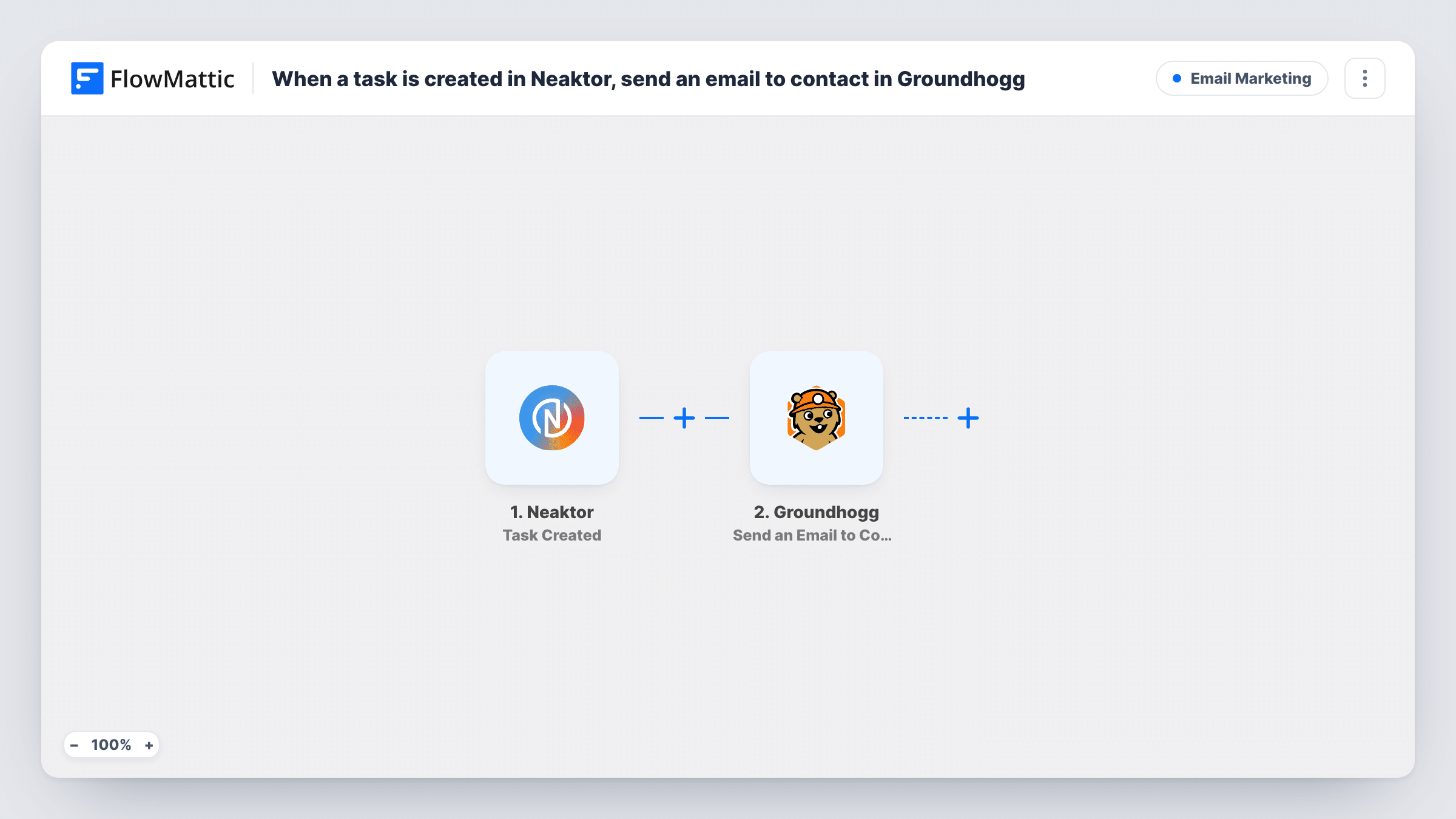
The Neaktor trigger fires when a task is created and passes on the task's data. The first Groundhogg step, Create New Contact, adds a contact from the details you map, such as an email and name. Whose details those are depends on the fields your Neaktor tasks carry, so create a test task and look at the trigger data before you map anything.
The second Groundhogg step, Send an Email to Contact, sends a Groundhogg email to that contact. Both steps ship unmapped: after import, map the email and name into the contact step, then pick the email to send and map the contact from step 2 into it.
Every new task starts a run, so a client with three new tasks gets three emails. If the same person comes up again, Groundhogg decides what to do with an email it already holds, and each step's result is listed in Task History.
Job-started notice for clients
A design agency records client requests as Neaktor tasks and sends the client a Groundhogg email saying the work has been picked up and who to contact.
Field service visit confirmation
A maintenance company creates a Neaktor task for each callout and emails the customer a confirmation that the visit is on the schedule.
Building a CRM from project work
A consultancy that keeps client contacts on its tasks grows its Groundhogg contact list from those tasks, ready for later newsletters.
How this workflow runs
What happens at each step once the workflow is on, and what you need before you import it.
 Neaktor Task Created
Fires each time a task is created in Neaktor. Its fields go to the Groundhogg steps; create a test task after import to see which of them hold the email and name you need.
- Groundhogg Create New Contact
Adds a contact to Groundhogg from the Neaktor task. Map the email and name from the trigger data after import, since nothing is filled in yet.
- Groundhogg Send an Email to Contact
Sends a Groundhogg email to the contact from step 2. Pick the email you want to send, such as a work-started message, and map the contact created in the previous step.
What you need
- FlowMatticCore
- Neaktor AccountAccount
- Groundhogg PluginPlugin
After importing, map your own data. To keep the template universal, not every step is pre-filled. Open each step in the builder and connect your accounts and fields (channels, lists, sheets, recipients) before you switch the workflow on.
Make it yours
Changes worth making after you import it.
- Keep the client's email in a field on your Neaktor tasks, so the Create New Contact step always has an address to map.
- Put a Filter between the Neaktor trigger and the Create New Contact step that continues only when the task's email field is not empty, so internal tasks without a client don't reach Groundhogg.
- Write the Groundhogg email so it still reads well for repeat clients, since each new task sends it again.
- Add Groundhogg's Add Tag(s) to User action after the email step to mark these contacts as coming from Neaktor work.
Questions about this workflow
Where does the Groundhogg contact's email come from?
From whichever Neaktor task field you map into Create New Contact. The template doesn't set one, so check a test task's data in FlowMattic and pick the field that holds the person's address.
What if the person from the Neaktor task is already in Groundhogg?
Groundhogg decides how to treat an email it already holds. Run a test with a known contact's address and look at what Create New Contact returned in Task History.
Which email does Groundhogg send to the contact?
The one you choose in the Send an Email to Contact step. Build it in Groundhogg first, then select it after import.
Does the Groundhogg plugin need to be on my WordPress site?
Yes. The template lists the Groundhogg plugin as a requirement, along with your Neaktor account.
More Email Marketing workflows
Other ready-to-import templates from the same category.




Import this workflow into your WordPress site
Download the JSON, import it from the Workflows screen and connect your accounts. Every run stays on your server, with no per-task fees.
30-day money-back guarantee Unlimited workflows and runs Self-hosted