

Send emails via Gmail for new JetFormBuilder submissions
Each JetFormBuilder form submission on your WordPress site triggers an email sent from your Gmail account, to the person who filled it in or to your team, with the form answers you map.
 JetFormBuilder
 Gmail
Gmail2 steps Setup ~5 min Used on 3.2k sites Free to import
What this workflow does
A JetFormBuilder form can collect almost anything: enquiries, applications, bookings. Sending the follow-up email from your own Gmail address, instead of your site's mail settings, means replies come straight back to an inbox you already watch. This workflow sends that email for every submission.
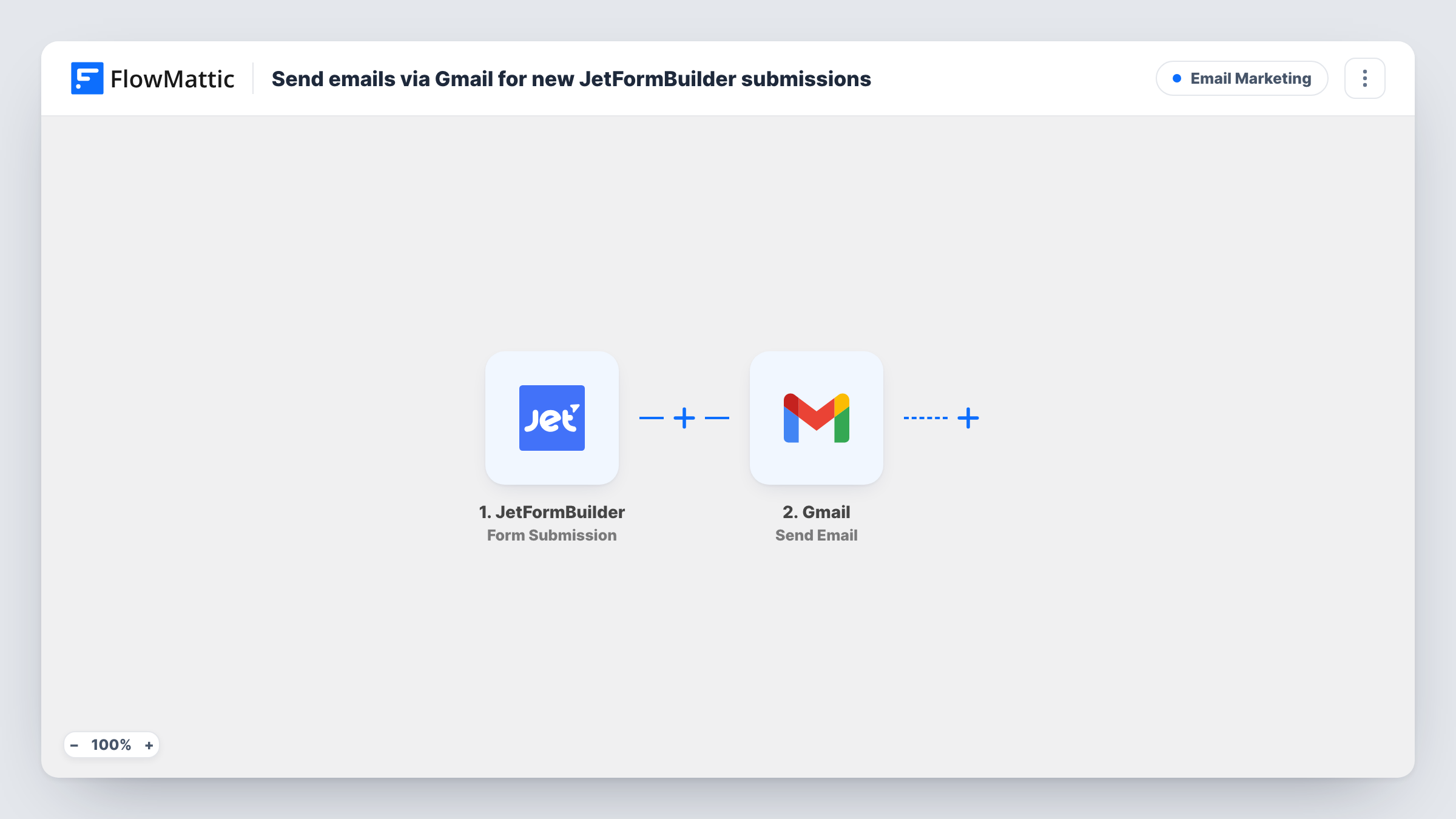
The JetFormBuilder trigger fires when a form is submitted on your site. FlowMattic receives the submitted fields and passes them to Gmail, where the Send Email action delivers your message through the account you connect. The recipient is up to you. Map the form's email field to reply to the visitor, or type your own address to get an alert.
The subject and body are yours to write, with any form answer placed where you want it. JetFormBuilder's own form actions keep running alongside this. Submit a test entry after import to capture the fields, and use Task History to check each email went out.
Personal reply to enquiries
A visitor asks about your services. They get an email from your Gmail address that thanks them by name and says when you will call.
Application received notices
Applicants fill in a JetFormBuilder job form. Each one gets a confirmation from the hiring manager's Gmail, and replies go to that manager.
Team copy of every request
Send the email to your support address instead of the visitor, with all answers in the body, so the team sees every request in Gmail.
How this workflow runs
What happens at each step once the workflow is on, and what you need before you import it.
 JetFormBuilder Form Submission
Fires when someone submits a JetFormBuilder form on your WordPress site. Every field from that submission can be used in the email.
- Gmail Send Email
Delivers an email through the Gmail account you connect. Map the recipient, either the visitor's email field or a fixed address, and write the subject and body with the form answers.
What you need
- FlowMatticCore
- JetFormBuilder AccountAccount
- Gmail AccountAccount
After importing, map your own data. To keep the template universal, not every step is pre-filled. Open each step in the builder and connect your accounts and fields (channels, lists, sheets, recipients) before you switch the workflow on.
Make it yours
Changes worth making after you import it.
- Make the email field required in JetFormBuilder if the message goes to the visitor, so the Gmail step always has an address to send to.
- Add a Filter after the trigger if only one form, or one kind of answer, should send this email, for example an enquiry type equal to Sales.
- Add a second Gmail step to send yourself a copy of each submission while the first one replies to the visitor.
Questions about this workflow
Will JetFormBuilder's own email notifications still be sent?
Yes. The workflow doesn't change your form's actions. If JetFormBuilder already sends an email, you may want to turn it off to avoid two messages.
Can the Gmail email go to the person who filled in the JetFormBuilder form?
Yes. Map the form's email field as the recipient in the Send Email step. Test with your own address first.
Does every JetFormBuilder form on my site trigger this?
Check the trigger setup after import to see which form it listens to. Use a Filter, or a separate copy of the workflow per form, if you need different emails for different forms.
More Email Marketing workflows
Other ready-to-import templates from the same category.





Import this workflow into your WordPress site
Download the JSON, import it from the Workflows screen and connect your accounts. Every run stays on your server, with no per-task fees.
30-day money-back guarantee Unlimited workflows and runs Self-hosted