

Post a Slack message to the team when new Fathom meeting content is ready
When Fathom finishes processing a meeting and its content is ready, this workflow posts a message to a Slack channel, so your team sees the meeting details without opening Fathom.
 Fathom
 Slack
2 steps Setup ~5 min Used on 2.0k sites Free to import
What this workflow does
Fathom records your calls and processes them afterwards. The people who missed the call, or who need to act on it, then have to go and look for the result. This workflow tells them in Slack as soon as the content is ready, in the channel where they already talk.
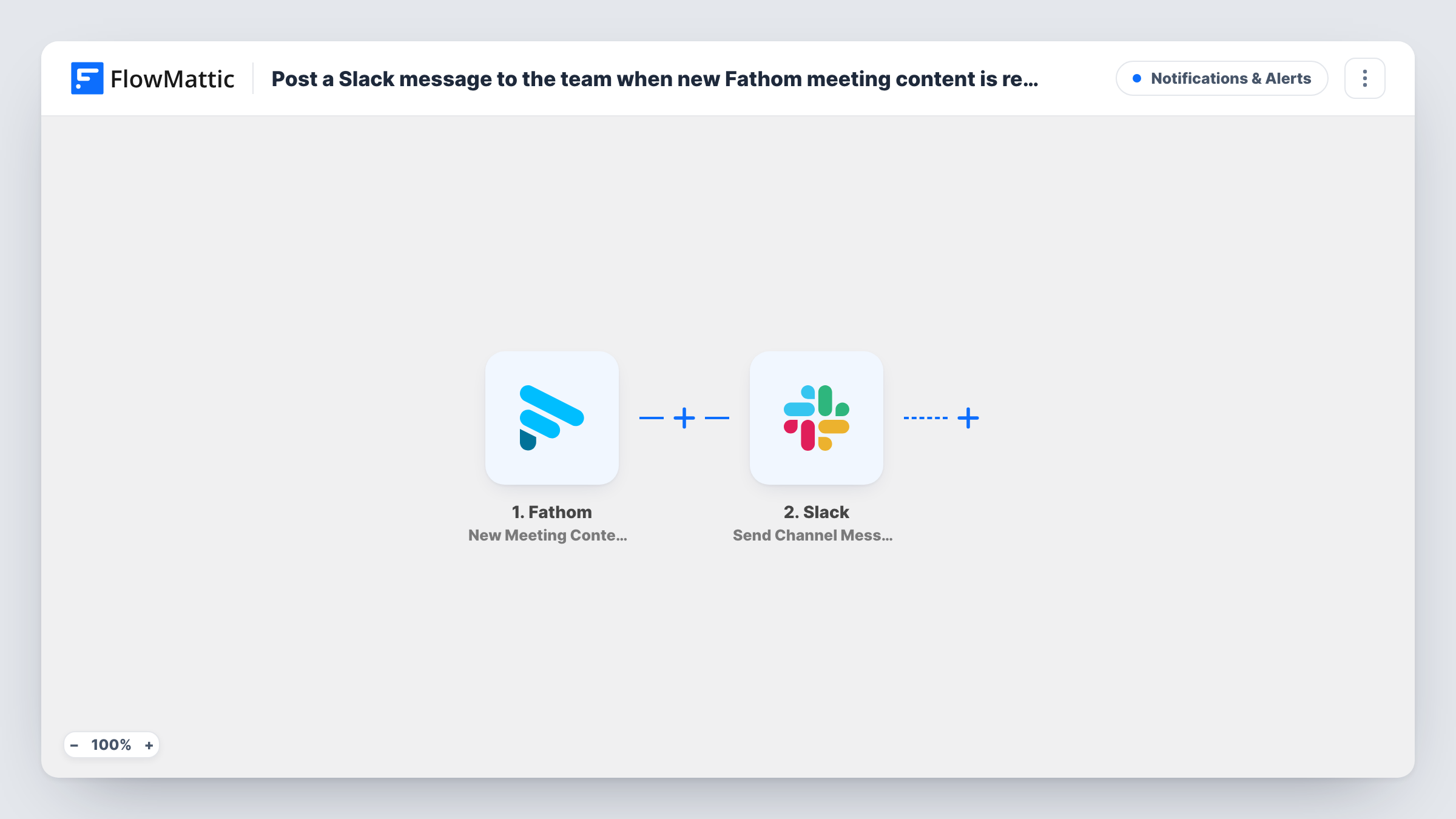
The Fathom trigger fires when a meeting has been processed and its data is available. FlowMattic receives that meeting data and makes it available for mapping. The second step sends a message to the Slack channel you choose. You write the message and drop in meeting values from Fathom, such as the title, a link to the recording or the summary, depending on what Fathom sends for your meetings.
Every processed meeting produces one message, so pick a channel that suits the volume. A test run after import shows which Fathom values you can use, and Task History lists each message the workflow sent.
Sales call recaps for the account team
After each recorded prospect call, the account team's Slack channel gets the meeting title and recording link, so colleagues who were not on the call can catch up.
Client calls at an agency
Project managers post Fathom meeting details to the client's internal Slack channel, so designers and developers read what was discussed without asking.
Weekly internal meetings
Team members who were away see a message in the team channel once the meeting content is ready and can open the recording from there.
How this workflow runs
What happens at each step once the workflow is on, and what you need before you import it.
 Fathom New Meeting Content Ready
Runs when Fathom has finished processing a meeting and its data is available. That meeting data is passed on so you can place it in the Slack message.
- Slack Send Channel Message
Sends a message to your chosen Slack channel. Write the text and insert Fathom values into it, then connect your Slack workspace on import.
What you need
- FlowMatticCore
- Fathom AccountAccount
- Slack AccountAccount
After importing, map your own data. To keep the template universal, not every step is pre-filled. Open each step in the builder and connect your accounts and fields (channels, lists, sheets, recipients) before you switch the workflow on.
Make it yours
Changes worth making after you import it.
- Record a short test meeting in Fathom after import, so FlowMattic captures real meeting data and you can see which values are there to use in the message.
- If you only want some meetings shared, add a Filter after the trigger, for example one that continues when the meeting title contains a word such as Client.
- Use a Router to send meetings to different Slack channels, giving each route a condition on a meeting value that cannot match another route's.
Questions about this workflow
Which Fathom meetings post to Slack?
As imported, every meeting Fathom reports as ready runs the workflow, because there is no Filter. Add one after the trigger if some meetings, such as one-to-ones, should stay out of Slack.
Can I choose what the Slack message says about the Fathom meeting?
Yes. You write the message text in the Slack step and insert values from the Fathom meeting data. Run a test to see which values Fathom sends for your account.
Does the message go to a channel or to a person?
The step is Send Channel Message, so it posts to a Slack channel. Replace it with another Slack action if you would rather message a person directly.
Is anything changed in Fathom?
No. The workflow only reads the meeting data Fathom provides and posts it to Slack.
More Notifications & Alerts workflows
Other ready-to-import templates from the same category.


Import this workflow into your WordPress site
Download the JSON, import it from the Workflows screen and connect your accounts. Every run stays on your server, with no per-task fees.
30-day money-back guarantee Unlimited workflows and runs Self-hosted