

Send a Slack alert when a new GoodDay.Work project is created
Whenever a project is created in GoodDay.Work, this workflow posts a message to a Slack channel you pick, so your team hears about new projects where they already talk.
 GoodDay.Work
 Slack
2 steps Setup ~5 min Used on 1.4k sites Free to import
What this workflow does
New projects in GoodDay.Work are easy to miss if you are not the one who set them up. People who will be pulled in later, such as designers, account managers or finance, often learn about the work only when the first task lands. This workflow tells them in Slack as each project is added.
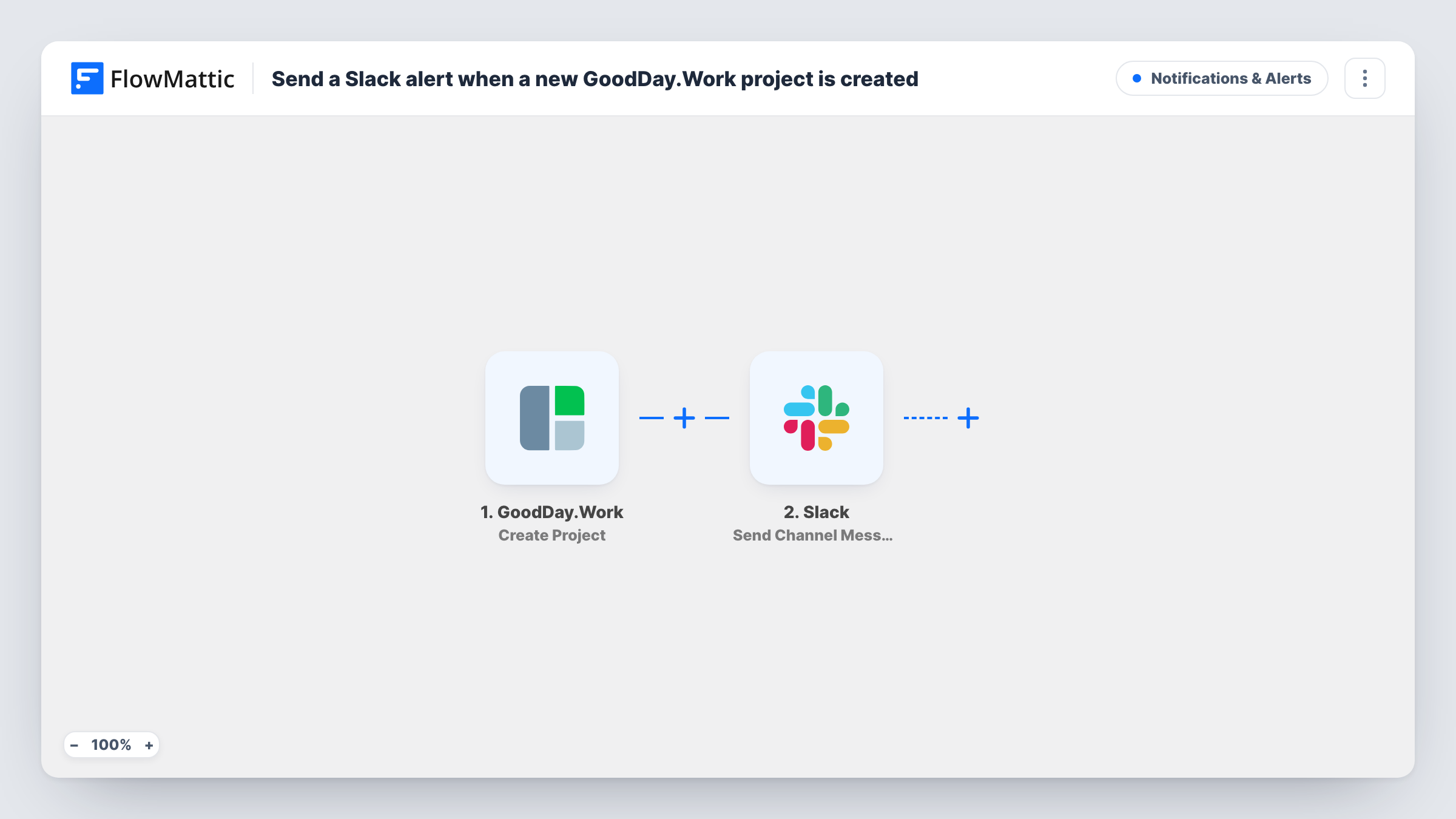
The GoodDay.Work trigger fires when a project is created in your account. The project's details come into FlowMattic as fields you can map. The Slack step then posts to the channel you choose, using a message you write from those fields and your own text.
Each new project produces one Slack message, with no filtering as imported. Changes to an existing project don't fire this trigger, since it listens only for creation. Task History lists every run, so you can check what GoodDay.Work sent if a message looks incomplete.
Heads-up for a delivery team
A studio's production channel gets a Slack note each time a project manager opens a new project in GoodDay.Work.
Track new client work
Account managers follow one channel that lists every project as it is created, without needing to check GoodDay.Work each day.
Keep finance in the loop
A billing channel receives each new project, so whoever sets up invoicing knows a job has started.
How this workflow runs
What happens at each step once the workflow is on, and what you need before you import it.
 GoodDay.Work Create Project
Fires when a project is created in GoodDay.Work. The new project's details are handed to the Slack step for use in the message.
- Slack Send Channel Message
Publishes a message in the Slack channel you set. Connect your workspace, choose the channel and compose the text with fields from the GoodDay.Work project.
What you need
- FlowMatticCore
- GoodDay.Work AccountAccount
- Slack AccountAccount
After importing, map your own data. To keep the template universal, not every step is pre-filled. Open each step in the builder and connect your accounts and fields (channels, lists, sheets, recipients) before you switch the workflow on.
Make it yours
Changes worth making after you import it.
- Create a test project in GoodDay.Work after import so FlowMattic captures real project data before you write the Slack message.
- If only some projects matter to the channel, add a Filter after the trigger that checks a value in the project data, such as its name.
- Add a second Slack step to notify another channel, or a direct message step for the person who runs new projects.
Questions about this workflow
Does editing a GoodDay.Work project send another Slack message?
No. The trigger fires when a project is created. Edits and status changes to existing projects are not picked up by this workflow.
Can I choose what the Slack alert about a new project says?
Yes. You write the message in the Slack step, combining your own wording with fields from the GoodDay.Work project.
Are projects created before import posted to Slack?
No. Only projects created after you turn the workflow on reach the channel.
Which accounts does the GoodDay.Work to Slack workflow need?
A GoodDay.Work account where projects are created, and a Slack workspace with the channel you want to post in.
More Notifications & Alerts workflows
Other ready-to-import templates from the same category.






Import this workflow into your WordPress site
Download the JSON, import it from the Workflows screen and connect your accounts. Every run stays on your server, with no per-task fees.
30-day money-back guarantee Unlimited workflows and runs Self-hosted