

Add user details to a Google Sheet when they receive access to a product in DAP
Each time a user receives access to a product in Digital Access Pass, FlowMattic adds a row with their details to your Google Sheet, giving you a running list of who got which product and when.
 Digital Access Pass ( DAP )
 Google Sheets
2 steps Setup ~5 min Used on 2.4k sites Free to import
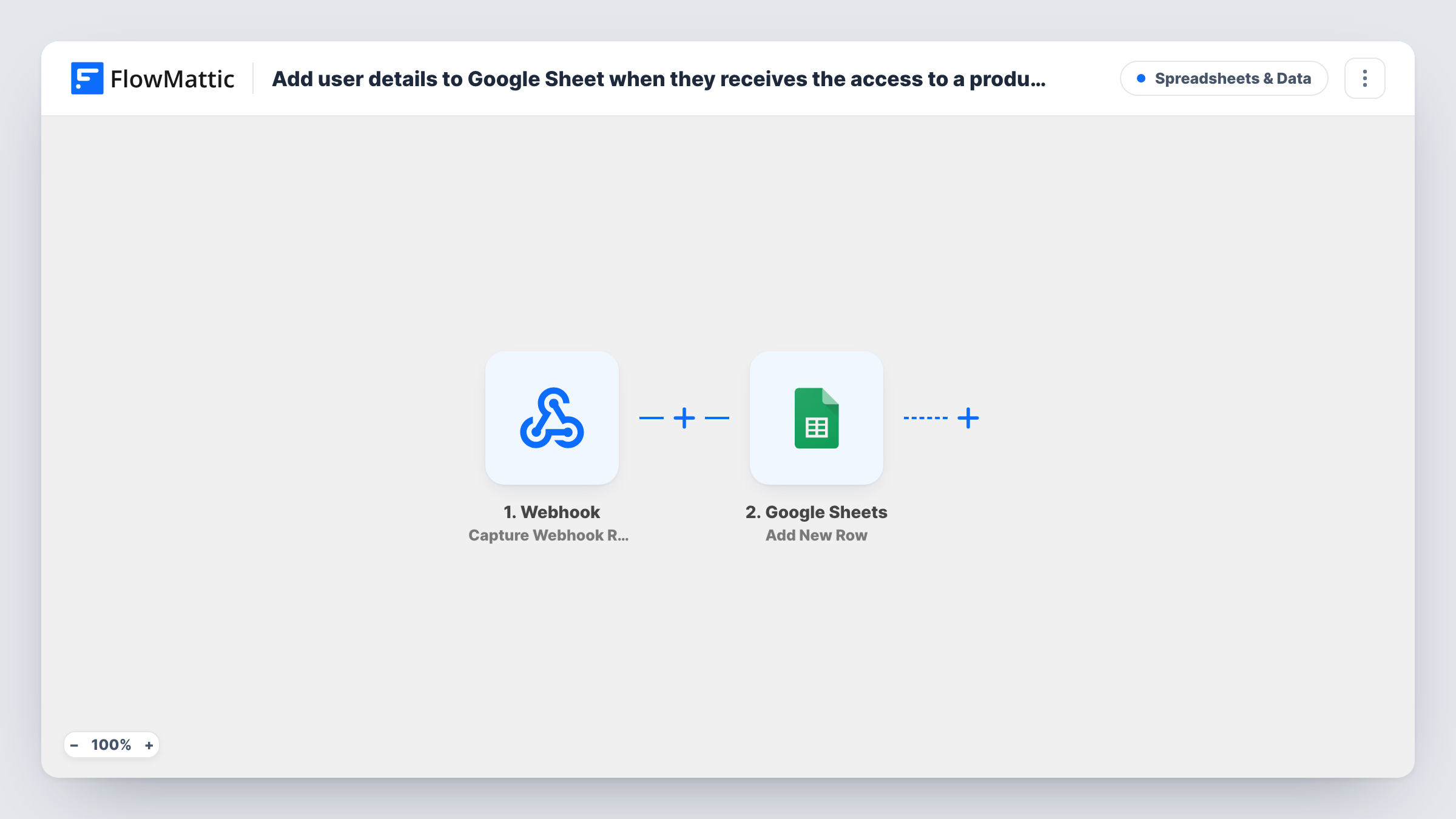
What this workflow does
Digital Access Pass grants access to products on your WordPress site, but its records aren't always handy for sharing, sorting or reporting. A Google Sheet is. This workflow writes a row every time someone is given access, so you have a list your team can read without a WordPress login.
The Digital Access Pass ( DAP ) trigger fires when a user receives access to a product. It passes on the user's details and the product. Give a test member access after import and check which fields arrive.
The Google Sheets Add New Row step then adds one row. It ships unmapped, so you connect Google, choose the spreadsheet and sheet, and map the DAP data into your columns, such as the name, email, product and the date of the run.
One access grant makes one row. A member who gets access to three products appears in three rows, and someone who loses access and is given it again is added again. That makes the sheet a log of access grants rather than a list of unique members; sort or filter it by email when you want one line per person.
Sales log for a membership site
A membership owner shares the sheet with a bookkeeper, who reads each product grant to match it against payments.
Course roster for instructors
An online school filters the sheet by product to give each instructor the list of students who received access to their course.
Onboarding checklist
A coaching business adds its own Welcome Call column to the sheet and ticks it off for each new member who gets access.
How this workflow runs
What happens at each step once the workflow is on, and what you need before you import it.
 Digital Access Pass ( DAP ) User Receives Access to Product
Fires when a user receives access to a product in Digital Access Pass. The user's details and the product are passed on to the Google Sheets step.
- Google Sheets Add New Row
Adds one row to the sheet you choose for each access grant. The template maps no columns; connect Google, pick the sheet and match the DAP fields to your headers.
What you need
- FlowMatticCore
- Digital Access Pass ( DAP ) AccountAccount
- Google Sheets AccountAccount
After importing, map your own data. To keep the template universal, not every step is pre-filled. Open each step in the builder and connect your accounts and fields (channels, lists, sheets, recipients) before you switch the workflow on.
Make it yours
Changes worth making after you import it.
- Map the date of the run into its own column, so you can see when each member got access and sort the sheet by it.
- Put a Filter between the DAP trigger and the Google Sheets step that continues only for the products you want to track, if some, such as free downloads, don't belong in the log.
- Leave a few columns at the right of the sheet unmapped for your team's own notes, so the workflow's rows and the notes stay side by side.
Questions about this workflow
Which DAP user details can go into the Google Sheet?
Any field the access event carries. Give a test user access, look at the run in Task History, and map the fields you want into the Add New Row step.
Will a member with several products get several rows?
Yes. Each product grant is its own event and adds its own row, so one member can appear more than once.
Are members who already have access added when I turn this on?
No. Only access granted after the workflow is active starts a run. Add your current members to the sheet yourself if you want a complete list.
More Spreadsheets & Data workflows
Other ready-to-import templates from the same category.




Import this workflow into your WordPress site
Download the JSON, import it from the Workflows screen and connect your accounts. Every run stays on your server, with no per-task fees.
30-day money-back guarantee Unlimited workflows and runs Self-hosted