

Log every new Good Grants application in a Google Sheets spreadsheet
Add a Google Sheets row for every application created in Good Grants, holding the details you map, so your grants team has a spreadsheet list of applications to sort, count and share.
 Good Grants
 Google Sheets
2 steps Setup ~5 min Used on 422 sites Free to import
What this workflow does
Grant programmes produce a steady stream of applications, and people outside the review panel often want to see them: finance, a board member, a partner organisation. Giving all of them a Good Grants login isn't always practical. This workflow keeps a spreadsheet list that you can share instead.
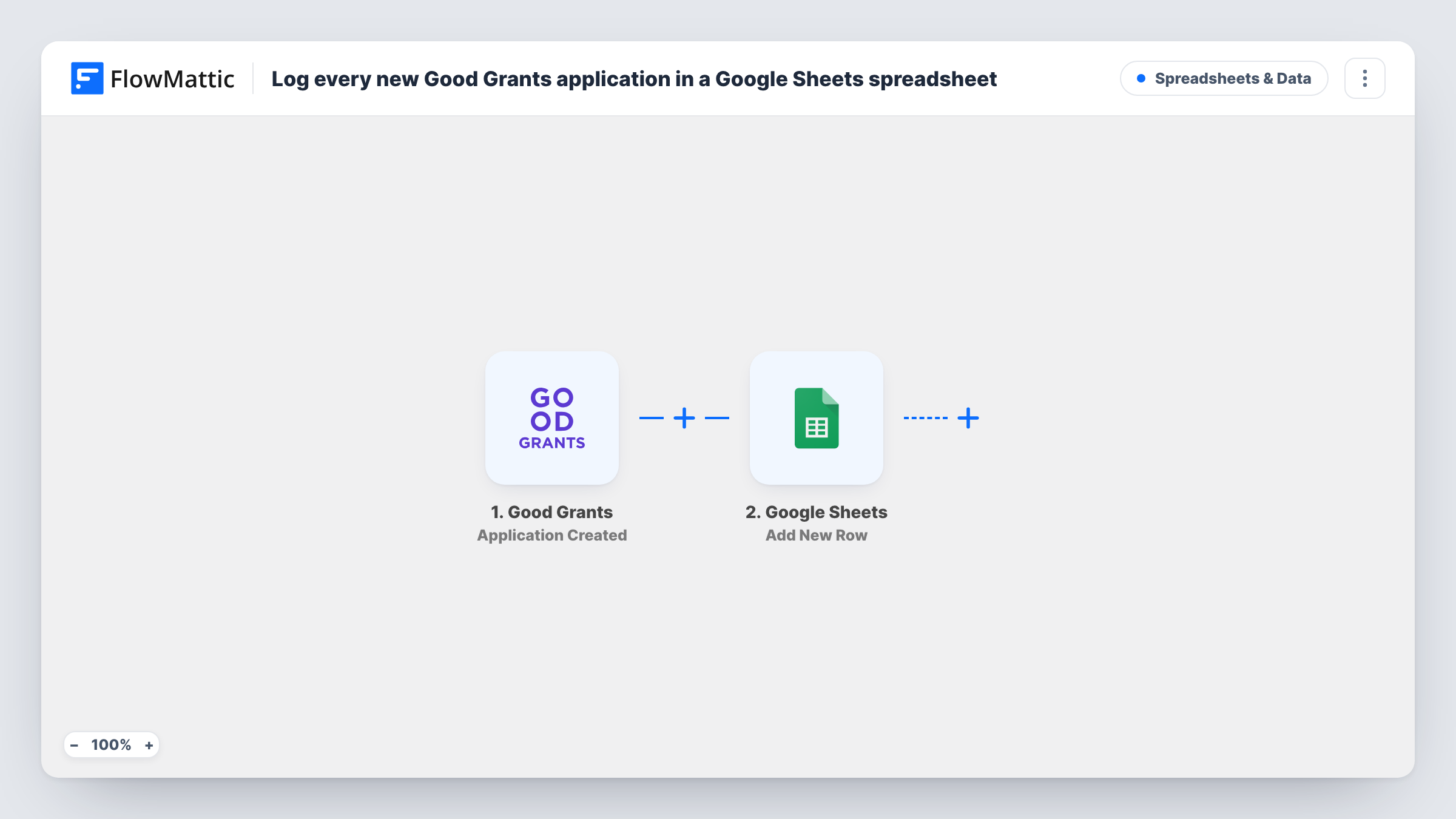
The Good Grants trigger fires when a new application is created. FlowMattic passes the application data to Google Sheets, and Add New Row writes the values you mapped into the spreadsheet you select.
The row holds the application as it was at the moment it was created. Edits made later in Good Grants are not copied to the sheet. Each logged application's run appears in Task History.
Weekly report for a funding board
The programme manager shares the sheet with board members, who see how many applications have started each week without accessing Good Grants.
Finance planning
A finance officer reads the application list in Google Sheets to plan for the budget a round may need, using columns you choose to log.
A shared intake list for reviewers
Reviewers glance at the sheet to see which applications have come in since their last session, then open the ones they need in Good Grants.
How this workflow runs
What happens at each step once the workflow is on, and what you need before you import it.
 Good Grants Application Created
Fires when a new application is created in Good Grants. Its data is passed to the Google Sheets step for mapping.
- Google Sheets Add New Row
Adds a row to the Google Sheets spreadsheet you pick with the mapped Good Grants application data. Connect your Google account and match columns to application details.
What you need
- FlowMatticCore
- Good Grants AccountAccount
- Google Sheets AccountAccount
After importing, map your own data. To keep the template universal, not every step is pre-filled. Open each step in the builder and connect your accounts and fields (channels, lists, sheets, recipients) before you switch the workflow on.
Make it yours
Changes worth making after you import it.
- Start a test application in Good Grants after import so FlowMattic captures the application data, then choose your columns from it.
- Add a Filter after the trigger if you run several programmes and only want one of them in this sheet. A test run shows which value tells them apart.
- Add a Slack or email step after the sheet if the programme manager should also hear about each new application.
Questions about this workflow
Which Good Grants application details can I put in the sheet?
Whatever the Application Created trigger passes to FlowMattic. Create a test application and look at the captured data to pick your columns.
Does the sheet update when a Good Grants application changes?
No. Each application is written once, when it is created. Later edits, scores or status changes are not sent.
Are earlier Good Grants applications added to the sheet?
No. Only applications created after you turn on the workflow are logged.
Which accounts does the Good Grants to Google Sheets workflow use?
Your Good Grants account for the trigger and a Google account with edit access to the spreadsheet.
More Spreadsheets & Data workflows
Other ready-to-import templates from the same category.



Import this workflow into your WordPress site
Download the JSON, import it from the Workflows screen and connect your accounts. Every run stays on your server, with no per-task fees.
30-day money-back guarantee Unlimited workflows and runs Self-hosted