

Log LearnDash course progress in Google Sheets
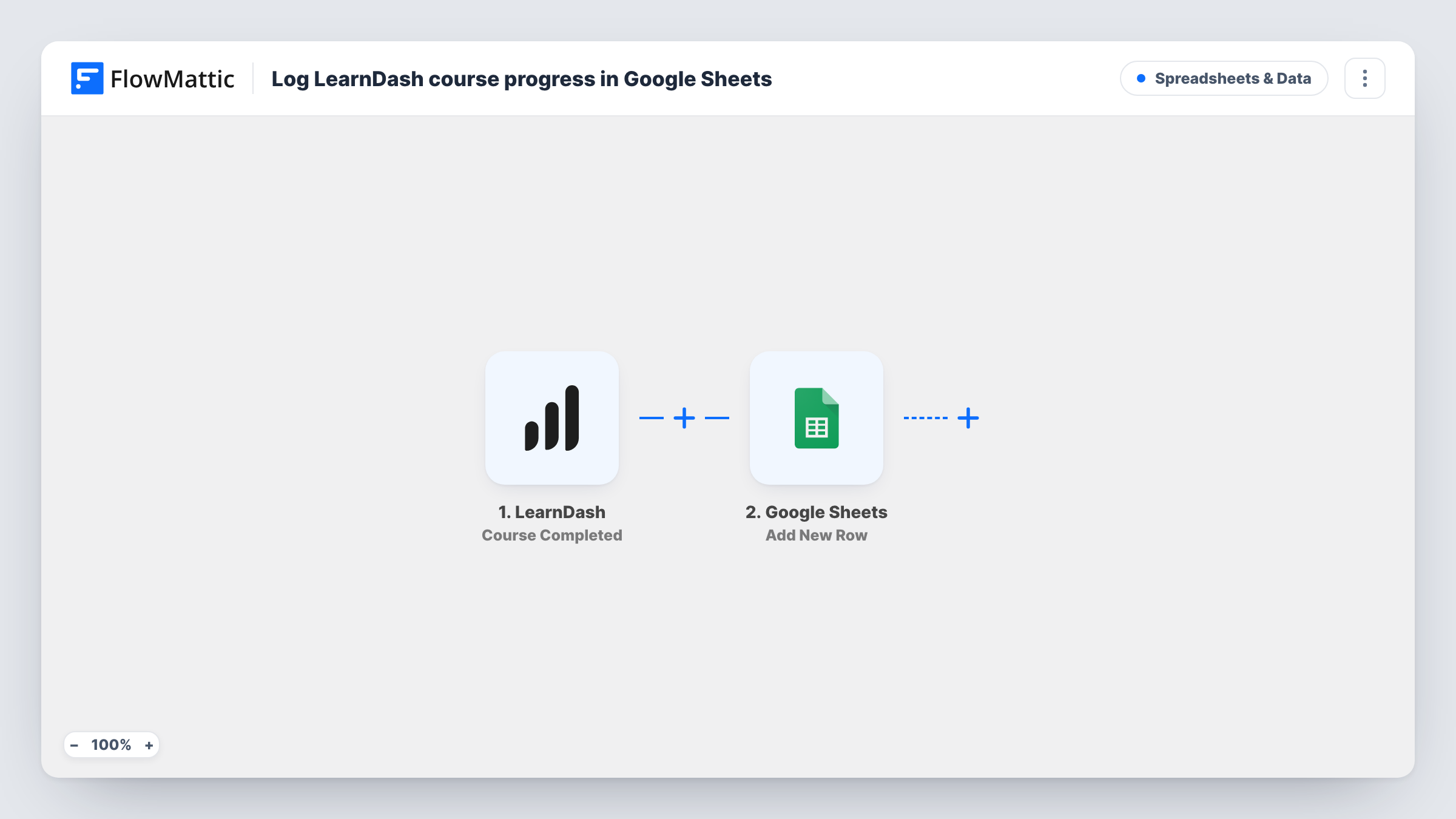
Every time a student completes a LearnDash lesson, FlowMattic adds a row to your Google Sheets spreadsheet, building a lesson-by-lesson progress log you can sort, chart and share.
 LearnDash
 Google Sheets
2 steps Setup ~5 min Used on 1.8k sites Free to import
What this workflow does
LearnDash shows progress one student or one course at a time, which makes it slow to answer questions like who finished module three this week, or which lesson people stall on. A spreadsheet with one line per completed lesson answers those with a sort or a pivot table, and you can share it without giving anyone WordPress access.
The LearnDash trigger, Lesson Completed, starts a run whenever a student finishes a lesson. FlowMattic receives the completion data, such as the student, the lesson and the course it belongs to; run one test completion to see the exact fields.
The Google Sheets step then adds a new row with the data you map. It comes without any columns mapped, so after import you connect your Google account, pick the spreadsheet and sheet, and match LearnDash values to your column headers. A date column is worth adding so the log shows when each lesson was finished.
The log only covers lessons. Topic, quiz and whole-course completions are separate LearnDash events, and nothing here records them. Completions from before you switch the workflow on aren't added either, so the sheet starts from that day.
Weekly progress report for a cohort
A bootcamp running a fixed cohort filters the sheet by week each Friday to see which students have completed the lessons due so far.
Finding lessons where students stop
A course creator counts completions per lesson in a pivot table and spots the lesson after which numbers drop, then rewrites it.
Progress shared with a client
A company training its staff on your LearnDash site gets view access to the sheet, so their manager can follow completions without a site login.
How this workflow runs
What happens at each step once the workflow is on, and what you need before you import it.
 LearnDash Lesson Completed
Fires each time a student completes a lesson in LearnDash. The student, lesson and course details from that completion are available to the Sheets step.
- Google Sheets Add New Row
Adds one row to the spreadsheet you choose for each completed lesson. The template maps no columns, so pick the sheet and map the LearnDash fields to your headers after import.
What you need
- FlowMatticCore
- LearnDash PluginPlugin
- Google Sheets AccountAccount
After importing, map your own data. To keep the template universal, not every step is pre-filled. Open each step in the builder and connect your accounts and fields (channels, lists, sheets, recipients) before you switch the workflow on.
Make it yours
Changes worth making after you import it.
- Set up header row titles such as student email, course, lesson and completed date in your Google Sheet before mapping, so each LearnDash value has an obvious column.
- To log just one course, put a Filter between the LearnDash trigger and the Add New Row step that continues only when the course matches the one you want.
- To log quiz results or finished courses too, import a similar workflow with that LearnDash trigger and point it at another tab in the same spreadsheet.
Questions about this workflow
Does this log LearnDash topics and quizzes as well as lessons?
No. The trigger is Lesson Completed, so only lesson completions create rows. Topics, quizzes and courses need workflows with their own triggers.
Will past LearnDash lesson completions appear in the sheet?
No. Rows are added only for lessons completed while the workflow is active. Export older progress from LearnDash if you need it in the same sheet.
What happens if a student completes the same lesson twice?
If LearnDash reports the lesson as completed again, that starts another run and adds another row. Reset a test student's progress, complete the lesson twice and check the sheet to see how your site behaves.
More Spreadsheets & Data workflows
Other ready-to-import templates from the same category.



Import this workflow into your WordPress site
Download the JSON, import it from the Workflows screen and connect your accounts. Every run stays on your server, with no per-task fees.
30-day money-back guarantee Unlimited workflows and runs Self-hosted