

When a new row is added in Google Sheets, add time log in My Hours
Each new row in your Google Sheets spreadsheet adds a time log in My Hours, so hours you record in a sheet are logged against a project and task in your My Hours account.
 Google Sheets
 My Hours
2 steps Setup ~5 min Used on 412 sites Free to import
What this workflow does
Some people track their time in a spreadsheet because it is quick, or because a client or a form already writes to one. Billing and reports, though, come from My Hours. Copying every entry across is slow and easy to get wrong. This workflow turns each new row into a time log.
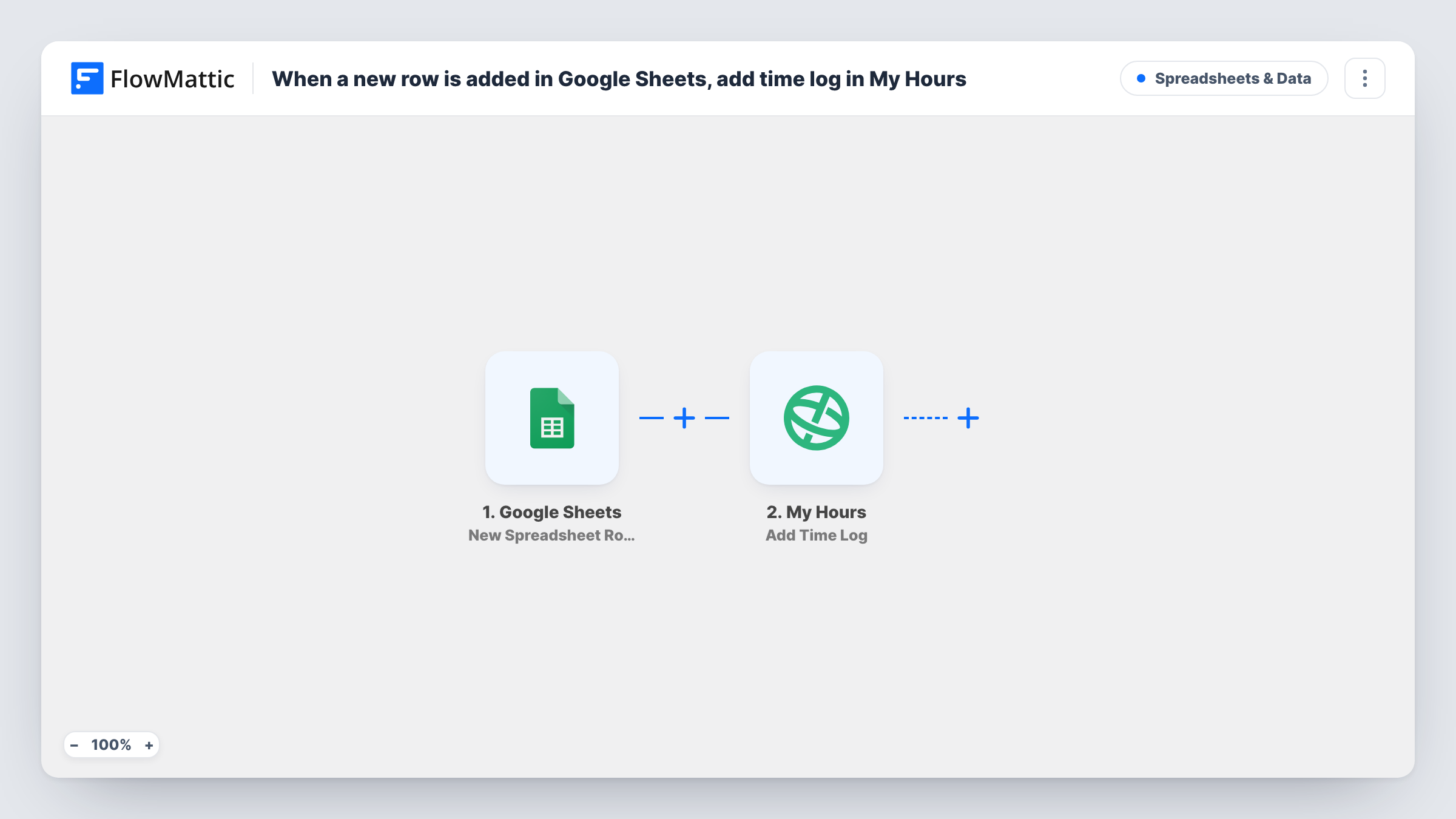
The Google Sheets trigger fires when a row is added to the spreadsheet you pick, and each column of that row becomes a value to map. The next step uses My Hours Add Time Log, which logs time against a project and task. Map the columns that hold the time and the work details into it.
The template arrives without any mapping. After import, look at what the My Hours step asks for and make sure your sheet has a column for each value. A test row then shows whether the log appears in My Hours the way you expect, and Task History shows the response from My Hours for every run.
Contractors who log hours in a shared sheet
Freelancers add a row for each block of work in a sheet you share with them. Each row becomes a My Hours time log, so your invoices draw on one record.
Time entries from a form that writes to Sheets
A simple timesheet form saves to Google Sheets. The new row triggers this workflow and logs the time in My Hours without anyone opening it.
Field staff without My Hours access
Staff on site add their hours to a spreadsheet on their phone. Office staff see the logs in My Hours against the right project and task.
How this workflow runs
What happens at each step once the workflow is on, and what you need before you import it.
 Google Sheets New Spreadsheet Row
Starts the workflow each time a row is added to your chosen Google Sheets spreadsheet. Connect your Google account and pick the spreadsheet and sheet, and the row's columns become available to the My Hours step.
- My Hours Add Time Log
Logs time in My Hours against a project and task. Connect your My Hours account and map the row's columns into the step. A test row shows what the step expects and how the log is saved.
What you need
- FlowMatticCore
- Google Sheets AccountAccount
- My Hours AccountAccount
After importing, map your own data. To keep the template universal, not every step is pre-filled. Open each step in the builder and connect your accounts and fields (channels, lists, sheets, recipients) before you switch the workflow on.
Make it yours
Changes worth making after you import it.
- Add a Filter after the trigger that continues only when the time column is not empty, so blank rows stop at the Filter and never reach My Hours.
- Send one complete test row after import and open My Hours to confirm the log lands on the right project and task before your team starts using the sheet.
- Add a column to the sheet for the project and one for the task, and use exactly the values My Hours knows them by, so every row maps cleanly.
Questions about this workflow
Will editing a row in Google Sheets update the My Hours log?
No. The trigger fires on new rows only. Changing a row that was already sent doesn't change the time log in My Hours.
Are rows already in the sheet logged in My Hours?
No. Only rows added after you turn the workflow on create time logs. Existing rows are not sent.
What if a row names a project My Hours doesn't have?
The workflow doesn't check the project first. Whatever My Hours returns for that log appears on the My Hours step in Task History, so you can fix the row and add it again.
Do I need a paid My Hours plan for this?
The workflow needs a My Hours account you can connect to FlowMattic. Check My Hours for what your plan includes.
More Spreadsheets & Data workflows
Other ready-to-import templates from the same category.


Import this workflow into your WordPress site
Download the JSON, import it from the Workflows screen and connect your accounts. Every run stays on your server, with no per-task fees.
30-day money-back guarantee Unlimited workflows and runs Self-hosted