

Log every new OfficeRnD member in a Google Sheets spreadsheet
Whenever a member is added in OfficeRnD, this workflow adds a row to a Google Sheets spreadsheet with their details, building a running log of new members for your coworking or flex space.
 OfficeRnD
 Google Sheets
2 steps Setup ~5 min Used on 1.0k sites Free to import
What this workflow does
OfficeRnD holds your member records, but plenty of reporting happens elsewhere. Your accountant, an investor or the community manager may want a simple list of who joined and when, in a format they can sort and share. This workflow writes that list for you as members are added.
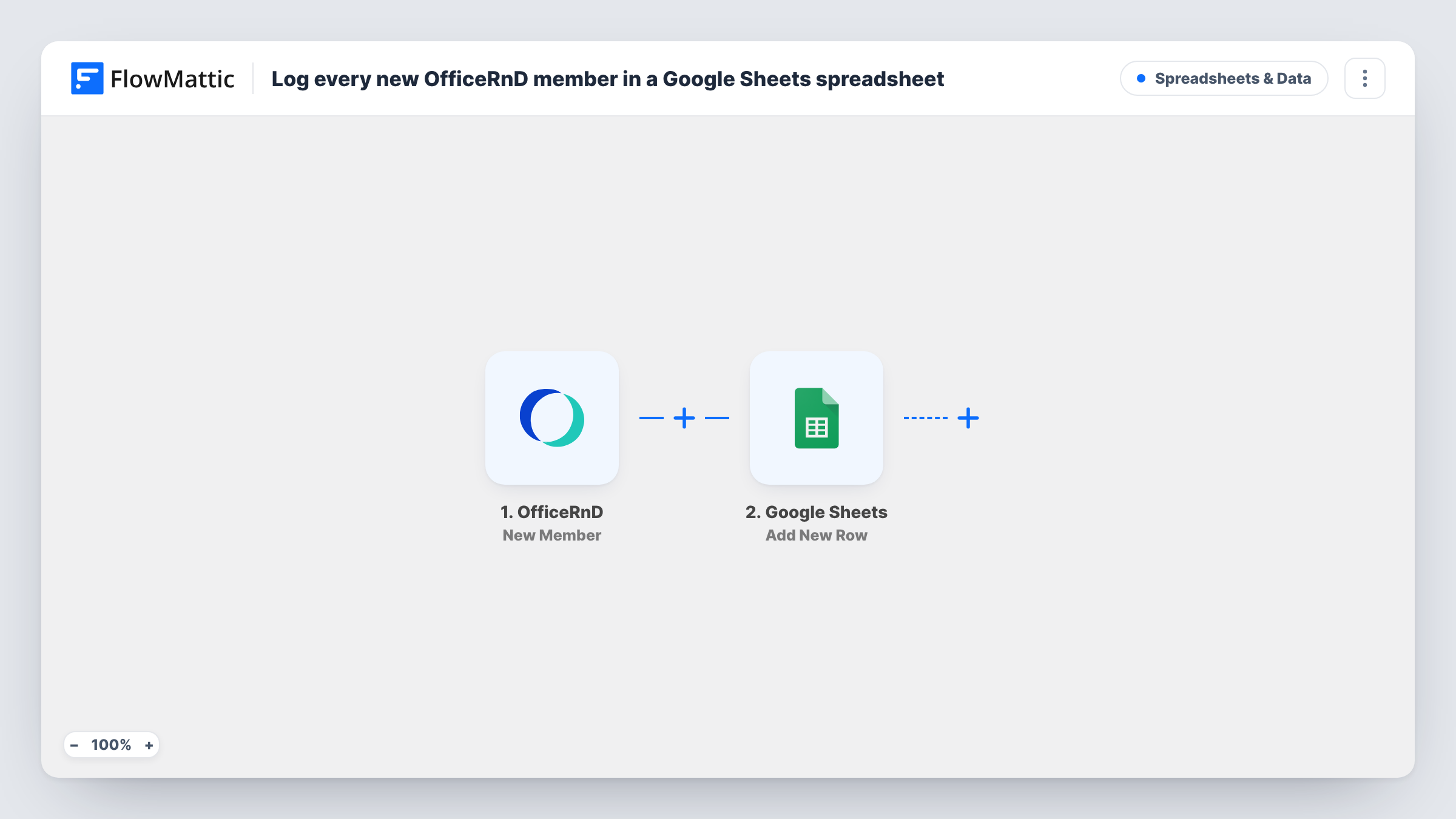
The OfficeRnD trigger fires when a new member is added to your OfficeRnD account. FlowMattic then passes the member's data to Google Sheets, which adds a new row to the spreadsheet you pick. You decide which member details go into which column.
Each new member gets one row, so the sheet grows into a log you can filter by date, plan or location if you map those values. Rows are only ever appended. Edits to a member in OfficeRnD later on are not copied to the sheet, and the sheet never writes back to OfficeRnD.
Monthly growth report for a coworking space
Each member added in OfficeRnD lands in a sheet, so counting new members per month is a quick sort or pivot table rather than an export.
Welcome pack checklist for the front desk
Front-desk staff work from the sheet, adding their own columns to tick off key cards, lockers and welcome packs for each new member.
Sharing sign-ups with a landlord or partner
A partner who needs to see new members, but shouldn't have OfficeRnD access, gets view access to the spreadsheet instead.
How this workflow runs
What happens at each step once the workflow is on, and what you need before you import it.
 OfficeRnD New Member
Fires when a new member is added to your OfficeRnD account. The member's data is passed to the Google Sheets step for mapping.
- Google Sheets Add New Row
Appends a row to the spreadsheet you pick in Google Sheets for every new member. Connect your Google account, choose the sheet, and map the OfficeRnD member data to its columns.
What you need
- FlowMatticCore
- OfficeRnD AccountAccount
- Google Sheets AccountAccount
After importing, map your own data. To keep the template universal, not every step is pre-filled. Open each step in the builder and connect your accounts and fields (channels, lists, sheets, recipients) before you switch the workflow on.
Make it yours
Changes worth making after you import it.
- Add a member in OfficeRnD as a test after import, so FlowMattic captures real member data. Then map each column in the Google Sheets step.
- Sort or filter the sheet by any date the OfficeRnD member data includes, which a test run will show, to group new members by week or month.
- Leave a few columns in the sheet unmapped for your team's own notes. New rows only fill the columns you mapped.
Questions about this workflow
Are my existing OfficeRnD members added to the sheet?
No. The trigger fires for members added after the workflow is on. Export existing members from OfficeRnD separately if you want them in the same sheet.
Does the sheet update when a member's details change in OfficeRnD?
No. This workflow only reacts to new members and adds a row for each. Changes made to a member later are not copied over.
Can I send OfficeRnD members to a different spreadsheet per location?
Yes, after import. Swap the single Google Sheets step for a Router with one route per location and a Google Sheets step on each, so each location's members land in their own sheet.
More Spreadsheets & Data workflows
Other ready-to-import templates from the same category.






Import this workflow into your WordPress site
Download the JSON, import it from the Workflows screen and connect your accounts. Every run stays on your server, with no per-task fees.
30-day money-back guarantee Unlimited workflows and runs Self-hosted