

When a message is received in OpenPhone, add a new row to Google Sheets
Every text message your OpenPhone number receives is added as a new row in Google Sheets, with the sender, the message and any other details you map, giving you a log you can sort and share.
 OpenPhone
 Google Sheets
2 steps Setup ~5 min Used on 1.4k sites Free to import
What this workflow does
Text conversations live inside the phone app, which makes them hard to review in bulk or hand to someone who doesn't use OpenPhone. A spreadsheet gives you one list of incoming texts that anyone with access can search. This workflow builds it one message at a time.
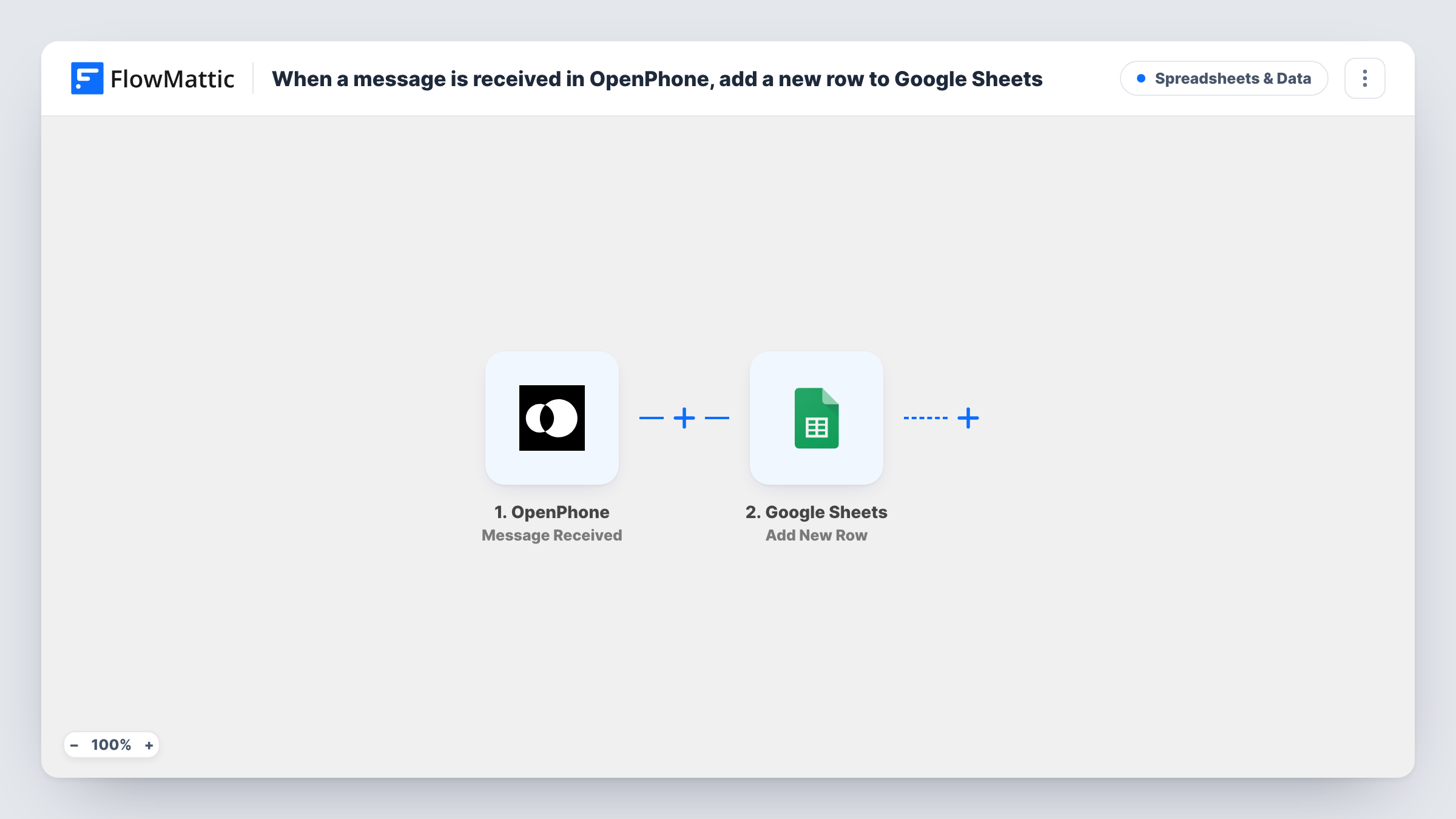
The OpenPhone trigger used here is Message Received, which fires whenever a new message comes in. The message data from OpenPhone, such as who sent it and what it says, becomes available to map. The Google Sheets step then appends a row to the spreadsheet you select, and you choose which column holds each detail.
Only incoming messages start a run, so texts you send from OpenPhone are not logged by this template. There is no Filter, so every received message adds a row, including short replies and automated texts. Task History shows each run and the values written to the sheet.
Review of customer texts for a service business
A plumbing company logs every text customers send to its OpenPhone line, so the office manager can scan the day's requests in one sheet.
Shared record for a small sales team
Reps who text prospects from OpenPhone get a sheet of every inbound reply that the sales lead can sort by sender and review each week.
Keeping texts alongside other records
A clinic copies incoming texts into a spreadsheet next to its appointment list, giving staff one place to check what a patient asked.
How this workflow runs
What happens at each step once the workflow is on, and what you need before you import it.
 OpenPhone Message Received
Fires when a new message is received on your OpenPhone number. The message details are passed on so you can place them in spreadsheet columns.
- Google Sheets Add New Row
Adds one row per received text to the spreadsheet and tab you choose. Map the sender, the message text and any other OpenPhone fields you want, and connect your Google account.
What you need
- FlowMatticCore
- OpenPhone AccountAccount
- Google Sheets AccountAccount
After importing, map your own data. To keep the template universal, not every step is pre-filled. Open each step in the builder and connect your accounts and fields (channels, lists, sheets, recipients) before you switch the workflow on.
Make it yours
Changes worth making after you import it.
- Send a text to your OpenPhone number after import so FlowMattic captures the incoming fields, then map them to the right columns in Google Sheets.
- To log only some texts, add a Filter after the trigger, for example one that continues only when the message contains a keyword such as quote or booking.
- If you also want outgoing texts in the sheet, build a second workflow on OpenPhone's Message Delivered trigger that writes to another tab.
Questions about this workflow
Are texts I send from OpenPhone added to the sheet?
No. The trigger fires on messages received, so only inbound texts create rows. OpenPhone's Message Delivered trigger can be used in a separate workflow for outgoing ones.
Does every incoming OpenPhone message create a row?
Yes, as imported. With no Filter in the template, each received message adds a row. Add a Filter after the trigger to keep only the texts you care about.
Will older OpenPhone conversations be copied into Google Sheets?
No. Only messages received after the workflow is turned on are logged. Earlier texts stay in OpenPhone.
Can I log calls in the same spreadsheet?
Not with this template, which only handles messages. OpenPhone has call triggers such as Call Completed, so a second workflow can add call rows to another tab.
More Spreadsheets & Data workflows
Other ready-to-import templates from the same category.



Import this workflow into your WordPress site
Download the JSON, import it from the Workflows screen and connect your accounts. Every run stays on your server, with no per-task fees.
30-day money-back guarantee Unlimited workflows and runs Self-hosted