

Save each new SocialBu post as a record in Airtable for content tracking
Each time a SocialBu account publishes a new post, FlowMattic creates a record in Airtable with the post details you map, giving your content team one table that lists everything that went out.
 Socialbu
 Airtable
2 steps Setup ~5 min Used on 586 sites Free to import
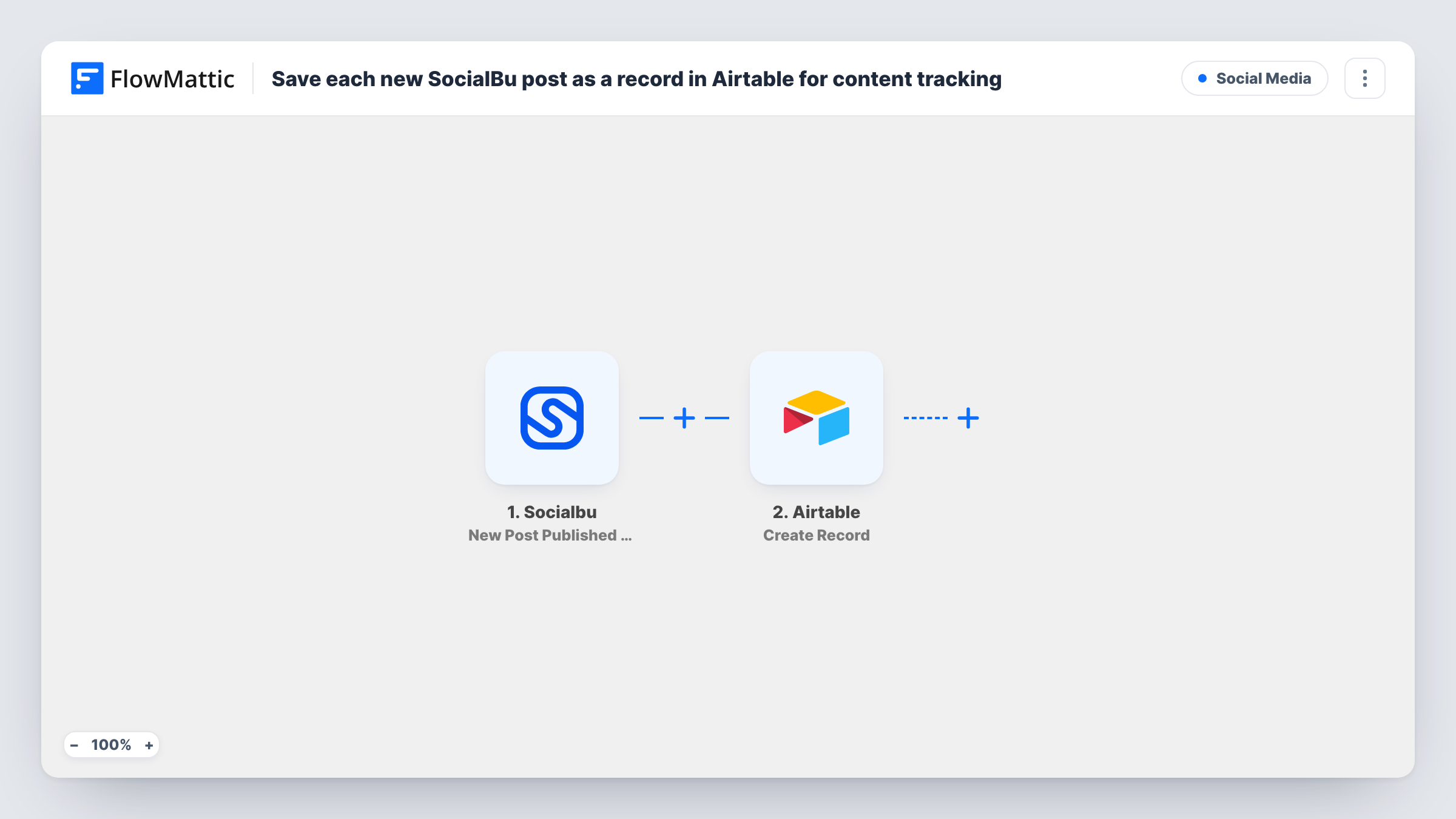
What this workflow does
Teams that schedule through SocialBu often want a plain list of what was actually published, to review, tag or report on later. Building that list by hand means copying posts after the fact. This workflow writes it for you in Airtable.
The trigger fires when a new post is published by a connected SocialBu account. The post's details become data in FlowMattic. The Airtable step then runs Create Record, adding a new record with the values you map, such as the post text, the account it went out on and the publish time, if the trigger supplies them.
Each published post becomes its own record, so the table grows with your output. Because it lives in Airtable, you can add your own columns for notes, campaign names or results, and fill them in by hand. Task History shows what FlowMattic sent to Airtable on each run.
A content log for client reporting
An agency publishes for a client through SocialBu. At month end, the Airtable table already lists every post that went out, ready to filter and share.
Tagging posts by campaign
Add a Campaign column in Airtable. Records arrive automatically, and your team tags each one so you can see what ran for which campaign.
Review queue for published posts
Add a Reviewed checkbox column. Your editor works through new Airtable records and ticks off posts after checking them for typos or broken links.
How this workflow runs
What happens at each step once the workflow is on, and what you need before you import it.
 Socialbu New Post Published by Account
Fires when a new post is published by a SocialBu account you connect. The details of that post are passed on for mapping into Airtable.
- Airtable Create Record
Creates a new record in Airtable from the SocialBu post. Choose where it goes when you set up the step, then map the post details into its fields.
What you need
- FlowMatticCore
- Socialbu AccountAccount
- Airtable AccountAccount
After importing, map your own data. To keep the template universal, not every step is pre-filled. Open each step in the builder and connect your accounts and fields (channels, lists, sheets, recipients) before you switch the workflow on.
Make it yours
Changes worth making after you import it.
- Add a Filter after the SocialBu trigger if you only want posts from one account or network in the Airtable table, using any value the trigger returns.
- Add a Slack or email step after Airtable so your team hears about each published post as it is logged.
- Publish one test post after import so FlowMattic captures SocialBu's post data, then map the fields you want into the Airtable step.
Questions about this workflow
Are SocialBu posts published before I import this added to Airtable?
No. The trigger reacts to new posts, so only posts published after the workflow is on create Airtable records.
What if the same SocialBu post goes out to several accounts?
The trigger fires per post published by an account, so check with a test whether a multi-account post creates one Airtable record or several. Look in Task History to count the runs for that post.
Does the workflow track likes or comments on SocialBu posts?
No. It records the post when it is published. Engagement numbers that arrive later are not added to the Airtable record.
Do I need a particular Airtable setup for the SocialBu log?
You need a table with fields for the details you want to keep. Create those columns first, then map the SocialBu values into them in the Create Record step.
More Social Media workflows
Other ready-to-import templates from the same category.





Import this workflow into your WordPress site
Download the JSON, import it from the Workflows screen and connect your accounts. Every run stays on your server, with no per-task fees.
30-day money-back guarantee Unlimited workflows and runs Self-hosted