

Create a tweet when new post is published in WordPress
When you publish a new post on your WordPress site, this workflow creates a tweet on your X profile using the text and post details you map, so each article is announced without a separate trip to X.
 WordPress
 X ( Twitter )
2 steps Setup ~5 min Used on 1.8k sites Free to import
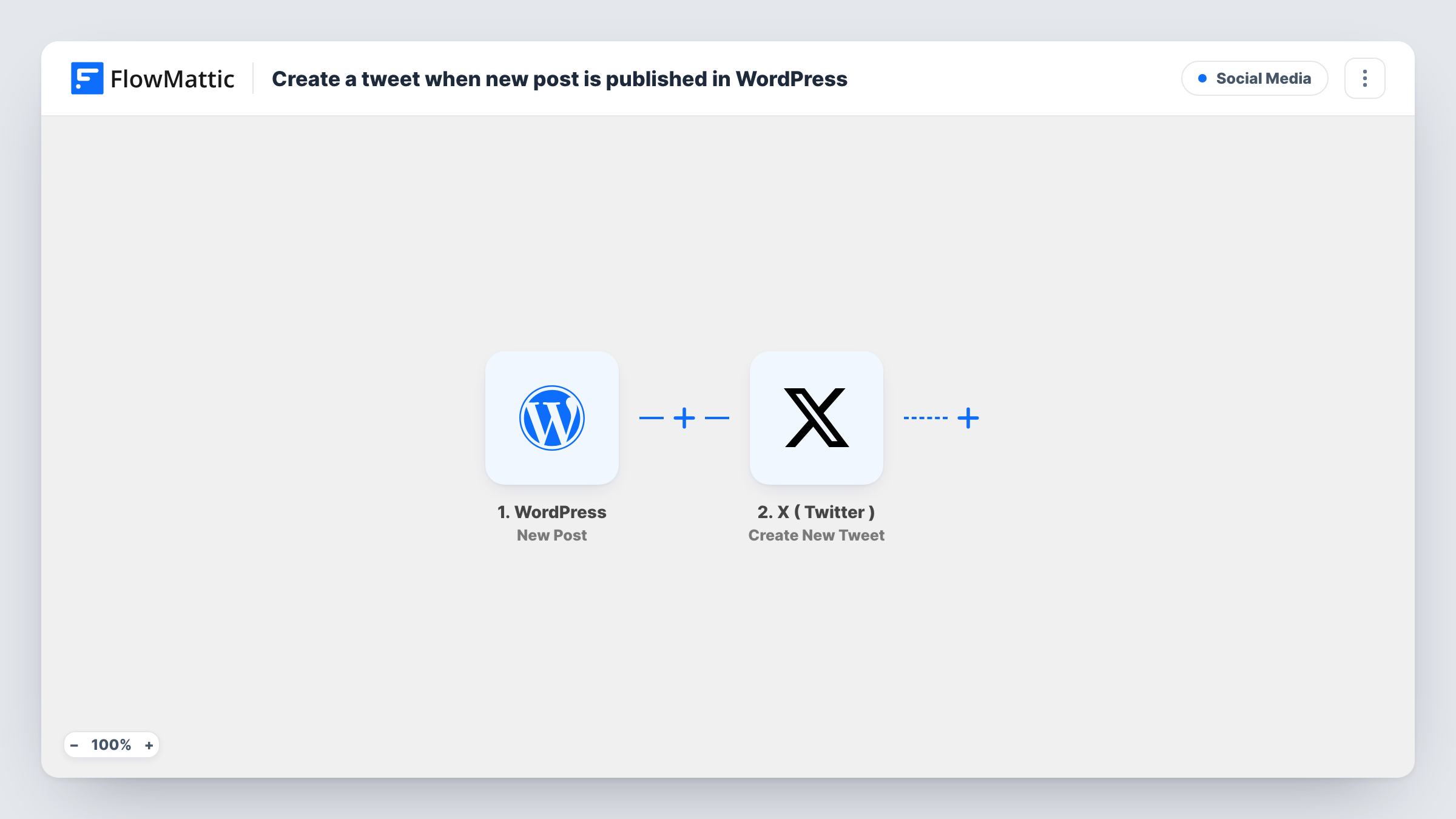
What this workflow does
Sharing every new article on X is part of publishing, but it is easy to forget once the post is live. This workflow makes the tweet part of hitting Publish in WordPress.
The WordPress trigger starts a run each time a post goes live. FlowMattic passes the post's details, such as its title and link, to the X ( Twitter ) step. Create New Tweet then posts a tweet on the profile you connect, built from your own wording and the post values you map.
Every published post produces one tweet, using the same template of text each time. Keep the wording short so the title and link fit within X's length limit for a post. Task History shows each run and the text that was sent, which helps if a tweet does not appear. Publish a test post after import to see the result on your profile.
A blog that posts several times a week
Each new article is announced on X with its title and link, so your followers see it without you writing a tweet every time.
News or updates page
A company publishes product updates as WordPress posts. Each one is shared on the company X profile when it goes live.
Podcast show notes
You publish show notes for each new episode as a WordPress post. The tweet points listeners to the new episode page.
How this workflow runs
What happens at each step once the workflow is on, and what you need before you import it.
 WordPress New Post
Starts the run the moment a new post goes live on your site. The post's details, such as title and permalink, are passed on for the tweet.
- X ( Twitter ) Create New Tweet
Creates a new tweet on your X profile. Connect your X account and write the tweet text, mapping in the WordPress post title and link.
What you need
- FlowMatticCore
- X ( Twitter ) AccountAccount
After importing, map your own data. To keep the template universal, not every step is pre-filled. Open each step in the builder and connect your accounts and fields (channels, lists, sheets, recipients) before you switch the workflow on.
Make it yours
Changes worth making after you import it.
- Add a Filter after the trigger that checks the post category, so only posts from one category, such as News, are tweeted.
- Add a Delay before the tweet if you want it to go out some time after the post is published rather than straight away.
- Use the post excerpt in the tweet instead of the title if your titles are long and the trigger provides an excerpt, and keep fixed text short so the link still fits.
Questions about this workflow
Does updating an old WordPress post create another tweet?
No. Only a post's first move to published starts the workflow. Updating a published post does not create another tweet.
Are WordPress drafts tweeted while I am still writing?
No. The trigger fires when a post is published, so saving a draft does not create a tweet.
Can the tweet include the featured image of the WordPress post?
This template creates a text tweet from the values you map. Check the Create New Tweet step after import to see what it accepts.
Which X profile does the tweet appear on?
The account you connect in the X ( Twitter ) step. Connect the brand profile, not a personal one, if the tweets should come from your site.
More Social Media workflows
Other ready-to-import templates from the same category.




Import this workflow into your WordPress site
Download the JSON, import it from the Workflows screen and connect your accounts. Every run stays on your server, with no per-task fees.
30-day money-back guarantee Unlimited workflows and runs Self-hosted