

Create a tweet to announce new product in WooCommerce
When you create a product in WooCommerce, this workflow posts a tweet about it on your X (Twitter) profile, using the product’s name, price or link that you map into the post.
 WooCommerce
 X ( Twitter )
2 steps Setup ~5 min Used on 2.7k sites Free to import
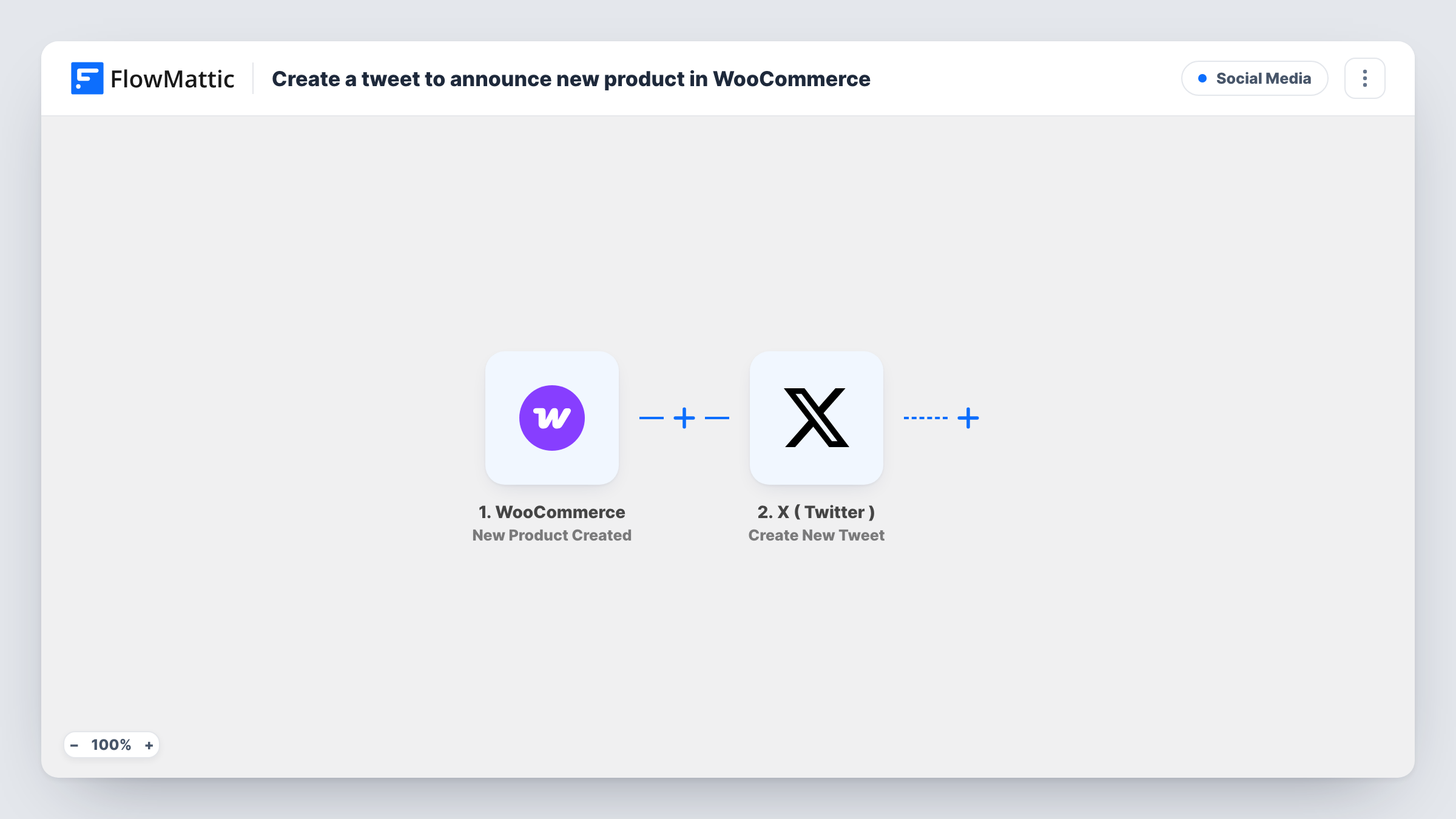
What this workflow does
Adding a product to your shop is only half the launch. Someone still has to write a post, copy the link and remember to publish it. For a small store adding items every week, that post is the step that gets skipped. This workflow writes the announcement from the product itself.
The WooCommerce trigger runs when a new product is created in your store, and passes the product's details on. The X ( Twitter ) step uses Create New Tweet, which posts to the profile you connect. You write the tweet text once and drop in product data, such as the name and the product page link.
The flow posts for every product the trigger reports, and nothing checks whether the product is published or still a draft. Create one test product after import, look at its run in Task History, and check the tweet before you start adding real stock. If you add products in bulk, expect one tweet each.
Handmade or small-batch shops
Each time a maker lists a new piece in WooCommerce, followers on X see a post with its name and link, without the maker writing it.
Weekly drops for a clothing store
A store adds a few new items each Friday. Every product gets its own tweet as it is created, so the drop shows up on X item by item.
Digital product launches
A course creator or template seller adds a new download to WooCommerce, and the announcement on X carries the product page link straight away.
How this workflow runs
What happens at each step once the workflow is on, and what you need before you import it.
 WooCommerce New Product Created
Runs when a product is created in your WooCommerce store. The product's details, such as name, price and permalink, are available to use in the tweet.
- X ( Twitter ) Create New Tweet
Posts a new tweet on the X ( Twitter ) profile you connect. Write the text and map WooCommerce product fields into it, keeping the result within X's character limit.
What you need
- FlowMatticCore
- WooCommerce PluginPlugin
- X ( Twitter ) AccountAccount
After importing, map your own data. To keep the template universal, not every step is pre-filled. Open each step in the builder and connect your accounts and fields (channels, lists, sheets, recipients) before you switch the workflow on.
Make it yours
Changes worth making after you import it.
- If you sometimes save new products as drafts, look at a test run for the product status and add a Filter that continues only for published products, so no tweet links to a hidden page.
- If your product short descriptions are brief, map that field into the tweet after the name, so each post says what the item is as well as linking to it.
- Use a Filter on the product category to tweet only about items in a category such as New Arrivals, and leave other additions quiet.
Questions about this workflow
Will this tweet about products I already have in WooCommerce?
No. The trigger fires when a product is created, so only products added after you turn the workflow on are tweeted.
Does the X post include the product image?
The template uses Create New Tweet, which creates a tweet in your profile. Map the product link into the text. Run a test to see how X shows the post with that link.
Can I post the WooCommerce product to other social networks at the same time?
Yes. Add another action step after the tweet for the network you use, and map the same product fields into it.
What if a product is edited after the tweet goes out?
The tweet stays as posted. This workflow only runs on product creation. WooCommerce's Product Updated trigger is a separate event you could use in another workflow.
More Social Media workflows
Other ready-to-import templates from the same category.






Import this workflow into your WordPress site
Download the JSON, import it from the Workflows screen and connect your accounts. Every run stays on your server, with no per-task fees.
30-day money-back guarantee Unlimited workflows and runs Self-hosted