

Get a Twilio phone call for every Better Uptime incident notification
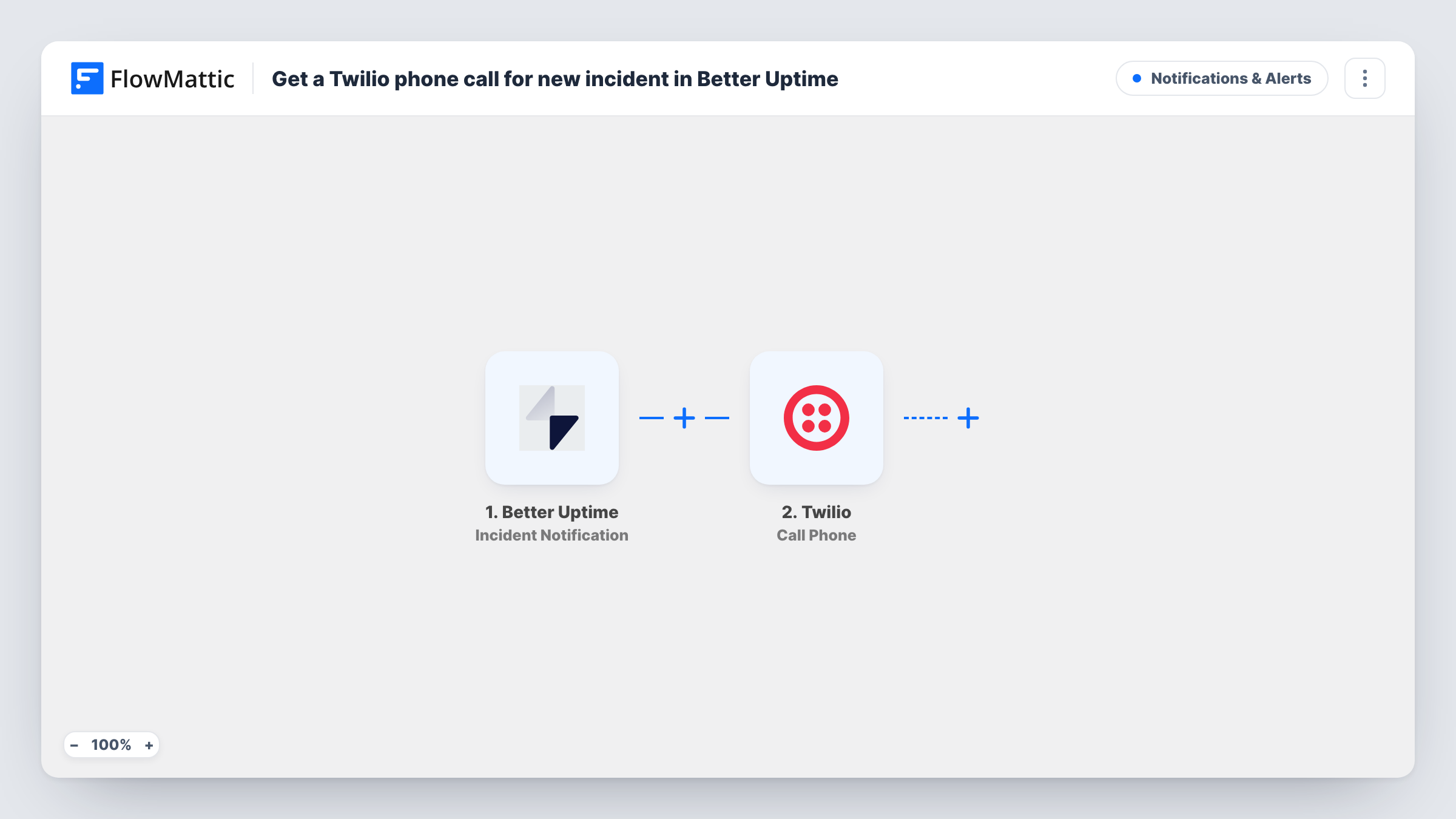
Each Better Uptime incident notification, whether an incident is created, acknowledged or resolved, makes Twilio call your phone and read out a message you write.
 Better Uptime
 Twilio
2 steps Setup ~5 min Used on 1.2k sites Free to import
What this workflow does
A push notification is easy to sleep through or miss in a busy channel. A ringing phone is harder to ignore. This workflow turns Better Uptime incident notifications into voice calls placed through Twilio, so whoever is on call hears about a problem even when they're away from the laptop.
The Better Uptime trigger fires on incident notifications. FlowMattic describes this event as firing when an incident is created, acknowledged or resolved, so one outage can produce up to three calls: one when it starts, one when someone acknowledges it, and one when it's resolved. The incident's details are passed on for you to use in the message.
The Twilio Call Phone step calls a phone number and says the message you set. It ships unmapped: after import you connect your Twilio account, choose the number that places the call, enter the number to ring, and write the spoken text. Mapping the incident's name or cause into that text tells the person what broke before they open a dashboard.
Run a test incident before relying on it, and check Task History for what Twilio returned on each call.
Night-time alerts for a solo developer
A freelancer who looks after client sites gets a phone call when Better Uptime opens an incident overnight, instead of finding an email in the morning.
On-call phone for a small ops team
A team points the Twilio step at a shared on-call mobile, so whoever holds it that week hears each incident, acknowledgement and resolution.
Store owner watching checkout uptime
An online shop monitors its checkout page in Better Uptime and has Twilio ring the owner when an incident starts and again once it's resolved.
How this workflow runs
What happens at each step once the workflow is on, and what you need before you import it.
 Better Uptime Incident Notification
Fires when Better Uptime sends an incident notification: a new incident is created, acknowledged, or resolved. The incident's details become available to map into the call message.
- Twilio Call Phone
Places a phone call through Twilio and speaks a message. The step ships unmapped: connect Twilio, choose the calling number, set the number to ring and write the text, mapping in incident details where useful.
What you need
- FlowMatticCore
- Better Uptime AccountAccount
- Twilio AccountAccount
After importing, map your own data. To keep the template universal, not every step is pre-filled. Open each step in the builder and connect your accounts and fields (channels, lists, sheets, recipients) before you switch the workflow on.
Make it yours
Changes worth making after you import it.
- If you only want a call when an incident starts, put a Filter between the Better Uptime trigger and the Twilio step on the incident's status field from a test run. The field and value you check are yours to set.
- Keep the spoken message short and put the monitor name first, so the person knows which site is down within the first few seconds of the call.
- Enter the number to ring in full international format with the country code, which Twilio needs to place the call.
Questions about this workflow
Will Twilio call me more than once for the same Better Uptime incident?
It can. The trigger fires for incidents that are created, acknowledged and resolved, so a single outage can lead to three calls. Add a Filter on the status between the two steps to keep only the events you want.
Do I need a Twilio phone number to use this workflow?
Yes. The Call Phone step places the call from a Twilio account, so connect your account and pick a Twilio number that can make voice calls in the step settings.
What does the call say?
Whatever you write in the Call Phone step. The template leaves the message empty, so type the text and map any incident details you want read out.
Can more than one person get the incident call?
The step rings one number. To reach a second person, add another Twilio Call Phone step after the first one with a different number.
More Notifications & Alerts workflows
Other ready-to-import templates from the same category.





Import this workflow into your WordPress site
Download the JSON, import it from the Workflows screen and connect your accounts. Every run stays on your server, with no per-task fees.
30-day money-back guarantee Unlimited workflows and runs Self-hosted