

Track Factors.ai company activity as records in Airtable
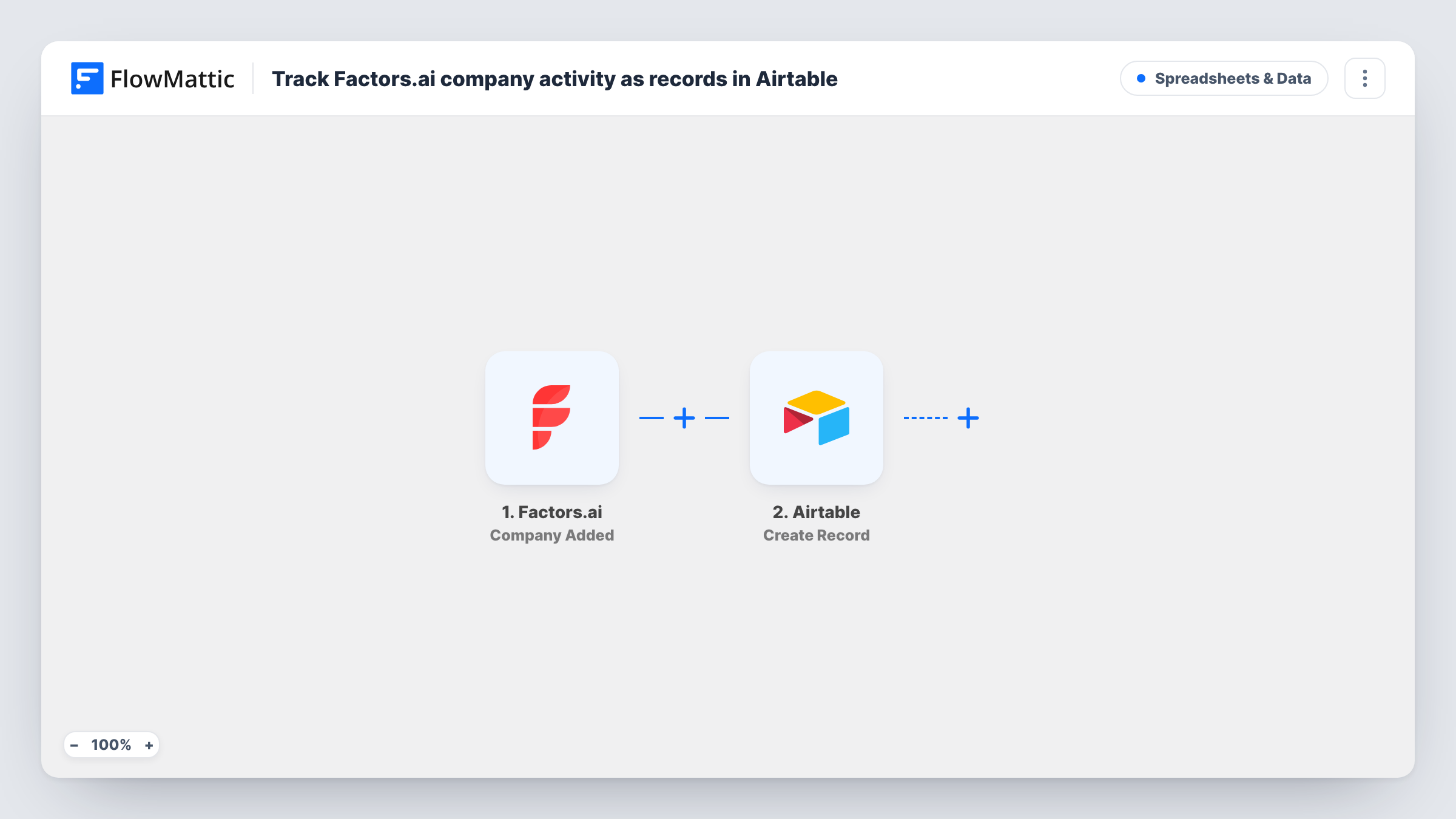
When Factors.ai adds a company to a segment, this workflow creates a new Airtable record with the company details you map, giving your team a running log of accounts that entered a segment.
 Factors.ai
 Airtable
2 steps Setup ~5 min Used on 2.9k sites Free to import
What this workflow does
Factors.ai groups the companies visiting your site into segments, such as accounts showing buying intent. That view lives in Factors.ai, while your team may plan outreach in Airtable. This workflow writes each company added to a segment into an Airtable base, one record per event.
A run begins each time Factors.ai places a company into one of your segments. FlowMattic receives the company data from that event and passes it to Airtable. The Create Record action adds a new record to the base and table you choose, filling the fields you mapped.
As imported, each event creates a new record. If a company is added to a segment more than once, or to several segments, you get a record each time, which works as an activity log. Task History lists every run and the response Airtable returned.
Account-based outreach planning
Sales reps work from an Airtable view of companies that just entered your high-intent segment in Factors.ai and assign each one an owner.
Marketing campaign review
Marketing tracks which companies joined a segment after a campaign launch, using Airtable's grouping by date to compare weeks.
Shared log for leadership
Managers without a Factors.ai login read the Airtable base to see which target accounts are showing up in your segments.
How this workflow runs
What happens at each step once the workflow is on, and what you need before you import it.
 Factors.ai Company Added
Starts a run whenever Factors.ai places a company into a segment. The company details from that event can be mapped into the Airtable record.
- Airtable Create Record
Adds one Airtable record per company event, in the base and table you pick. Map the Factors.ai company details to your fields and connect your Airtable account on import.
What you need
- FlowMatticCore
- Factors.ai AccountAccount
- Airtable AccountAccount
After importing, map your own data. To keep the template universal, not every step is pre-filled. Open each step in the builder and connect your accounts and fields (channels, lists, sheets, recipients) before you switch the workflow on.
Make it yours
Changes worth making after you import it.
- Add a field in Airtable for the segment name and map it from the trigger, if the event includes it, so one table can hold several segments.
- Add a Filter after the trigger to log only the segments you care about, for example when the segment name matches your high-intent list.
- Use Airtable's own views to group records by company, which turns repeated entries into a quick count of how often each account appears.
Questions about this workflow
Does Factors.ai send a new Airtable record if the same company is added again?
Yes. The step always creates a record, so each event adds one. Use Airtable views to group repeated companies.
Which Factors.ai company details can I store in Airtable?
Any field the Company Added event sends to FlowMattic. Trigger a test after import to see what is available before you map your Airtable fields.
Will companies already in my Factors.ai segments be imported?
No. Only companies added to a segment after you turn on the workflow reach Airtable.
More Spreadsheets & Data workflows
Other ready-to-import templates from the same category.





Import this workflow into your WordPress site
Download the JSON, import it from the Workflows screen and connect your accounts. Every run stays on your server, with no per-task fees.
30-day money-back guarantee Unlimited workflows and runs Self-hosted