

Create a poll in X ( Twitter ) to get user opinion on data received in Webhooks
Turn data that arrives at a FlowMattic webhook URL into a new poll on your X (Twitter) profile, so an event from another app or your site becomes a question your followers can vote on.
 Webhook
 X ( Twitter )
2 steps Setup ~5 min Used on 3.4k sites Free to import
What this workflow does
Sometimes the thing you want your audience's view on starts somewhere else: a new product idea logged in a form, a topic picked in another app, or a news item your site publishes. This workflow takes that incoming data and posts a poll about it on X, without you opening the app to write each one.
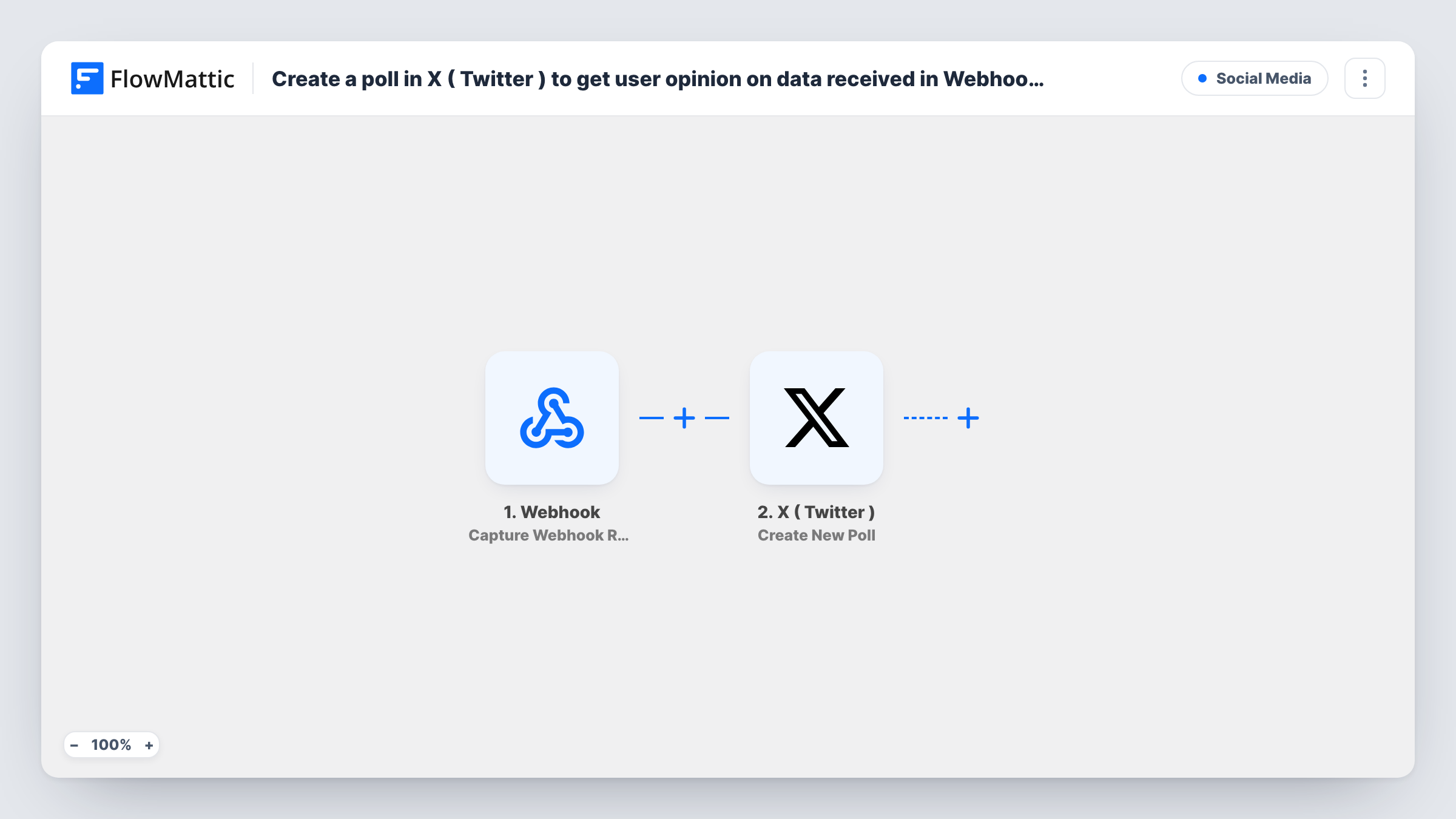
A Webhook trigger starts the run. FlowMattic gives you a URL, and any app, script or website that can send an HTTP request can post data to it. The fields in each request are captured and can be used in the next step.
The second step runs Create New Poll in X ( Twitter ), which posts a new poll on the profile you connect. You build the poll's text and answer choices from fixed words, webhook data or both. Every request that reaches the URL posts one poll, so only send data you want published. Task History records what was sent to X on each run.
Asking followers to vote on product ideas
Your feature-request tool posts each shortlisted idea to the webhook. A poll goes out on X asking followers whether they want it, using the idea's title from the request.
Weekly topic vote for a newsletter
A script sends the week's candidate topics to the webhook every Monday. X gets a poll listing them as choices so readers can pick what you write about.
Event or stream audience questions
During a live event, your control panel posts a question and its options to the webhook. The poll appears on your X profile for viewers to answer.
How this workflow runs
What happens at each step once the workflow is on, and what you need before you import it.
 Webhook Capture Webhook Response
Provides a unique webhook URL and waits for incoming requests. Each request starts one run, and its fields become available to build the poll in the next step.
- X ( Twitter ) Create New Poll
Publishes a new poll on your connected X (Twitter) profile. Write the question and the answer choices, mixing fixed text with fields from the webhook data.
What you need
- FlowMatticCore
- X ( Twitter ) AccountAccount
After importing, map your own data. To keep the template universal, not every step is pre-filled. Open each step in the builder and connect your accounts and fields (channels, lists, sheets, recipients) before you switch the workflow on.
Make it yours
Changes worth making after you import it.
- Send one test request to the webhook URL after import so FlowMattic captures the field names. You can then map them into the poll and check the result before switching the workflow on.
- Add a Filter after the webhook that continues only when the question field is not empty, so a malformed request never posts an empty poll.
- Want a record of every poll? Add a Google Sheets step after X and log the question and the time it was posted.
Questions about this workflow
What can send data to this X poll webhook?
Any app, script or website that can make an HTTP request to the webhook URL. The fields it includes are what you can use in the poll.
Will every webhook request post a poll on X?
Yes. Each request runs the workflow once and posts one poll. Add a Filter after the trigger if some requests should not be published.
Which X account does the poll appear on?
The X (Twitter) account you connect in the Create New Poll step. The poll is posted to that profile.
What if X rejects the poll?
The run still finishes, and Task History shows X's response for that step so you can see why. Check the poll text and choices you mapped, then send another test.
More Social Media workflows
Other ready-to-import templates from the same category.






Import this workflow into your WordPress site
Download the JSON, import it from the Workflows screen and connect your accounts. Every run stays on your server, with no per-task fees.
30-day money-back guarantee Unlimited workflows and runs Self-hosted