

When a new post is published in Radaar, add the post details to Google Spreadsheet
Each post published through Radaar is added as a new row in Google Sheets, so you keep a running record of what went out on social media that you can sort, share and report on.
 Radaar
 Google Sheets
2 steps Setup ~5 min Used on 521 sites Free to import
What this workflow does
Social posts disappear down a feed quickly. When a client asks what went out last month, or you want to plan around what you already published, a spreadsheet is easier to work with than scrolling back through each network. This workflow builds that record as you go.
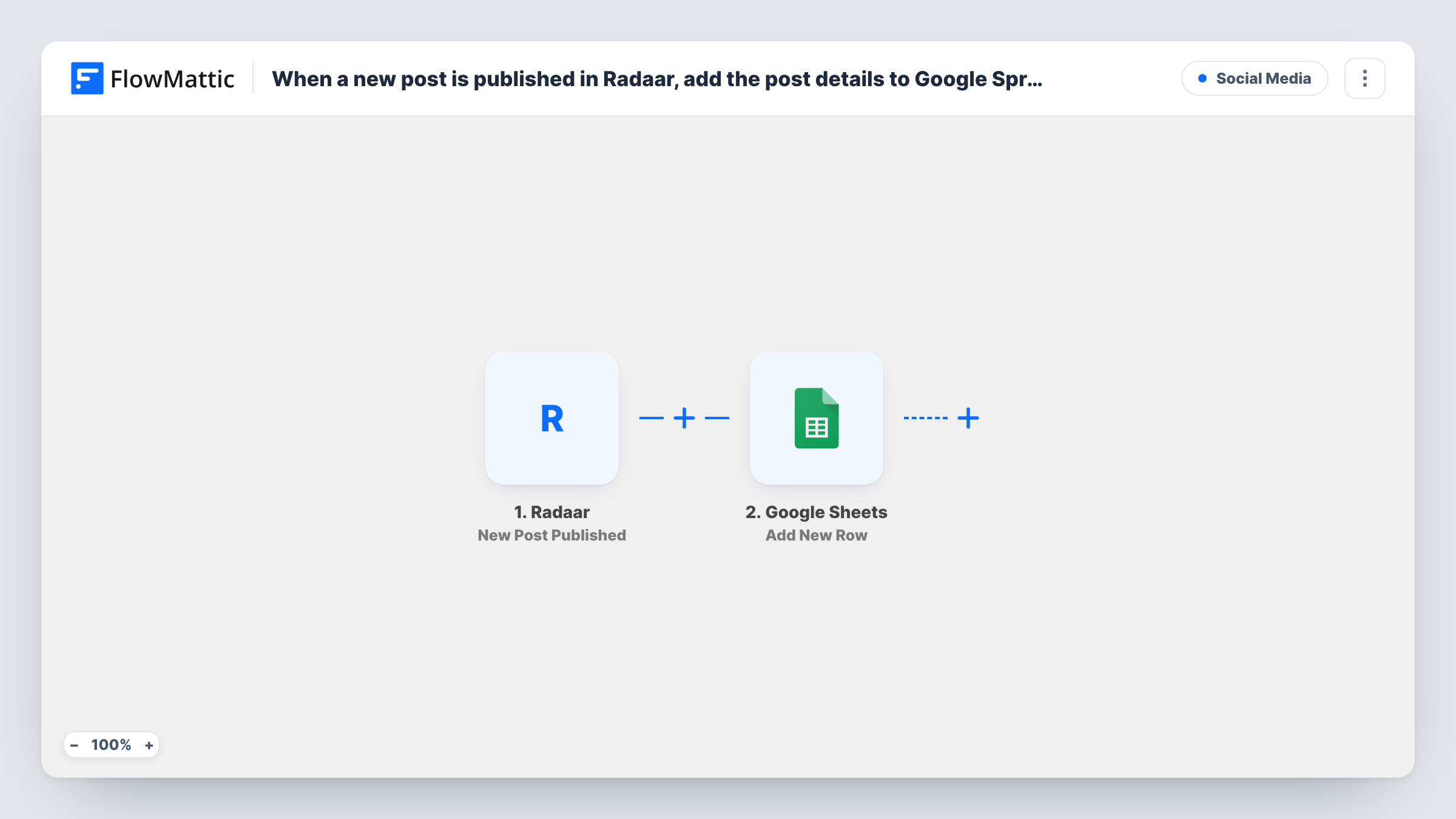
The Radaar trigger runs when a post is published from your Radaar account. FlowMattic receives the post details and hands them to Google Sheets. There, the Add New Row action writes them to the spreadsheet and sheet you choose, one row per post, in the columns you map.
Nothing is sent back to Radaar, so your posting setup stays as it is. Rows appear in the order posts are published. Each run is listed in Task History if you ever need to check whether a post made it to the sheet.
Monthly reports for agency clients
At the end of the month, filter the sheet by date and share the rows with the client to show every post Radaar published for them.
Avoiding repeat content
Before writing next week's posts, search the sheet to see whether a topic or link has already gone out through Radaar.
Team view without Radaar logins
Colleagues who do not use Radaar can open the shared Google Sheet to see what has been posted and when.
How this workflow runs
What happens at each step once the workflow is on, and what you need before you import it.
 Radaar New Post Published
Runs when a post is published in your Radaar account. The post's details are passed on so you can map them into the spreadsheet row.
- Google Sheets Add New Row
Adds a row for each published post to the Google Sheets file and sheet you select. Set up column headers first, connect your Google account, then map the Radaar post details to them.
What you need
- FlowMatticCore
- Radaar AccountAccount
- Google Sheets AccountAccount
After importing, map your own data. To keep the template universal, not every step is pre-filled. Open each step in the builder and connect your accounts and fields (channels, lists, sheets, recipients) before you switch the workflow on.
Make it yours
Changes worth making after you import it.
- Publish one post through Radaar after import, or wait for a scheduled one, so FlowMattic has a real example of the post data to map from.
- Add a column with a formula, such as the month of the publish date, next to the mapped columns to make monthly reporting quicker.
- If you manage several clients in Radaar, add a Router with a condition on an account detail and give each route a Google Sheets step pointing at that client's sheet.
Questions about this workflow
Are posts I published in Radaar before importing added to the sheet?
No. Only posts published after you turn the workflow on create rows. Add earlier posts to the sheet by hand if you need a full archive.
Which Radaar post details can go into the Google Sheet?
Those the New Post Published event provides. Run the trigger once after import and FlowMattic lists what Radaar sent, ready to map to columns.
Does editing the Google Sheet affect my Radaar posts?
No. Data only flows from Radaar into the sheet. Changing or deleting rows has no effect on Radaar or on the published posts.
Can I log Radaar posts to Airtable instead?
Yes. Replace the Google Sheets step with an Airtable Create Record step and map the same Radaar details to your table's fields.
More Social Media workflows
Other ready-to-import templates from the same category.







Import this workflow into your WordPress site
Download the JSON, import it from the Workflows screen and connect your accounts. Every run stays on your server, with no per-task fees.
30-day money-back guarantee Unlimited workflows and runs Self-hosted