

Schedule Ocoya posts from new Airtable records
Plan social posts in an Airtable base and let this workflow schedule each one in Ocoya, using the caption, media and time you keep in every new record.
 Airtable
 Ocoya
Ocoya2 steps Setup ~5 min Used on 3.3k sites Free to import
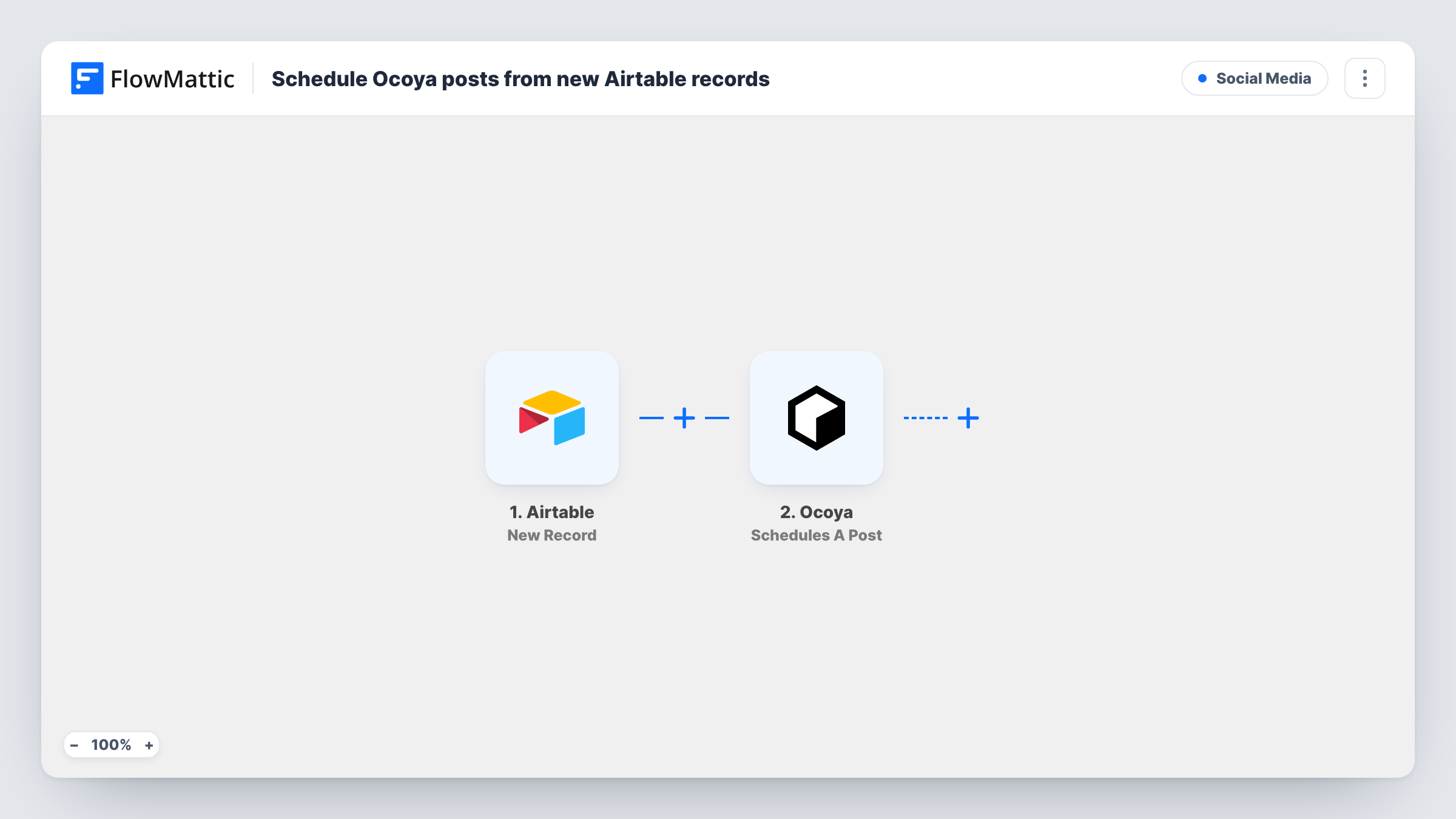
What this workflow does
Many teams plan social content in Airtable: one record per post, with the caption, an image link and a publish date. Getting those posts into a scheduler is then a copy-and-paste job. This workflow turns each new record in your content base into a scheduled post in Ocoya.
The Airtable trigger is New Record, which fires when a new record is created in the base and table you connect. FlowMattic passes the record's fields to Ocoya, where Schedules A Post creates a post with a caption and media and schedules it at a specific time. You map your Airtable columns into those parts of the post.
Because the trigger reacts to new records only, changing a record later does not reschedule or edit the Ocoya post. Make sure each record is complete when you add it, or add records only once the content is final. Task History keeps a record of each scheduling run.
Content calendar in Airtable
A marketing team adds one record per post to its content calendar base, and each one becomes a scheduled post in Ocoya.
Client approvals before scheduling
An agency keeps drafts elsewhere and creates the Airtable record only after the client approves, so only approved posts reach Ocoya.
Product launch posts
Launch posts for each new product are added to Airtable with their go-live time and scheduled in Ocoya from there.
How this workflow runs
What happens at each step once the workflow is on, and what you need before you import it.
 Airtable New Record
Starts whenever a record is added to your chosen Airtable table. The record's fields, such as your caption and date columns, become available to map into Ocoya.
- Ocoya Schedules A Post
Creates a post in Ocoya with a caption and media and schedules it at a specific time. Map your Airtable caption, media and date columns into the post, then connect your Ocoya account.
What you need
- FlowMatticCore
- Airtable AccountAccount
- Ocoya AccountAccount
After importing, map your own data. To keep the template universal, not every step is pre-filled. Open each step in the builder and connect your accounts and fields (channels, lists, sheets, recipients) before you switch the workflow on.
Make it yours
Changes worth making after you import it.
- Add a Filter after the trigger that continues only when your caption column is not empty, so half-filled records do not create empty Ocoya posts.
- Draft posts in a separate table and create the record in this one only when the post is final. Edits made later are not sent to Ocoya.
- Ocoya also offers Create AI Copy. Add it before the scheduling step if you want Ocoya to draft the caption from a prompt in your record.
Questions about this workflow
What happens if I edit the Airtable record after it is scheduled?
Nothing in Ocoya changes. The trigger fires for new records only, so later edits are not sent and the scheduled post stays as it was.
Which Airtable columns do I need for Ocoya?
Columns for what Ocoya's step uses: the caption, the media, and the time to publish. Map each one in the Ocoya step after a test record has come through.
Does every new Airtable record become an Ocoya post?
Yes, as imported. Add a Filter after the trigger if some records in the table should not be scheduled.
Which social accounts does Ocoya post to?
That is set in the Ocoya step and your Ocoya workspace. Add one test record after import and check the scheduled post in Ocoya before you rely on it.
More Social Media workflows
Other ready-to-import templates from the same category.





Import this workflow into your WordPress site
Download the JSON, import it from the Workflows screen and connect your accounts. Every run stays on your server, with no per-task fees.
30-day money-back guarantee Unlimited workflows and runs Self-hosted