

When Post Scheduled To be Published in Socialbee, New Row in Google Sheets
Each time a post is scheduled to be published in SocialBee, this workflow adds a row to a Google Sheets spreadsheet with the post details you map, so you keep a list of upcoming social posts outside SocialBee.
 Socialbee
 Google Sheets
2 steps Setup ~5 min Used on 1.3k sites Free to import
What this workflow does
SocialBee keeps your posting queue, but people outside the tool, such as a client or a manager, may want to see what is going out. A spreadsheet is easy to share and comment on. This workflow adds each scheduled post to a sheet as it is scheduled.
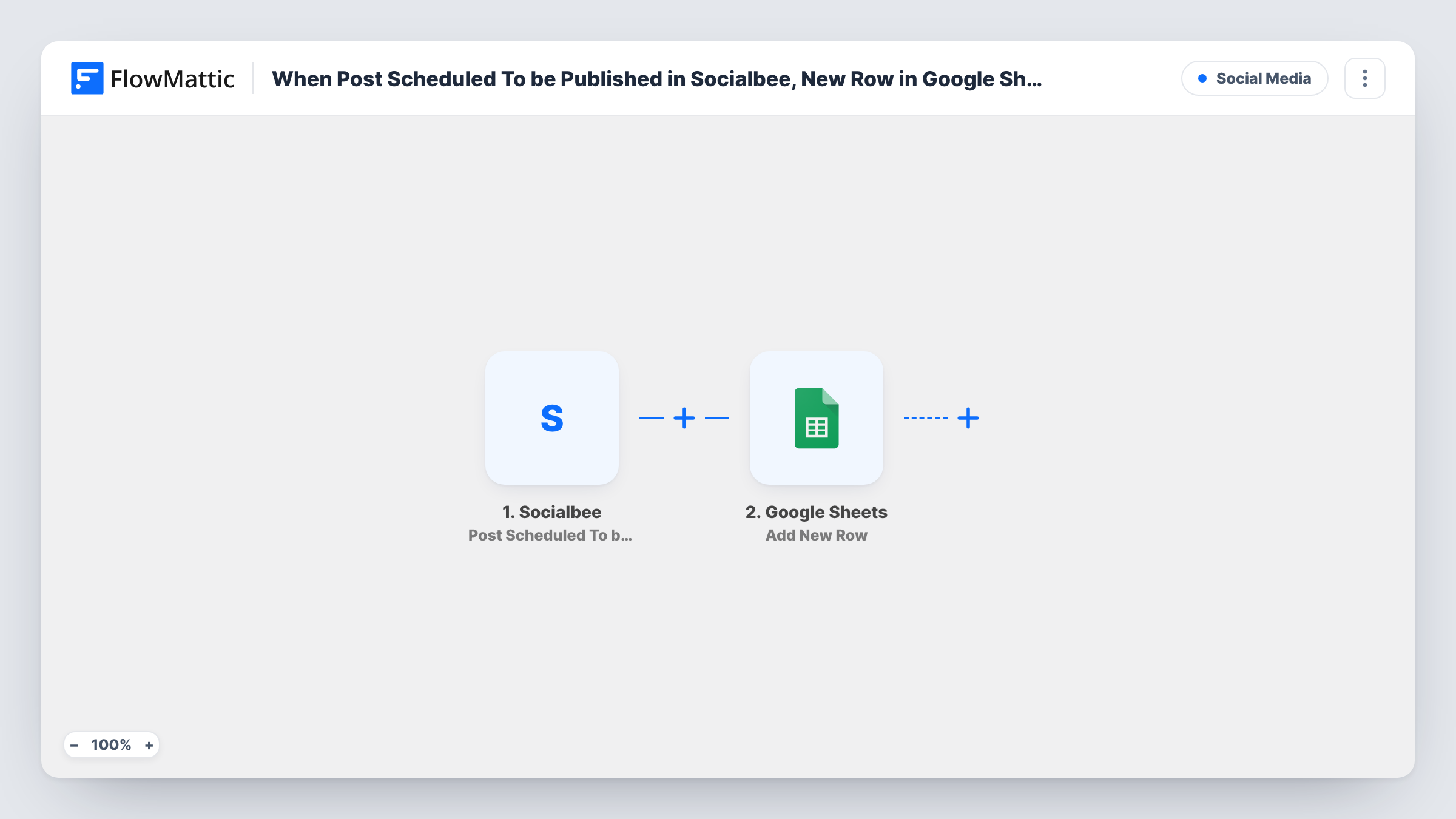
The SocialBee trigger, Post Scheduled To be Published, fires when a post is scheduled. FlowMattic receives the post's data and passes it to Google Sheets, where Add New Row writes it into the spreadsheet you choose. You decide which columns hold what, such as the post text, the profile and the scheduled time, depending on what the event includes.
Every scheduled post adds one row, and the template has no Filter. If a post is scheduled more than once, check whether SocialBee sends the event again; if it does, the sheet gets another row. Task History lists each run and the data SocialBee sent.
Showing clients what is going out
An agency shares the sheet with a client, who sees each post scheduled in SocialBee for their accounts and can comment in the sheet.
A content calendar for the wider team
Marketing schedules posts in SocialBee, and sales reads the sheet to know which announcements are going out this week.
Keeping a record of posts
Keep the sheet as a log of every post you scheduled, with its text and time, for later reporting or reuse.
How this workflow runs
What happens at each step once the workflow is on, and what you need before you import it.
 Socialbee Post Scheduled To be Published
Starts as soon as SocialBee puts a post on its publishing schedule. The post details are passed on for mapping into the spreadsheet.
- Google Sheets Add New Row
Writes the scheduled post into a new row of the spreadsheet you pick. Map the post text, profile and scheduled time to columns, as far as a test run shows them.
What you need
- FlowMatticCore
- Socialbee AccountAccount
- Google Sheets AccountAccount
After importing, map your own data. To keep the template universal, not every step is pre-filled. Open each step in the builder and connect your accounts and fields (channels, lists, sheets, recipients) before you switch the workflow on.
Make it yours
Changes worth making after you import it.
- Schedule one test post after import and look at the data FlowMattic received. It shows which SocialBee fields you can log before you set up the columns.
- Add a Filter after the trigger on a profile field, if SocialBee sends one, when the sheet should only list posts for one brand or client.
- Format the scheduled-time column as a date in Google Sheets, so you can sort the sheet into a calendar order.
Questions about this workflow
Does each scheduled SocialBee post get its own row?
Yes. Each event from SocialBee runs the workflow once and adds a new row. Nothing in the template updates or removes earlier rows.
Which SocialBee post details can I log?
Whatever the Post Scheduled To be Published event includes. Schedule a test post and check the data FlowMattic received to see the available fields.
Are posts I scheduled before setup added?
No. Only posts scheduled after you turn the workflow on reach the sheet. Add earlier posts by hand if you need them listed.
Does the sheet change when a post is published or deleted?
No. This workflow only adds a row when a post is scheduled. It doesn't track what happens to the post afterwards.
More Social Media workflows
Other ready-to-import templates from the same category.





Import this workflow into your WordPress site
Download the JSON, import it from the Workflows screen and connect your accounts. Every run stays on your server, with no per-task fees.
30-day money-back guarantee Unlimited workflows and runs Self-hosted