

Update Shopify customers with new Typeform entries
When someone submits your Typeform, FlowMattic searches Shopify for the matching customer, for example by email, and updates that customer record with the answers you map.
 Typeform
 Shopify
3 steps Setup ~5 min Used on 3.0k sites Free to import
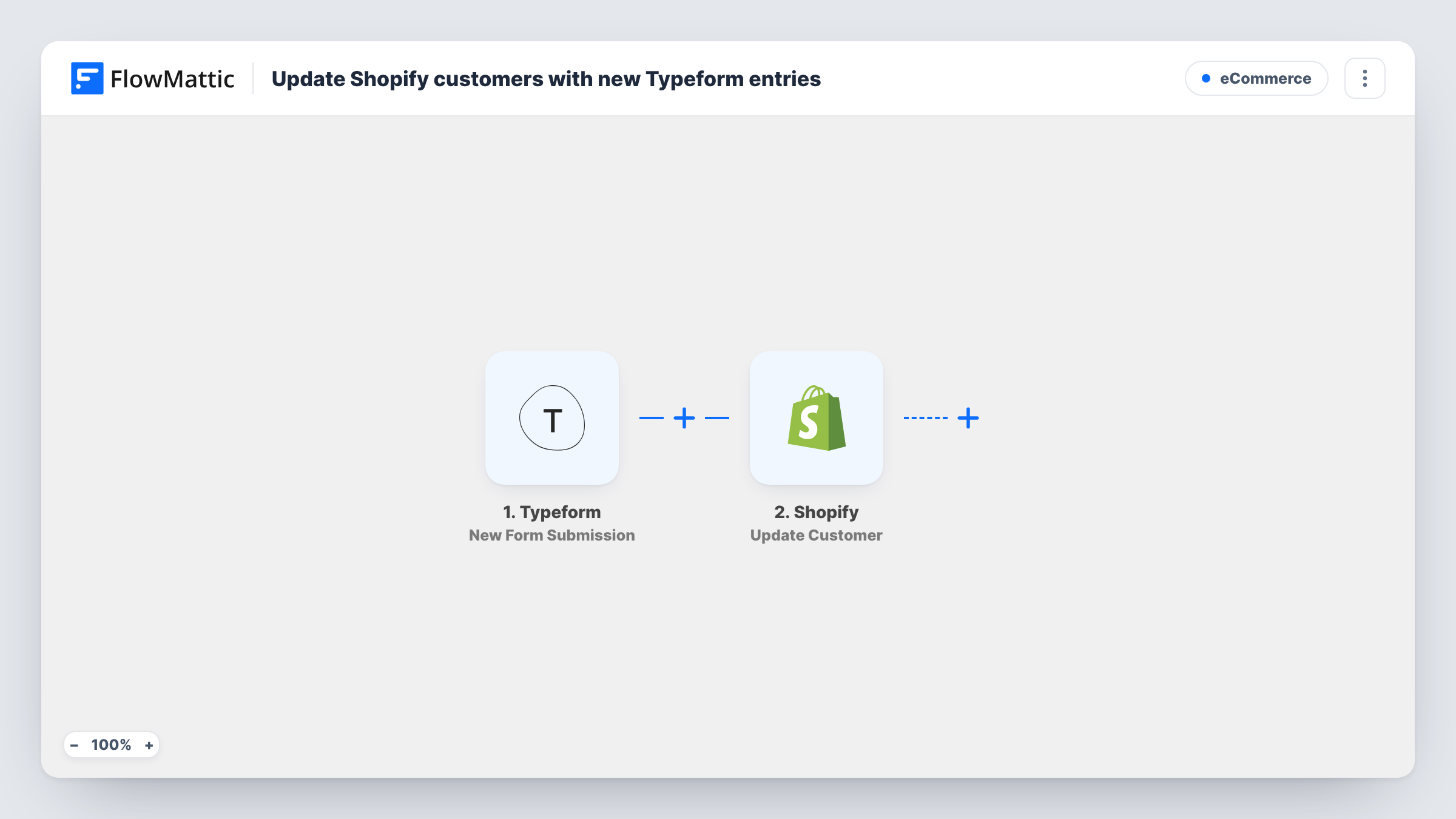
What this workflow does
Typeform is a handy way to ask existing customers things your Shopify checkout never asks: preferences, sizes, birthdays, a new phone number. Copying those answers into each customer record is slow. This workflow finds the customer in Shopify and writes the answers onto their record.
The Typeform trigger fires when a new response is submitted to the form you connect, and each answer becomes a value you can map. The first Shopify step searches for a customer, for example by the email the respondent typed. It needs an email question, or another detail Shopify can search on, in your form.
The second Shopify step updates that existing customer, using the customer ID the search returned. Both steps ship unmapped: after import you map the search value from Typeform, then map the found customer's ID and the answers into the fields you want to change.
This flow only updates people who are already customers. Someone who isn't in Shopify yet has nothing to find, so test with a known customer's email first and check Task History for what the search and the update returned.
Collect sizes and preferences
A clothing store emails existing customers a Typeform asking their usual size, and the answer is saved to each customer's Shopify record.
Update contact details
A subscription box sends a short form for customers to correct their phone number, and FlowMattic writes it to the matching Shopify customer.
Keep survey answers on the customer record
A shop runs a post-purchase Typeform survey and saves a key answer to the matching Shopify customer, so support can see it when they help.
How this workflow runs
What happens at each step once the workflow is on, and what you need before you import it.
 Typeform New Form Submission
Starts a run each time a respondent completes the Typeform you connect. Every answer, including the email they gave, can be mapped into the two Shopify steps.
- Shopify Search Customer
Searches Shopify for a customer, for example by the email from the Typeform answer. The step ships unmapped: map the email, and check a test run for the customer ID it returns.
- Shopify Update Customer
Updates the existing Shopify customer the search found. Map the customer ID from step 2, then map the Typeform answers into the customer fields you want to change.
What you need
- FlowMatticCore
- Typeform AccountAccount
- Shopify AccountAccount
After importing, map your own data. To keep the template universal, not every step is pre-filled. Open each step in the builder and connect your accounts and fields (channels, lists, sheets, recipients) before you switch the workflow on.
Make it yours
Changes worth making after you import it.
- Make the email question required in Typeform, so every response has a value for the Shopify search.
- Put a Filter between the Search Customer step and the Update Customer step that continues only when the search returned a customer ID, so responses from non-customers stop before the update.
- Send the form through a link that pre-fills the customer's email, so the address matches the one on their Shopify account.
Questions about this workflow
What happens if the Typeform respondent isn't a Shopify customer?
The search returns no customer for that email, and Task History shows what each Shopify step returned. A Filter on the customer ID between the two Shopify steps keeps the update from running for those responses.
Does this create new customers in Shopify?
No. It only updates customers the search finds. FlowMattic's Shopify integration also has Create Customer if you want to add people who aren't there yet.
Which Shopify customer fields can the Typeform answers update?
Those the Update Customer step offers for mapping. Open it after import to see the options, and map only the answers you want to overwrite.
More E-Commerce workflows
Other ready-to-import templates from the same category.







Import this workflow into your WordPress site
Download the JSON, import it from the Workflows screen and connect your accounts. Every run stays on your server, with no per-task fees.
30-day money-back guarantee Unlimited workflows and runs Self-hosted