

Post to Slack when a new Zenzap message is created
When a new message arrives in a Zenzap topic your bot takes part in, this workflow posts it to the Slack channel you choose, so people who work in Slack see those conversations too.
 Zenzap
 Slack
2 steps Setup ~5 min Used on 2.4k sites Free to import
What this workflow does
Teams split across chat tools miss things. One group talks in Zenzap, another lives in Slack, and updates in one never reach the other. This workflow copies new Zenzap messages from chosen topics into a Slack channel.
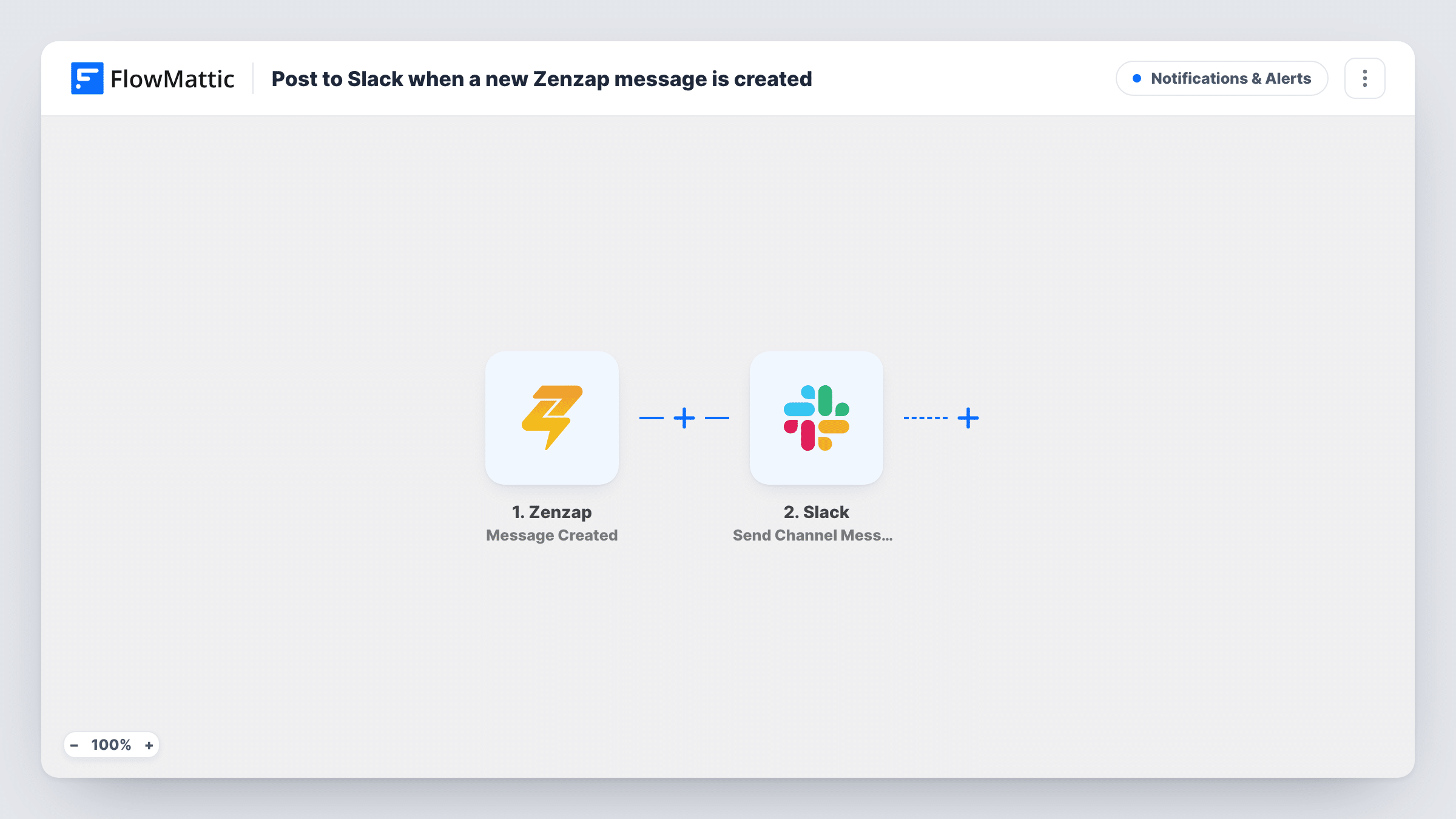
The Zenzap trigger fires when a new message arrives in a topic where your bot participates. That bot is how you choose the source: add it to the topics you want mirrored and leave it out of the rest. FlowMattic receives the message data, and the Slack Send Channel Message step posts to the channel you pick. You write the Slack text and insert Zenzap values such as the message content and sender.
Each Zenzap message produces one Slack post. Replies made in Slack don't travel back to Zenzap, so this is a one-way feed. Task History lists every run, which helps if a message seems to be missing.
Field team updates for the office
Field staff report in a Zenzap topic. Each message also appears in a Slack channel the office team watches.
Client project topic mirrored to Slack
A client talks to you in a Zenzap topic. Your bot sits in that topic, so its messages show up in the internal Slack channel for the project.
Keeping managers in the loop
Managers who only use Slack read a channel fed from the Zenzap topics where shift changes and issues are discussed.
How this workflow runs
What happens at each step once the workflow is on, and what you need before you import it.
 Zenzap Message Created
Runs when a new message arrives in a Zenzap topic your bot participates in. The message data is passed on for use in the Slack post.
- Slack Send Channel Message
Sends a post to the Slack channel you choose. Connect your Slack workspace, pick the channel and build the text from the Zenzap message values.
What you need
- FlowMatticCore
- Zenzap AccountAccount
- Slack AccountAccount
After importing, map your own data. To keep the template universal, not every step is pre-filled. Open each step in the builder and connect your accounts and fields (channels, lists, sheets, recipients) before you switch the workflow on.
Make it yours
Changes worth making after you import it.
- Add your Zenzap bot only to the topics you want copied. Topics without the bot don't start a run.
- If the bot sits in several topics, include the topic name or ID from the Zenzap data in the Slack text, or use a Router with one Slack step per topic, each matching a different topic value.
- Send a test message in a Zenzap topic after import so FlowMattic captures the data, then map the sender and text into your Slack message.
Questions about this workflow
Which Zenzap messages reach Slack?
New messages in topics where your bot participates. Messages in topics without the bot don't trigger the workflow.
Do replies in Slack go back to the Zenzap topic?
No. The workflow only posts from Zenzap to Slack. Nothing sent in Slack reaches Zenzap.
Will messages the Zenzap bot sends itself be posted too?
If Zenzap reports them as new messages in the topic, they start a run like any other. Check Task History after a test, and add a Filter on the sender if you want to leave them out.
Can Zenzap messages go to a private Slack channel?
Yes, as long as the Slack connection you use on import can post in that channel.
More Notifications & Alerts workflows
Other ready-to-import templates from the same category.



Import this workflow into your WordPress site
Download the JSON, import it from the Workflows screen and connect your accounts. Every run stays on your server, with no per-task fees.
30-day money-back guarantee Unlimited workflows and runs Self-hosted