

Send a Slack alert to the content team when Muvi content is updated
Whenever a title or other piece of content is updated in Muvi, this workflow posts a message in the Slack channel your content team uses, so edits to the catalogue don’t go unnoticed.
 Muvi
 Slack
2 steps Setup ~5 min Used on 1.7k sites Free to import
What this workflow does
On a streaming platform, several people may touch the same catalogue: editors fix descriptions, someone swaps artwork, a manager changes availability. When those edits happen quietly inside Muvi, the rest of the content team finds out late or not at all. This workflow announces each update in Slack.
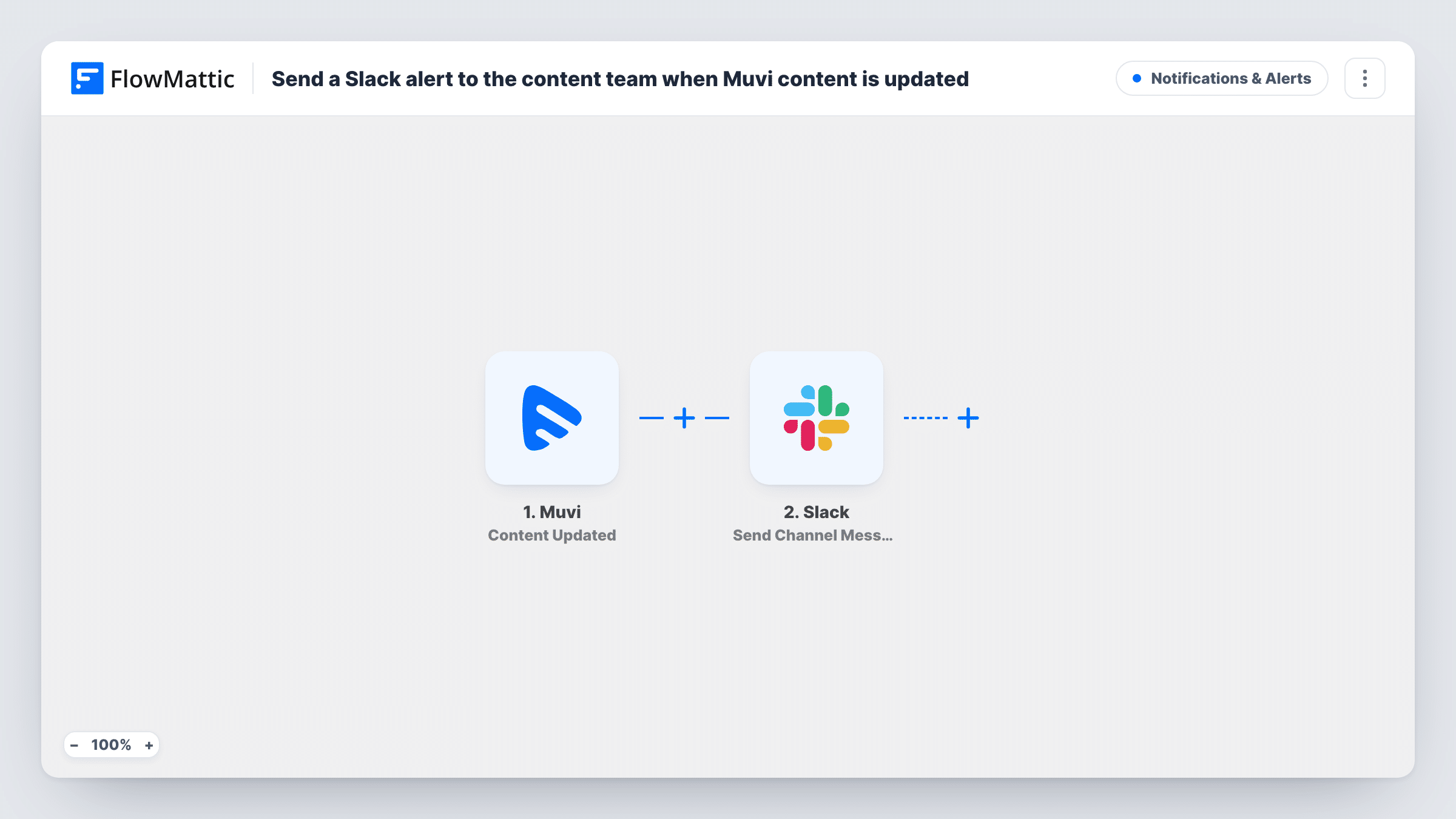
The Muvi Content Updated trigger fires when content in your Muvi account is updated. FlowMattic passes the data Muvi sends about that item to the Slack step, which posts a message with Send Channel Message. You compose the text and insert whichever content details the trigger returns.
Every update produces its own Slack message, so a burst of edits to one title means several posts. The workflow only reads from Muvi and writes to Slack; it doesn't change your content. Task History keeps a record of every Muvi update that reached Slack.
Editorial review channel
A #content-changes channel lists each Muvi update, so the editor who signs off on metadata sees every change other staff make.
Marketing kept in the loop
The team writing newsletters and social posts sees in Slack when a title's details change, before they promote it with old information.
Audit trail for a small streaming team
The Slack channel's history doubles as a simple timeline of which content was updated and when.
How this workflow runs
What happens at each step once the workflow is on, and what you need before you import it.
 Muvi Content Updated
Fires when a piece of content in your Muvi account is updated. The data Muvi sends about that item becomes available for the Slack message.
- Slack Send Channel Message
Publishes a message to the Slack channel chosen in the step. Connect your Slack workspace, pick the content team's channel and map Muvi details into the message text.
What you need
- FlowMatticCore
- Muvi AccountAccount
- Slack AccountAccount
After importing, map your own data. To keep the template universal, not every step is pre-filled. Open each step in the builder and connect your accounts and fields (channels, lists, sheets, recipients) before you switch the workflow on.
Make it yours
Changes worth making after you import it.
- Do a test edit in Muvi after import and check which fields the trigger returns before writing the Slack message.
- For a private content-team channel, change the step to Slack's Send Private Channel Message action.
- Add a Filter after the Muvi trigger if only some updates matter, for example ones where a field you care about holds a particular value. Check a test run for the field names.
Questions about this workflow
Does a new Muvi title also post to Slack?
No. This template uses the Content Updated trigger. Muvi has a separate Content Created trigger in FlowMattic if you want new content announced too.
Will several quick edits to one Muvi title send several Slack messages?
Yes, if Muvi reports each one as an update. Each update event starts its own run and posts its own message.
Can the message say what changed in the Muvi content?
It can include any field the Content Updated trigger returns. Run a test edit to see whether Muvi sends the changed values or just the item's current details.
More Notifications & Alerts workflows
Other ready-to-import templates from the same category.





Import this workflow into your WordPress site
Download the JSON, import it from the Workflows screen and connect your accounts. Every run stays on your server, with no per-task fees.
30-day money-back guarantee Unlimited workflows and runs Self-hosted