

When a ticket is closed in NeetoDesk, send a feedback request via WhatsApp Cloud API
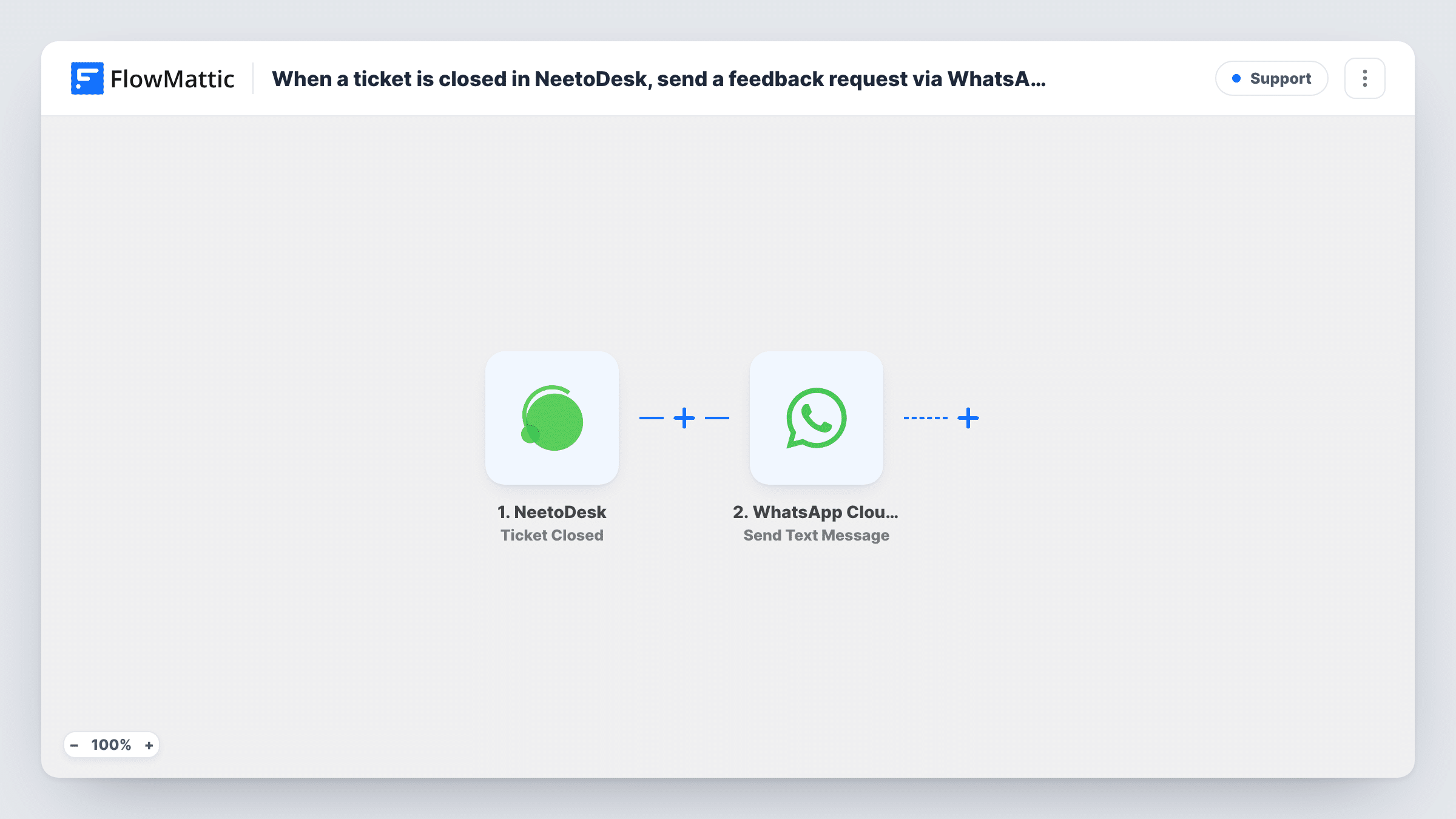
When a ticket is closed in NeetoDesk, this workflow sends the customer a WhatsApp text through the WhatsApp Cloud API asking how their support experience went.
 NeetoDesk
 WhatsApp Cloud API
2 steps Setup ~5 min Used on 2.7k sites Free to import
What this workflow does
Closing a ticket is the natural moment to ask a customer how it went. Doing it by hand means switching apps, finding the number and typing the same request every time. This workflow sends that question when your agent closes the ticket in NeetoDesk.
The NeetoDesk trigger fires when a ticket is closed, and the ticket data is passed on. FlowMattic then runs the Send Text Message action of the WhatsApp Cloud API, using the business number you connect. You map the customer's phone number and write the feedback request, with details such as the ticket subject or a link to your survey.
One WhatsApp rule shapes this flow. WhatsApp only delivers a free-form text within 24 hours of the person messaging your business number. Customers who opened the ticket by email or web form, and never wrote to you on WhatsApp, usually won't receive it. For those customers, switch the step to Send Template Message with a template WhatsApp has approved.
Support teams that already chat on WhatsApp
Customers who reached you on WhatsApp and had their ticket closed the same day get the feedback question in the conversation they were already having.
Short survey link after each resolved issue
The message carries a link to a one-question survey, and every closed NeetoDesk ticket sends it out without an agent copying the link.
Checking that a fix worked
A repair or IT help desk asks the customer to confirm everything still works now that the ticket is closed, giving the customer an easy way to say the problem is back.
How this workflow runs
What happens at each step once the workflow is on, and what you need before you import it.
 NeetoDesk Ticket Closed
Fires when a ticket is closed in NeetoDesk. The ticket data is passed on so you can map the customer's details into the WhatsApp message.
- WhatsApp Cloud API Send Text Message
Sends a WhatsApp text from your connected business number. Map the customer's phone number from the ticket, if NeetoDesk includes one, and write the feedback request. A test run shows what the ticket data holds.
What you need
- FlowMatticCore
- NeetoDesk AccountAccount
- WhatsApp Cloud API AccountAccount
After importing, map your own data. To keep the template universal, not every step is pre-filled. Open each step in the builder and connect your accounts and fields (channels, lists, sheets, recipients) before you switch the workflow on.
Make it yours
Changes worth making after you import it.
- Change the action to WhatsApp Cloud API Send Template Message and use an approved template, so customers outside the 24-hour window can still receive the request.
- Add a Filter after the trigger that continues only when the ticket has a phone number, so tickets without one stop before the WhatsApp step.
- Add a Delay before the WhatsApp step if you'd rather ask for feedback a little while after the ticket closes instead of straight away.
Questions about this workflow
Why didn't my customer receive the NeetoDesk feedback message on WhatsApp?
A plain WhatsApp text is delivered only if the customer wrote to your business number within the past 24 hours. Outside that window, use Send Template Message with an approved template. Task History shows the response WhatsApp returned.
Where does the customer's phone number come from?
From the NeetoDesk ticket data, if the ticket includes one. Close a test ticket after import and look at the trigger data to see what you can map.
Does a reopened and re-closed NeetoDesk ticket send a second request?
The trigger fires each time NeetoDesk reports a ticket closed, so closing the same ticket again sends another message.
Can I collect the customer's reply in FlowMattic?
Not with this template. It only sends the message. Replies go to your WhatsApp Cloud API business number, not back into this workflow.
More Support workflows
Other ready-to-import templates from the same category.







Import this workflow into your WordPress site
Download the JSON, import it from the Workflows screen and connect your accounts. Every run stays on your server, with no per-task fees.
30-day money-back guarantee Unlimited workflows and runs Self-hosted