

Send Personalized Thank You Email via Gmail When Customer Makes First Purchase in FluentCart
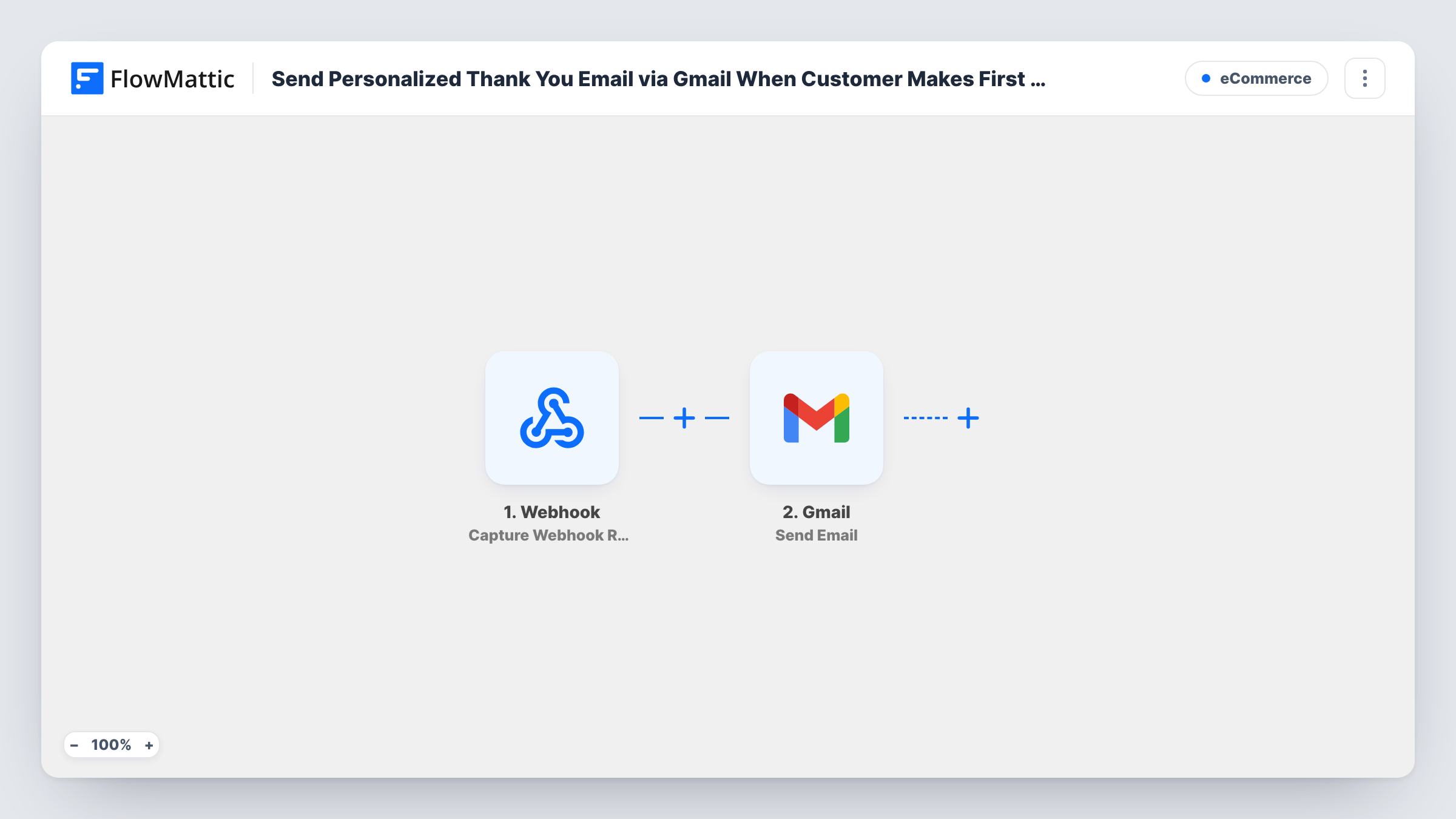
When a FluentCart customer reaches their first successful order, FlowMattic sends them a personal thank-you email from your Gmail account, written and personalised the way you choose.
 FluentCart
 Gmail
2 steps Setup ~5 min Used on 2.1k sites Free to import
What this workflow does
A first purchase is the moment a visitor becomes a customer, and a short note from a real inbox can feel more personal than a store receipt. This workflow sends that note only once a customer's first paid order counts, not on every order they place afterwards.
The FluentCart Customer Order Count Threshold trigger fires when a customer reaches the order count you set. Only orders whose payment went through count towards it, which FlowMattic defines as paid, partially paid or partially refunded orders. The template doesn't set the count, so enter 1 in the trigger after import to make it fire on the first purchase.
The Gmail Send Email step then sends the thank-you from the Gmail account you connect. It ships unmapped: set the recipient to the customer's email from the trigger, write the subject and message, and map details such as the first name to personalise it. A test order shows which customer fields the trigger passes on.
Because the email comes from your own Gmail address, replies land in that inbox, which suits shops that want to start a conversation with new customers. Check the message with a test purchase before switching the workflow on.
Founder's welcome note
A small coffee roaster's founder sends every first-time buyer a short, personal thank-you from her own Gmail, inviting them to reply with feedback.
Getting started with a digital product
A seller of design templates emails first-time customers a few tips for using their files, without repeating it on later purchases.
Loyalty programme invitation
A beauty brand uses the first-purchase email to tell new customers how its points scheme works.
How this workflow runs
What happens at each step once the workflow is on, and what you need before you import it.
 FluentCart Customer Order Count Threshold
Fires when a FluentCart customer reaches the order count set in the trigger, counting only orders with a successful payment status. Set the count to 1 after import so it fires on the first purchase.
- Gmail Send Email
Emails the new customer from the Gmail mailbox you link. Nothing is preset, so map the customer's email as the recipient, write the subject and thank-you message, and add their name for a personal touch.
What you need
- FlowMatticCore
- FluentCart PluginPlugin
- Gmail AccountAccount
After importing, map your own data. To keep the template universal, not every step is pre-filled. Open each step in the builder and connect your accounts and fields (channels, lists, sheets, recipients) before you switch the workflow on.
Make it yours
Changes worth making after you import it.
- Set the order count to 1 in the FluentCart trigger before turning the workflow on, because no count ships with the template.
- Write the message in plain text with a short signature, so it reads like a personal note rather than a store notification.
- Import the workflow a second time with the count set to a higher number, such as 5, to thank repeat customers with a different message.
- Place a test order with your own email after import and check that the Gmail message arrives with the name filled in.
Questions about this workflow
Will a customer get the thank-you email on every FluentCart order?
No. The trigger fires when the customer reaches the count you set, so with a count of 1 the email goes out for their first successful order.
Do unpaid or failed FluentCart orders count towards the threshold?
No. The trigger only counts orders whose payment status is paid, partially paid or partially refunded.
Who does the thank-you email come from?
From the Gmail account you link in the Send Email step, so the customer sees your address and their replies arrive in that mailbox.
Can I include a discount code for the next order?
Yes, by typing a code you have created into the message. FlowMattic's FluentCart integration also has a Create Coupon action you could add before the Gmail step to make one per customer.
More E-Commerce workflows
Other ready-to-import templates from the same category.




Import this workflow into your WordPress site
Download the JSON, import it from the Workflows screen and connect your accounts. Every run stays on your server, with no per-task fees.
30-day money-back guarantee Unlimited workflows and runs Self-hosted