

Log RSS feed updates as new rows in Google Sheets
Every new item that appears in an RSS feed you choose is written to a new Google Sheets row, giving you a running list of posts from a blog, news site or podcast that you can sort and share.
 RSS Feed
 Google Sheets
2 steps Setup ~5 min Used on 2.4k sites Free to import
What this workflow does
RSS readers show you what is new, but they are poor at keeping a record. If you track what a competitor publishes, collect articles for a newsletter or archive your own posts, a spreadsheet is easier to sort, filter and share. This workflow builds that spreadsheet from the feed.
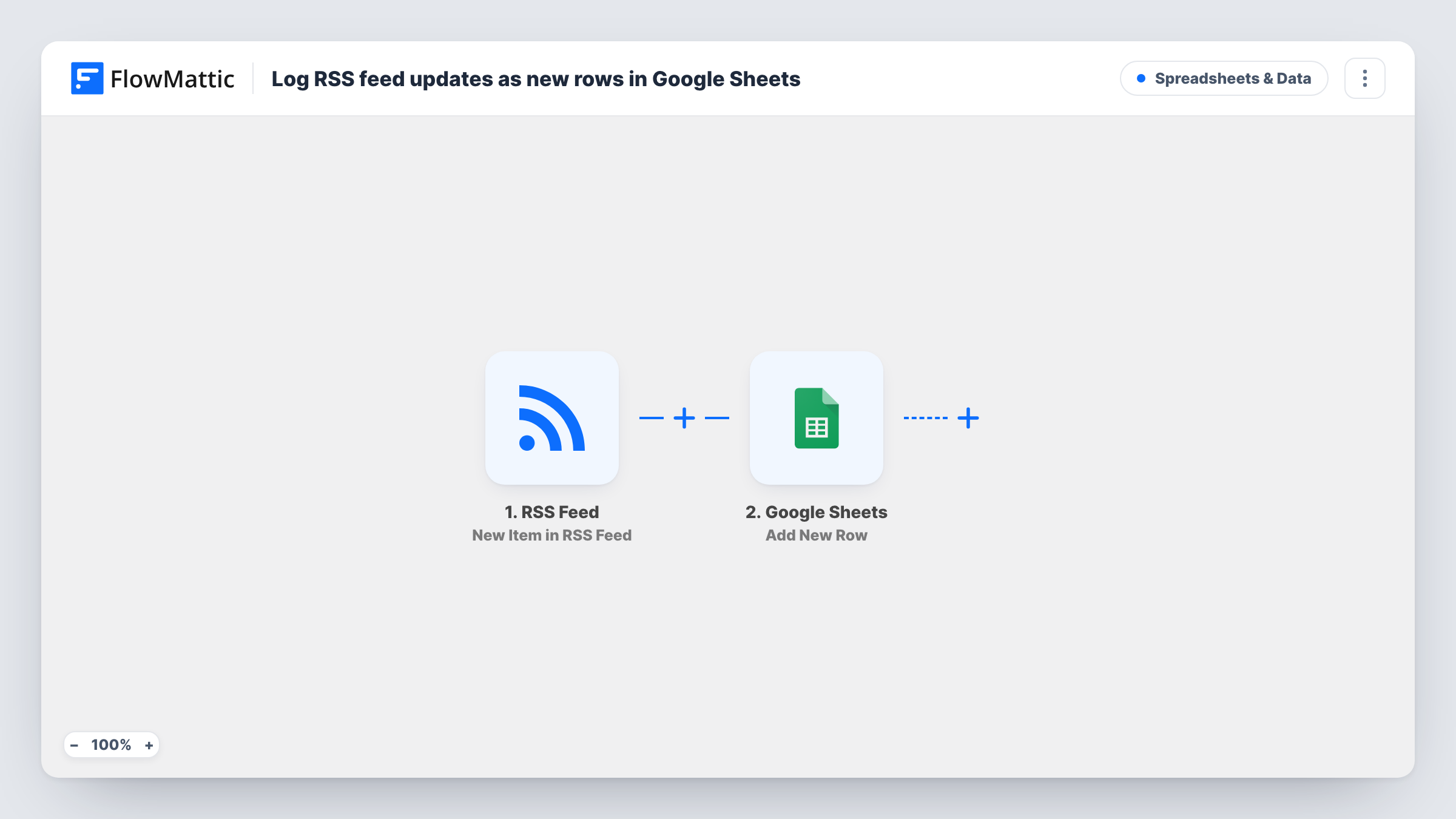
The RSS Feed trigger watches the feed URL you enter and fires on each new item. The item's data, such as its title, link and publish date when the feed provides them, is passed to Google Sheets, which adds a new row with the values you map to each column.
One new item gives one row. Items that were in the feed before you turned the workflow on are not added. The sheet holds only what you map, so set up the columns before your first test.
Competitor content tracking
Point the trigger at a competitor's blog feed. Each new post lands in a sheet with its title and link, and your team adds notes in extra columns.
Newsletter link collection
Follow an industry news feed and pick stories for your weekly newsletter from the sheet instead of scrolling a reader.
Podcast episode archive
Log each new episode from your podcast feed, giving you one list of titles, dates and links to use in show notes or planning.
How this workflow runs
What happens at each step once the workflow is on, and what you need before you import it.
 RSS Feed New Item in RSS Feed
Watches the RSS feed URL you enter and starts a run for each new item. The item's fields from the feed are passed on for mapping into the sheet.
- Google Sheets Add New Row
Adds a new row to the Google Sheets spreadsheet and sheet you pick. Connect your Google account and map the feed item's fields, such as title and link, to your columns.
What you need
- FlowMatticCore
- Google Sheets AccountAccount
After importing, map your own data. To keep the template universal, not every step is pre-filled. Open each step in the builder and connect your accounts and fields (channels, lists, sheets, recipients) before you switch the workflow on.
Make it yours
Changes worth making after you import it.
- Add a Filter after the trigger that continues only when the item title contains a keyword, so the sheet logs only posts on topics you follow.
- Duplicate the workflow and change the feed URL to track several feeds, adding a column for the source name so you can tell rows apart.
- Create the header row in Google Sheets before your first test, so the columns are ready to map in the Add New Row step.
Questions about this workflow
Will old items already in the RSS feed be added to the sheet?
No. The trigger fires on new items, so the sheet starts with posts published after you turn the workflow on.
Which details from the RSS item can I save?
Whatever the feed includes for each item, typically a title, link and date. Feeds differ, so run a test and look at the captured fields before mapping columns.
Can I log more than one RSS feed in the same Google Sheet?
Yes. Make a copy of the workflow for each feed and point them all at the same sheet, with a column that records which feed the row came from.
More Spreadsheets & Data workflows
Other ready-to-import templates from the same category.



Import this workflow into your WordPress site
Download the JSON, import it from the Workflows screen and connect your accounts. Every run stays on your server, with no per-task fees.
30-day money-back guarantee Unlimited workflows and runs Self-hosted