

Log new MoEngage engagement events to a Google Sheets spreadsheet
Each time MoEngage sends an engagement event to FlowMattic, this workflow writes it to a new row in a Google Sheets spreadsheet, so you keep a running log of user activity you can sort and share.
 MoEngage
 Google Sheets
2 steps Setup ~5 min Used on 3.4k sites Free to import
What this workflow does
MoEngage holds your engagement data inside its own dashboard. When you want that activity next to other numbers, or in front of someone who has no MoEngage login, a spreadsheet is the simplest place for it. This workflow copies each event into Google Sheets as it arrives.
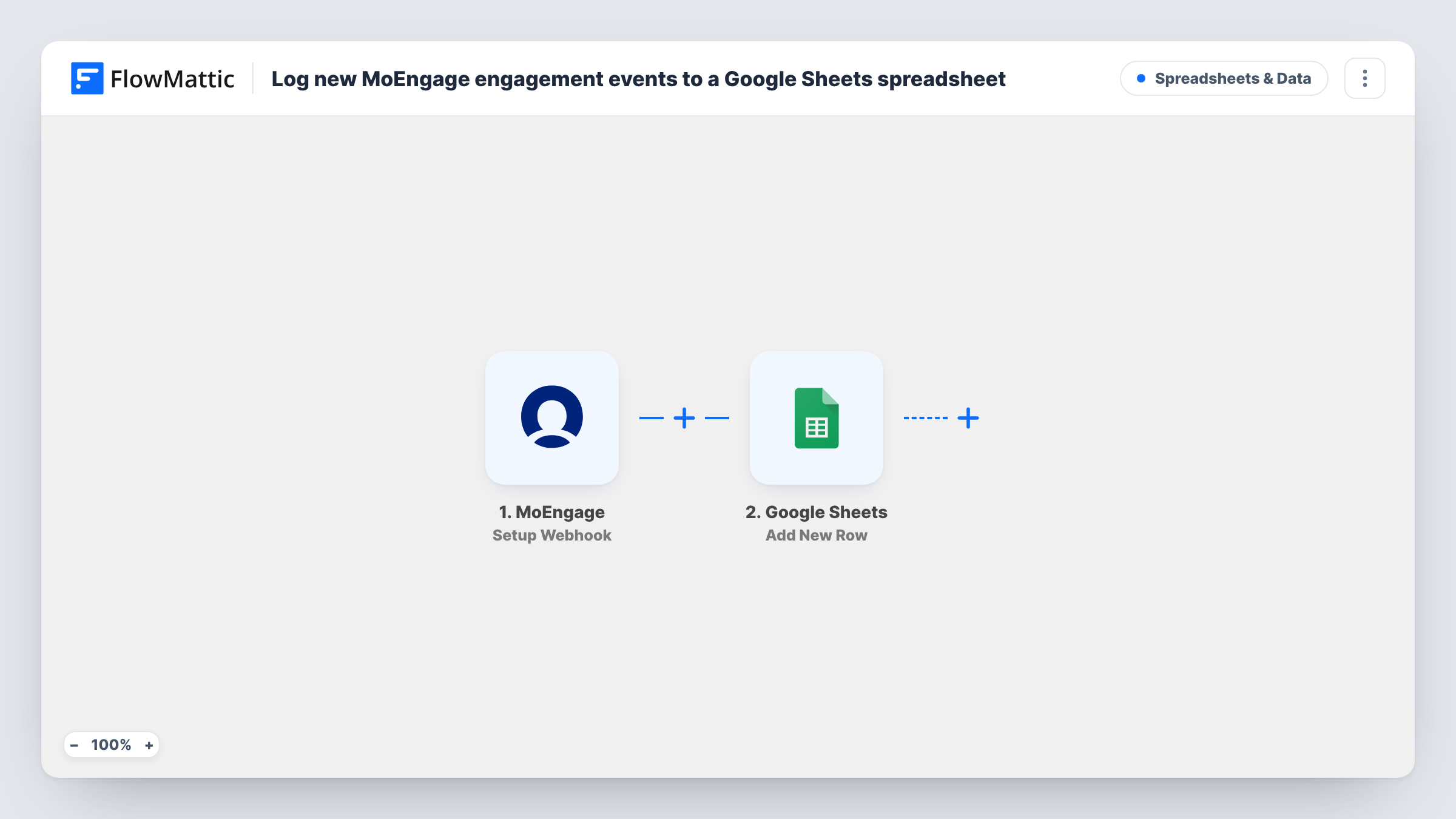
The MoEngage trigger, Setup Webhook, starts a run whenever MoEngage reports an event to FlowMattic. You connect the two by setting up MoEngage to send its events to the webhook address the trigger gives you. Whatever MoEngage includes in that event becomes data you can map in the next step.
The Google Sheets step then adds one new row to the spreadsheet and sheet you pick. You decide which event values land in which columns. Nothing is filtered as imported, so every event MoEngage sends gets its own row, and each run is listed in Task History with the data it carried.
Campaign activity log for a marketing team
Engagement events from your MoEngage campaigns build up row by row in a shared sheet, where teammates sort them by date or user without opening MoEngage.
Raw data for your own charts
The sheet becomes a source you chart from or pull into a reporting tool that reads Google Sheets, alongside figures MoEngage doesn't hold.
Checking that events reach MoEngage
While you set up tracking in an app or site, the sheet shows each event MoEngage passes on, so you can confirm the ones you expect are arriving.
How this workflow runs
What happens at each step once the workflow is on, and what you need before you import it.
 MoEngage Setup Webhook
Starts a run whenever MoEngage sends an event to the webhook address this trigger provides. Set MoEngage up to post to that address, then send a test event so FlowMattic captures the fields.
- Google Sheets Add New Row
Writes each incoming MoEngage event to a fresh row at the bottom of your chosen Google Sheets spreadsheet. Connect your Google account, pick the spreadsheet and sheet, and map the event values to its columns.
What you need
- FlowMatticCore
- MoEngage AccountAccount
- Google Sheets AccountAccount
After importing, map your own data. To keep the template universal, not every step is pre-filled. Open each step in the builder and connect your accounts and fields (channels, lists, sheets, recipients) before you switch the workflow on.
Make it yours
Changes worth making after you import it.
- To log only some events, add a Filter after the MoEngage trigger that continues when the event's name matches the ones you care about. A test run shows which field holds that name.
- Want each event type in its own tab? Use a Router with one route per event name, each with a Google Sheets step pointed at a different sheet. Distinct names keep the routes from overlapping.
- Put a header row in the spreadsheet before you map the step, so each MoEngage value has a named column to go to.
Questions about this workflow
Which MoEngage events reach the sheet?
Whatever events MoEngage sends to the trigger's webhook address. The template has no Filter, so each event received becomes a new row. To keep only certain event types, place a Filter between MoEngage and Google Sheets.
Will past MoEngage events be copied into Google Sheets?
No. The workflow logs events MoEngage sends after the webhook is set up and the workflow is on. Earlier activity stays in MoEngage.
What MoEngage data can I map to the columns?
Only what MoEngage includes in the event it sends. Run one test event after import, then look at the captured data in the Google Sheets step to see which values are available.
What if the Google Sheets step fails for one event?
Task History shows the error on that step, along with the event data the run received, so you can see which event was missed and fix the connection or mapping.
More Spreadsheets & Data workflows
Other ready-to-import templates from the same category.




Import this workflow into your WordPress site
Download the JSON, import it from the Workflows screen and connect your accounts. Every run stays on your server, with no per-task fees.
30-day money-back guarantee Unlimited workflows and runs Self-hosted