

Post a Slack message whenever a Pushcut action is executed
Each time an action is executed in Pushcut, this workflow posts a message to the Slack channel you choose, so your team can see the activity without checking Pushcut.
 Pushcut
 Slack
2 steps Setup ~5 min Used on 2.5k sites Free to import
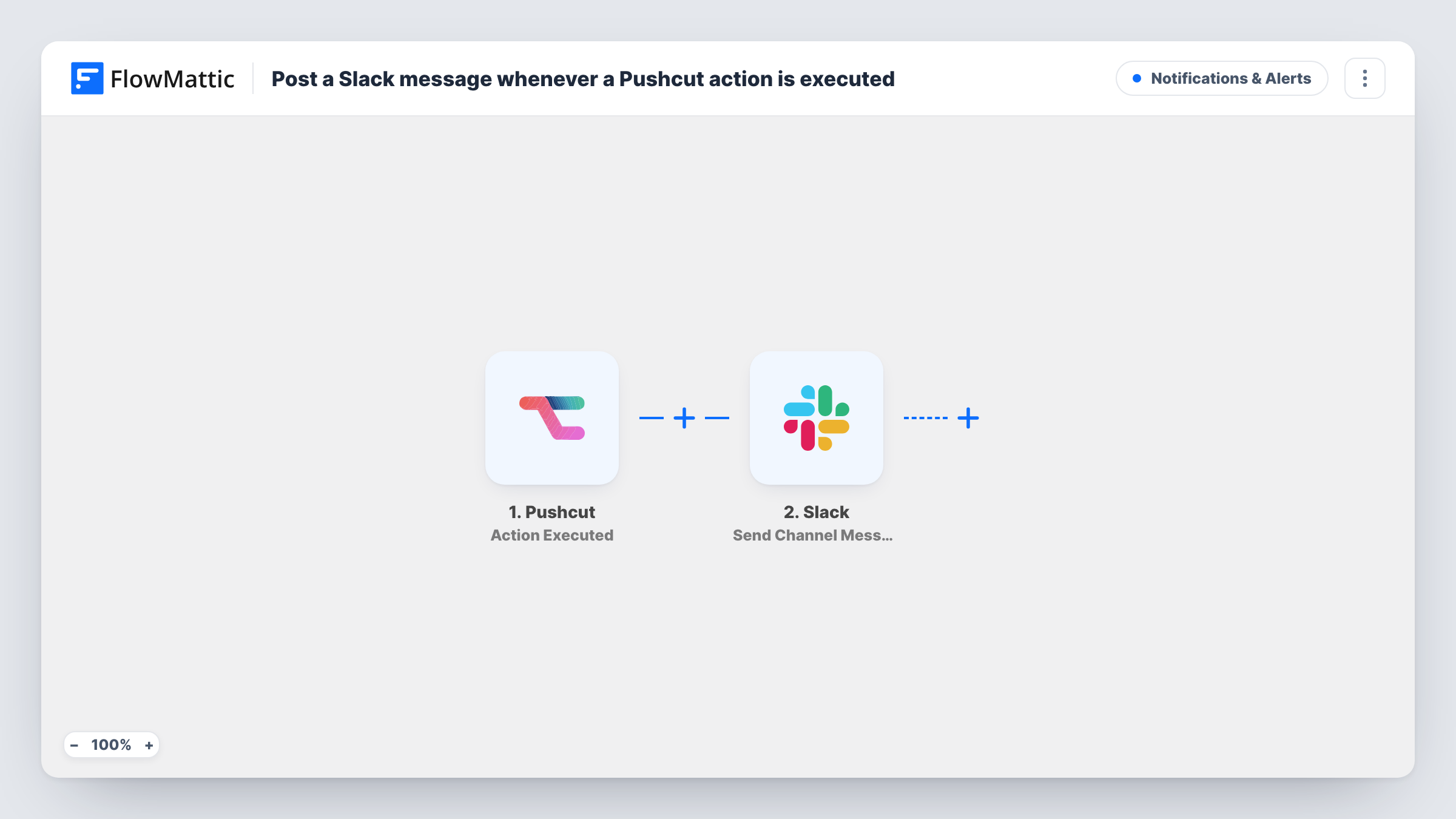
What this workflow does
Pushcut actions are often tapped on a phone, for example from a notification, and nobody else knows they happened. When those taps matter to a team, a Slack post makes them visible. This workflow posts one for every executed action.
The Pushcut trigger, Action Executed, fires when an action is executed. FlowMattic passes the event's data to Slack, where Send Channel Message posts to the #channel you pick. You write the text and map in details from Pushcut, such as which action ran.
The workflow posts for every executed action it receives, so a busy setup can fill a channel quickly. Use a dedicated channel, or add a Filter to keep only the actions you care about. Task History logs every run, which helps you confirm Pushcut events are arriving.
Approving requests from your phone
A manager taps Approve on a Pushcut notification, and the team's Slack channel shows that the request was approved.
Logging home or office automations
Actions that open a door or switch on equipment through Pushcut leave a line in a Slack channel, giving a simple activity record.
Field staff check-ins
Staff tap a Pushcut action when they arrive on site, and the coordinator watches arrivals come in on Slack.
How this workflow runs
What happens at each step once the workflow is on, and what you need before you import it.
 Pushcut Action Executed
Runs each time someone executes a Pushcut action. The event data is captured so you can mention the action in the Slack message.
- Slack Send Channel Message
Posts your message to the Slack #channel you select. Connect your Slack workspace, pick the channel and write the text, mapping in Pushcut details from the trigger.
What you need
- FlowMatticCore
- Pushcut AccountAccount
- Slack AccountAccount
After importing, map your own data. To keep the template universal, not every step is pre-filled. Open each step in the builder and connect your accounts and fields (channels, lists, sheets, recipients) before you switch the workflow on.
Make it yours
Changes worth making after you import it.
- Add a Filter after the trigger that checks which action ran, so only the actions your team needs to see reach Slack.
- Use a Router with one route per action name to post different actions to different channels, such as approvals to one and check-ins to another.
- Execute a test action in Pushcut after import, then look at the captured data before you write the Slack message.
Questions about this workflow
Which Pushcut details can go into the Slack message?
Whatever Pushcut sends with the Action Executed event. Run a test action after import to see the captured data, then map the parts you want.
Does every Pushcut action post to Slack?
Yes, as imported. Add a Filter after the trigger if only some actions should be posted.
Can I reply in Slack to trigger something in Pushcut?
No. This workflow only goes one way, from Pushcut to Slack. Replies in the channel stay in Slack.
More Notifications & Alerts workflows
Other ready-to-import templates from the same category.






Import this workflow into your WordPress site
Download the JSON, import it from the Workflows screen and connect your accounts. Every run stays on your server, with no per-task fees.
30-day money-back guarantee Unlimited workflows and runs Self-hosted