

Notify the team in Telegram when an admin approves an add request
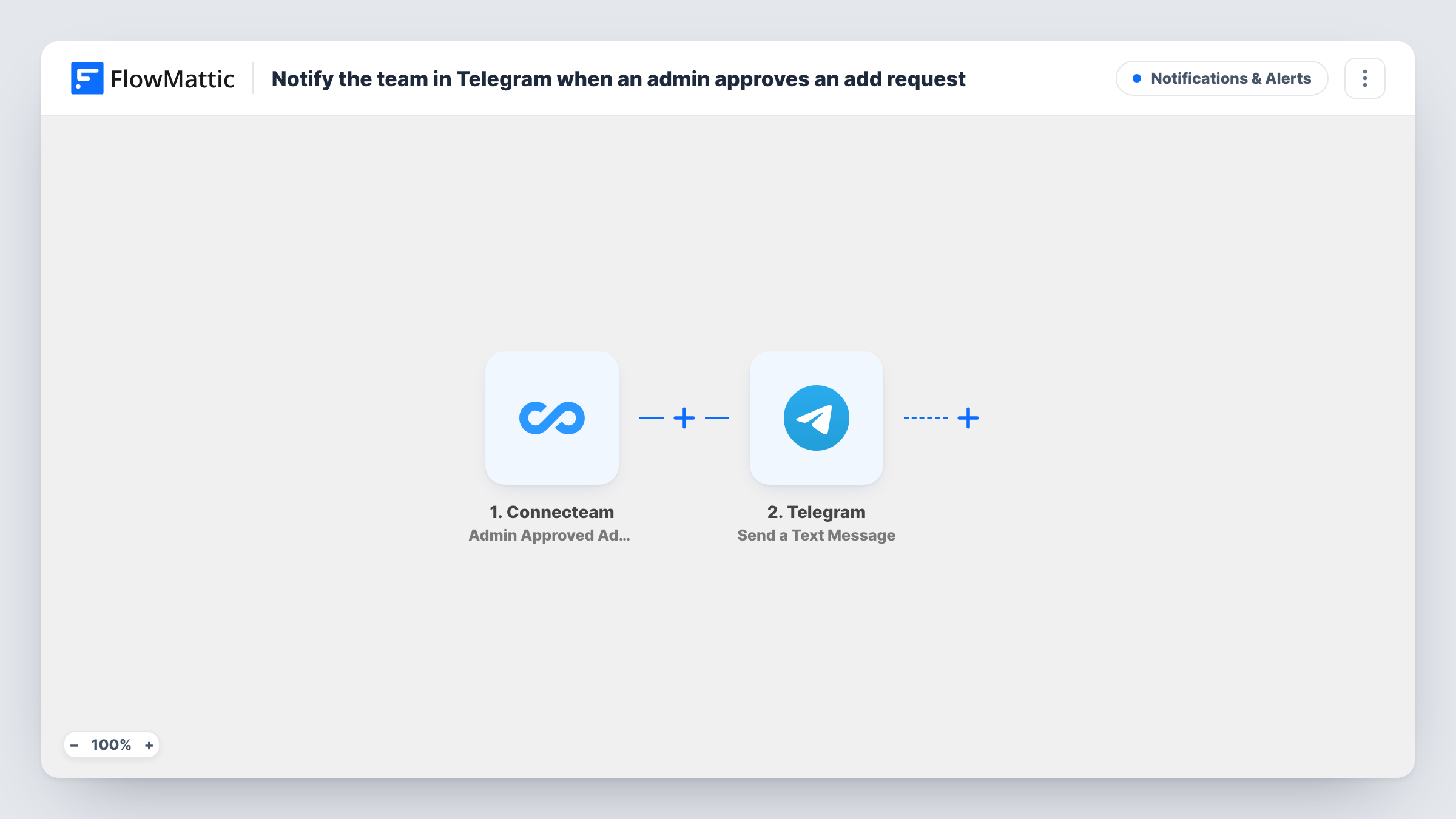
When a Connecteam admin approves a time activity that an employee added themselves, FlowMattic posts a Telegram text message so your team sees the approved entry without opening Connecteam.
 Connecteam
 Telegram
2 steps Setup ~5 min Used on 1.6k sites Free to import
What this workflow does
In Connecteam, employees can add a time activity by hand, for example a shift they forgot to clock. An admin then has to approve it. Payroll staff, shift leads and the employee's manager often want to know when that approval lands, but they are not all watching the Connecteam admin screen.
This workflow starts with the Connecteam trigger Admin Approved Add Request. Connecteam describes it as firing when an admin approves a time activity that a user added. FlowMattic receives the details of that approved entry and hands them to the next step.
The second step uses Telegram to send a text message. You write the message after import and drop in the Connecteam data you want people to read. The action supports markup, so you can bold a name or a date. Every approval produces one message, and Task History keeps a record of each run.
Payroll heads-up for manual time entries
Your payroll officer sits in a Telegram group with the shift leads. Each approved manual entry shows up there, so hours added after the fact are not missed when timesheets are closed.
Site supervisors on the move
Supervisors on construction or cleaning sites read Telegram on their phones. They see which added shifts were approved without logging into the Connecteam admin side.
Audit trail in a private channel
Send each approval to a private Telegram channel that only managers can read, giving them a running feed of every hand-added time activity that was accepted.
How this workflow runs
What happens at each step once the workflow is on, and what you need before you import it.
 Connecteam Admin Approved Add Request
Fires when a Connecteam admin approves a time activity that an employee added. The data about that approved entry is passed on so the Telegram step can use it.
- Telegram Send a Text Message
Sends a text message through Telegram for every approval. Write the message text, map in the Connecteam details you want to show, and use markup if you want parts of it to stand out.
What you need
- FlowMatticCore
- Connecteam AccountAccount
- Telegram AccountAccount
After importing, map your own data. To keep the template universal, not every step is pre-filled. Open each step in the builder and connect your accounts and fields (channels, lists, sheets, recipients) before you switch the workflow on.
Make it yours
Changes worth making after you import it.
- Run a test after import: have a user add a time activity in Connecteam and approve it as an admin. FlowMattic then captures real data you can map into the Telegram message.
- Want edits and deletions covered as well? Connecteam also has Admin Approved Edit Request and Admin Approved Delete Request triggers. Build a copy of this workflow with each one.
- Add a Filter after the trigger if only certain approvals matter, for example entries from one job or one team, once you see which fields the test run returns.
Questions about this workflow
Which Connecteam event starts this workflow?
Admin Approved Add Request. It fires when an admin approves a time activity that a user added. Regular clock-ins and clock-outs do not start it, and neither do activities an admin adds directly.
Does Telegram get a message for automatically approved entries?
No. Connecteam has a separate Auto Approved Add Request trigger for those. Swap it in, or build a second workflow with it, if your time clock approves some entries automatically.
Can the Telegram message include the employee's name and hours?
You can map whatever the Connecteam trigger returns into the message text. Run a test approval first and check the captured data to see exactly which details are available.
Does this change anything in Connecteam?
No. The workflow only reads the approval event and sends a Telegram message. The time activity and its approval stay exactly as the admin left them.
More Notifications & Alerts workflows
Other ready-to-import templates from the same category.





Import this workflow into your WordPress site
Download the JSON, import it from the Workflows screen and connect your accounts. Every run stays on your server, with no per-task fees.
30-day money-back guarantee Unlimited workflows and runs Self-hosted