

Email a summary via Gmail when a Polly survey is updated
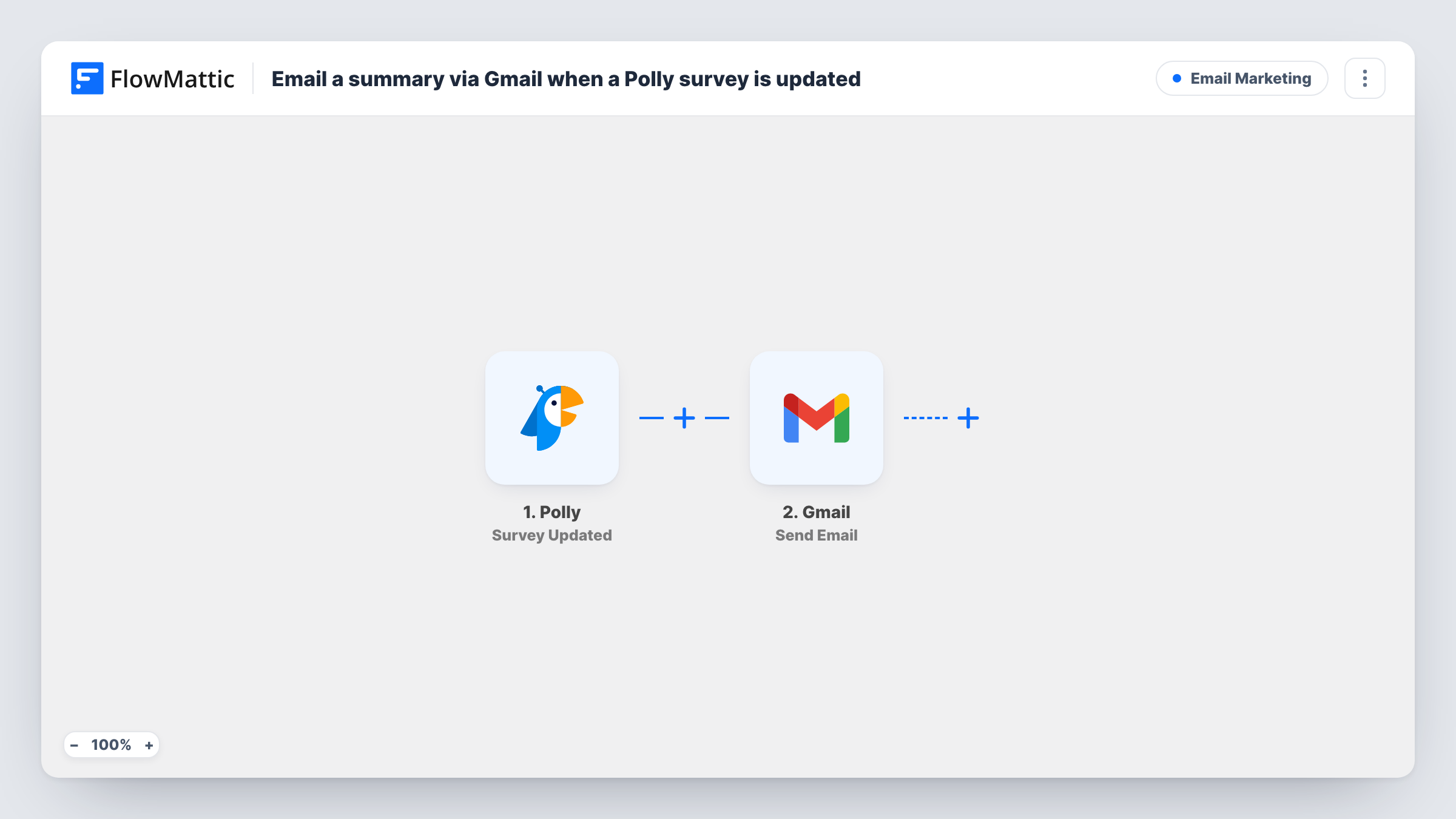
When a Polly survey is updated, this workflow sends an email from your Gmail account with a summary you build from the survey’s data, so the people who care about that survey hear about the change.
 Polly
Polly
 Gmail
Gmail2 steps Setup ~5 min Used on 2.8k sites Free to import
What this workflow does
Polly runs surveys and polls inside your team's chat. When someone edits a survey that other people depend on, those people are not always in the channel to see it. This workflow sends them an email whenever a survey is updated.
The Polly trigger fires when a survey is updated. FlowMattic passes the survey data it receives to Gmail, whose Send Email action sends a message to the recipient you set. You write the subject and body yourself and place Polly values in them, which is how the summary is built. Nothing is analysed or condensed automatically.
This trigger is about the survey itself. Polly also has separate FlowMattic triggers for responses, such as Response Created, and this template does not use them. If you want an email for each answer people give, start from one of those instead. Run a test update and check Task History to see which survey values Polly sends.
Keeping a manager in the loop
A team lead who rarely checks the chat tool gets a Gmail message whenever the weekly pulse survey is edited, with the survey details in the body.
An audit trail for HR surveys
HR keeps a mailbox that receives an email for every update to its engagement survey, so there is a dated record of each change to look back on.
Alerting a survey owner
When a colleague updates a shared Polly survey, its original owner receives an email describing the update so they can review it.
How this workflow runs
What happens at each step once the workflow is on, and what you need before you import it.
 Polly Survey Updated
Fires when a survey is updated in Polly. The survey data Polly sends is passed on for the Gmail step to use in the email.
- Gmail Send Email
Sends an email through your Gmail account to the recipient you set. Write the subject and summary text, placing Polly survey values where you want them.
What you need
- FlowMatticCore
- Polly AccountAccount
- Gmail AccountAccount
After importing, map your own data. To keep the template universal, not every step is pre-filled. Open each step in the builder and connect your accounts and fields (channels, lists, sheets, recipients) before you switch the workflow on.
Make it yours
Changes worth making after you import it.
- To get an email for each new answer instead of each survey change, swap the trigger for Polly's Response Created event and remap the email.
- Add a Filter after the trigger if only one Polly survey should send email, using a survey value from the trigger data in its condition.
- Update a test survey after import and look at the run in Task History, so you know which Polly values you can place in the summary.
Questions about this workflow
Does a new Polly response send this email?
This template listens for the Survey Updated event, not for responses. Polly's response events, such as Response Created, are separate triggers in FlowMattic. Submit a test response to confirm how your survey behaves.
Who writes the summary in the Gmail email?
You do, once, in the Send Email step. Polly values are filled in on each run. The workflow does not analyse or shorten anything for you.
Can the Polly update email go to several people?
Open the Send Email step after import to see how it takes recipients. A shared mailbox or a Google Group address is a simple way to reach a team.
Which Gmail account sends the Polly summary?
The Google account you sign in with when you set up the Gmail step. Replies to the email come back to that inbox.
More Email Marketing workflows
Other ready-to-import templates from the same category.







Import this workflow into your WordPress site
Download the JSON, import it from the Workflows screen and connect your accounts. Every run stays on your server, with no per-task fees.
30-day money-back guarantee Unlimited workflows and runs Self-hosted