

When a quote is declined, send a follow-up email via SMTP
When a customer declines a quote in Quotient, this workflow sends a follow-up email through your WordPress mail or SMTP setup, with the quote details you choose.
 Quotient
 Email
Email2 steps Setup ~5 min Used on 2.6k sites Free to import
What this workflow does
A declined quote is a moment to ask what went wrong, offer an alternative, or simply thank the customer. Doing that by hand means noticing the decline in Quotient and writing an email while you remember. This workflow sends the follow-up for you each time it happens.
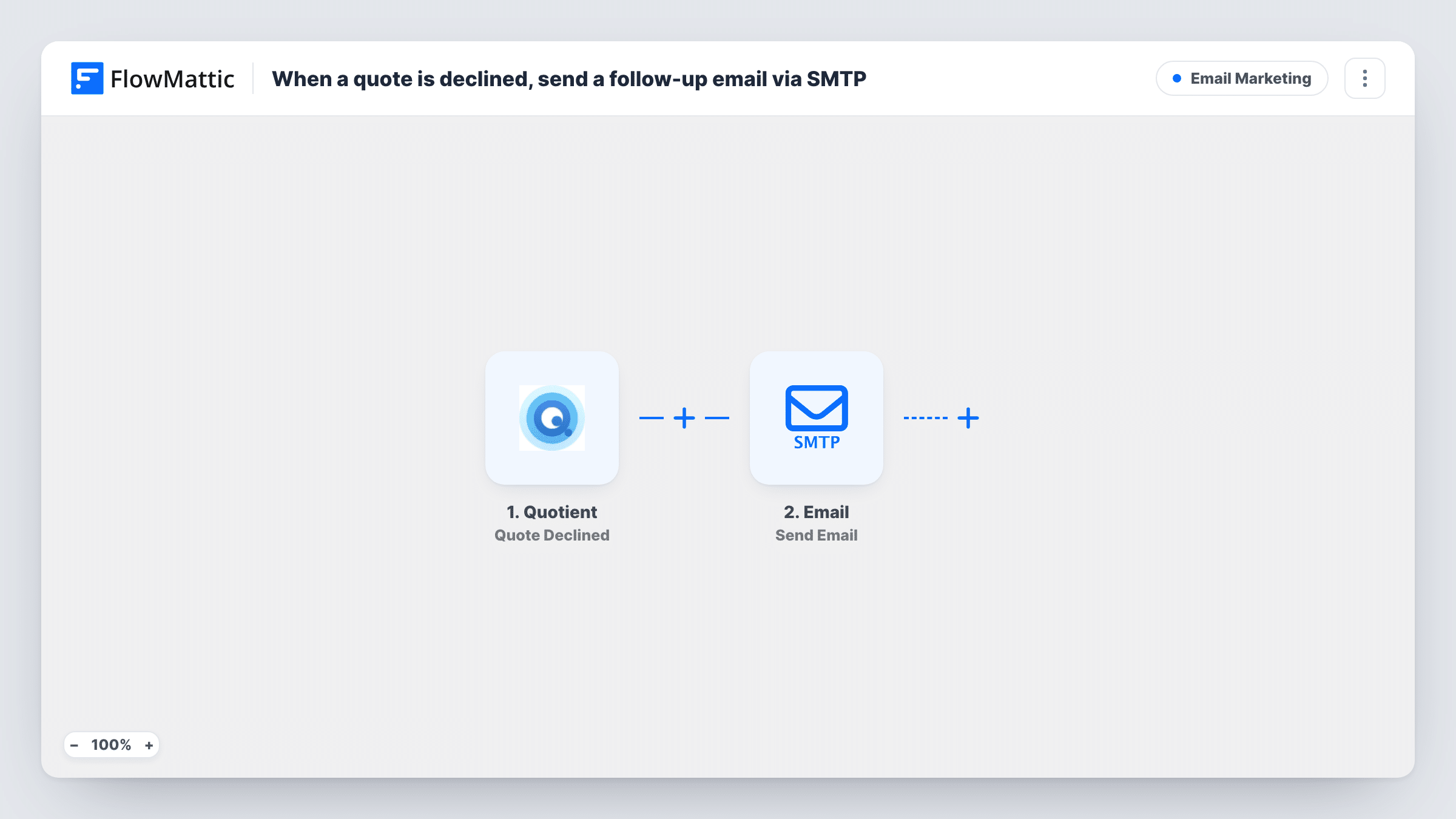
The Quotient trigger is Quote Declined, which fires when a quote is declined. The quote data arrives with the event and is ready to map. The Email step then runs Send Email, which sends through your site's built-in WordPress mail function or a custom SMTP server, depending on how you set it up.
You write the subject and message after import and map in details from the quote. Use a test decline to see which values Quotient provides, such as the customer's email, before you set the recipient. Every declined quote sends one email, so keep the message suitable for all of them.
Asking why a quote was turned down
A tradesperson's customer declines a job quote. The email thanks them and asks one short question about the reason, with the quote mapped into the subject.
Offering a smaller package
An agency sends a follow-up that points declined customers to a lighter service option they may not have considered.
Internal heads-up to the sales lead
Send the email to your own sales address instead of the customer, so the person who owns the account hears about each decline.
How this workflow runs
What happens at each step once the workflow is on, and what you need before you import it.
 Quotient Quote Declined
Starts a run when a customer declines a quote in your Quotient account. The quote data from that event is available to map into the email.
 Email Send Email
Sends an email using WordPress mail or the SMTP server you configure. Set the recipient from the Quotient data, then write the subject and body with quote details mapped in.
What you need
- FlowMatticCore
- Quotient AccountAccount
After importing, map your own data. To keep the template universal, not every step is pre-filled. Open each step in the builder and connect your accounts and fields (channels, lists, sheets, recipients) before you switch the workflow on.
Make it yours
Changes worth making after you import it.
- Add a Delay before the email so it goes out a day or two after the decline rather than in the same minute.
- Add a Filter if only some declines should get an email, for example quotes above a certain amount. Remember that blank values count as 0 in number comparisons.
- Add a second Email step that sends a copy to your sales inbox, so the team sees every decline and the follow-up that went out.
Questions about this workflow
Do I need an SMTP service to send the Quotient follow-up?
No. The Email step can use your site's built-in WordPress mail function. You can also enter a custom SMTP server if you prefer it for delivery.
Who receives the email?
Whoever you set as the recipient in the Email step. Map the customer's email from the Quotient data, after a test run shows which value holds it.
Does this workflow change the quote in Quotient?
No. It only listens for declined quotes. The quote's status and contents in Quotient stay as they are.
Are quotes declined before import followed up?
No. Only quotes declined after you turn the workflow on start a run.
More Email Marketing workflows
Other ready-to-import templates from the same category.







Import this workflow into your WordPress site
Download the JSON, import it from the Workflows screen and connect your accounts. Every run stays on your server, with no per-task fees.
30-day money-back guarantee Unlimited workflows and runs Self-hosted